On map:
1. Place cursor over the waypoint on map
2. Press [ENTER] to open menu
3. Select “Move”
4. Press [ENTER]
5. Move cursor over map
6. Press [ENTER] to save new position
You can also change waypoint position by inputting new lat/lon position manually. In this case
select “Edit Position” in waypoint’s menu on map (the same way as described above).
NOTE If waypoint is a current active destination, its position cannot be changed.
7.3.2 Changing the order of waypoints in a route
Sometimes you might want to change the order of waypoints in a route to change the route
navigation order. You can easily do that by cut/paste operation in the list of waypoints.
1. Select the waypoint in the list of waypoints and press [ENTER]
2. Select “Cut WP”
3. Press [ENTER]
4. Select another waypoint in the list and press [ENTER]
5. Select “Paste before WP” or “Paste after WP”
6. Press [ENTER]
7.4 Tracks
By recording tracks you can store history about your boat moving over the map, so you can
track where your boat has been.
To start track recording:
1. Press [MENU]
2. Select “Tracks”
3. Press “Start new”
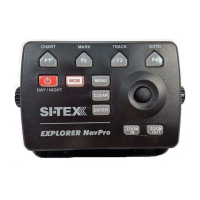
You can also use functional keys to start/stop track recording.


 To Next Page