●Automatic route following (see Par. 6.2)
●Route following optimization (see Par. 6.2)
●Arrival circle radius (see Par. 6.2)
●Screen amplier (see Par. 5.2).
14.4 Keyboard Settings
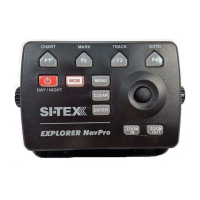
On the keyboard page you can change settings for keyboard, such as beep sound on key
press, cursor speed and keyboard backlight.
Beeper
By default the beep sound that accompanies every key press is turned on. To turn it o:
1. Open General Settings page
2. Select “Keyboard”
3. Press [ENTER]
4. Select “Beeper”
5. Press [ENTER].
Cursor speed
The speed of cursor movement can be changed: the scale is from 1 to 10. By default cursor
speed is 5. Try dierent cursor speed to set up the most comfortable cursor speed.
1. Open General Settings page
2. Select “Keyboard”
3. Press [ENTER]
4. Select “Cursor speed”
5. Press [ENTER]
6. Move joystick to select the desired speed value
7. Press [ENTER].
Keyboard backlight
Keyboard backlight can be set to Auto, Custom or turned o.
●Auto: keyboard backlight becomes bright at night (from sunset to sunrise). After sunrise
it gradually decreases until noon. In the afternoon it gradually increases.
●Custom: you can setup the desired xed brightness.
1. Open General Settings page
2. Select “Keyboard”
3. Press [ENTER]
4. Move cursor down till the Keyboard backlight section
5. Select “O”, “Auto” or “Custom”
6. Press [ENTER]


 To Next Page