5. Using C-Map Data (4D / Max)
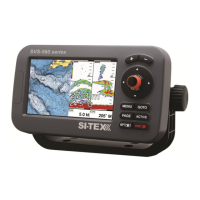
The chart plotter has a built-in background world map, but to use the chart plotter as a
navigation aid, C-Map detailed chart is required. The chart plotter is compatible with both
C-Map MAX and C-Map 4D map format on micro SD Card. The C-Map chart can be
purchased from C-Map authorized resellers. To use C-Map detailed chart (4D or MAX), insert
the micro SD card with data to the micro SDslot of your chart plotter. The slot is located at the
bottom of the device.
NOTE After inserting the C-Map chart, the chart plotter could ask to restart the device.
5.1 Moving around the Chart and Changing Chart Scale
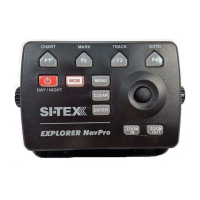
Use the joystick keys to pan the chart. Also use [ZOOM IN] and [ZOOM OUT] to change the
chart scale so that a smaller or larger area is shown on the chart.
5.2 Finding Your Boat Position
The most common use of the chart plotter is to show your boat's current location.
You can home the cursor to the boat using [CLEAR]. This would center the map view on the
boat position and update the display as the boat moves.
The “Screen amplier” function helps to keep the majority of the area in front of the vessel's
position, so if you turn on this function, the chart plotter will take into account your course to
locate the boat at the most comfortable position in the map relatively to the actual course.
To turn Screen amplier on/o:
1. Press [MENU]
2. Select “General Settings”
3. Select “Navigation”
4. Place cursor on “Screen amplier” and press [ENTER]
Use the joystick to move the cursor away from the boat's current position and exit the Home Mode.
5.3 Map full info and quick info
The detailed chart has a database of information about map objects, which may be helpful
for navigation. To read map full info, press [ENTER] over the desired point on map and select
“Full info” in contextual menu.


 To Next Page