Sinterit LISA X User Manual | 21
6. Preparing to print
6.1 GENERAL INFORMATION
ATTENTION!
While preparing the printer for use, it is necessary to read and acknowledge any messages
on the screen. Disregarding or skipping any crucial steps of the process can negatively
impact the quality of printouts or damage the printer.
IMPORTANT!
While preparing the printer for use, make sure that the overow container has been
emptied.
ATTENTION!
• Before starting any work with powder, always wear adequate protective clothing,
eyewear, face mask, and gloves.
• A suitable set is included in the Dedicated Powder Tools for Lisa X.
6.2 CHOOSING THE FILE
IMPORTANT!
In order to print, you will need a le prepared in Sinterit Studio, which you can download from our
website www.sinterit.com/software.
3. Select PRINTING from the main menu and press ADD NEW PRINT JOB.
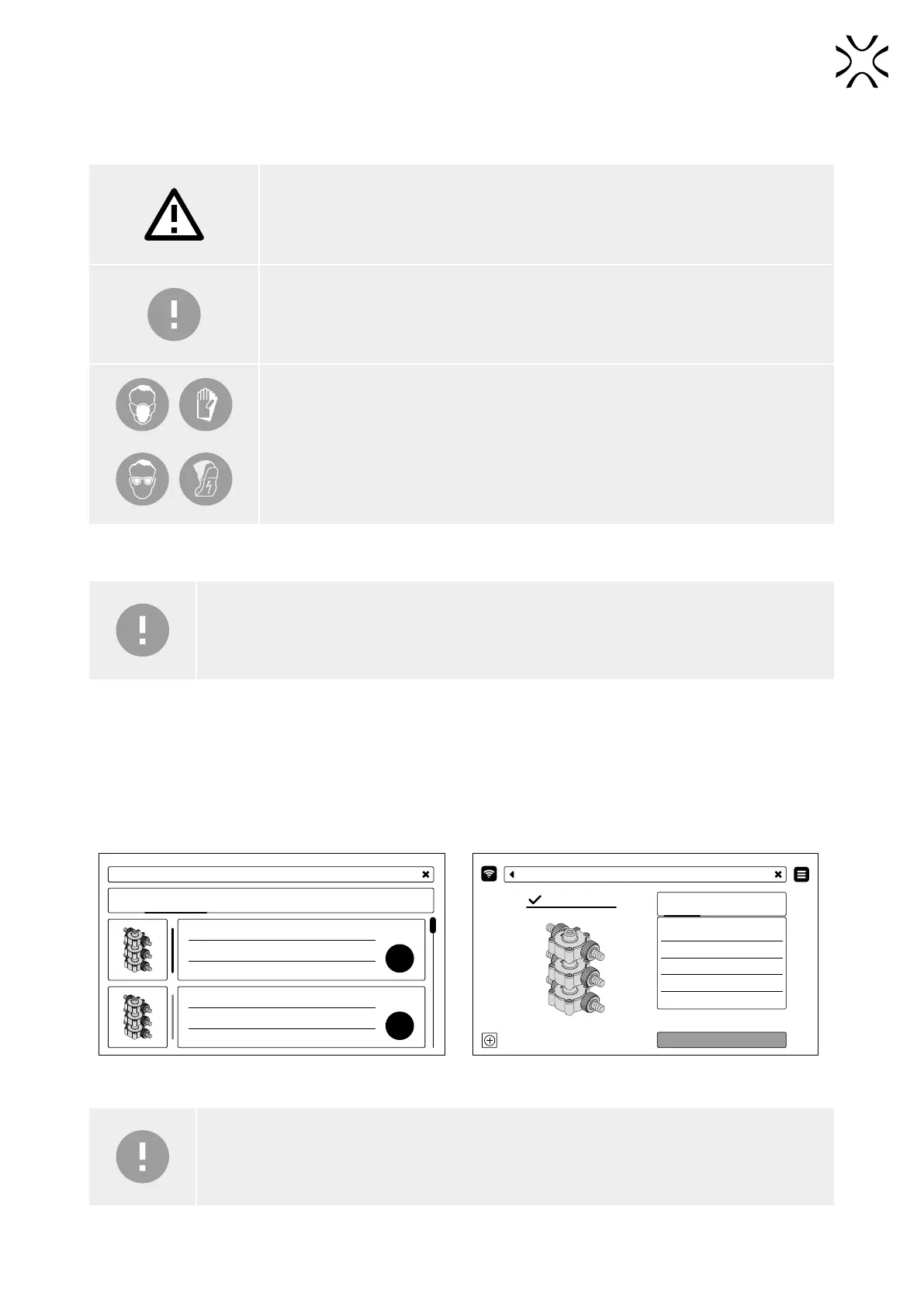
4. Choose the new le (USB) or recently used le (RECENT) (g. 6.1).
5. The following screen displays some basic information about the processed le (PRINT JOB) as well as the current
status of the printer (PRINTER STATUS). Press next to the component timer for more information. If at this point you
want to choose another le to print, press CHANGE PRINT JOB.
6. Press DONE (g. 6.2).
TITLE
USB RECENT
PRINT JOB NAME PUMP2
PRINTING TIME 14:45:45
MATERIAL NAME TEXT
POWEDER
NEEDED
0.001
PRINT JOB NAME TEXT
PRINTING TIME TEXT
MATERIAL NAME TEXT
POWEDER
NEEDED
0.001
DONE
PRINTING - OPEN THE LID
MODEL NAME PUMP_02
PRINT JOB PRINTER STATUS
MATERIAL PA12
INTROGEN NO
PRINTING TIME 23:34:23
LAYER 3455
CHANGE PRINT JOB
Fig. 6.1 Loading the le. Fig. 6.2. PRINT JOB and PRINTER STATUS screen.
IMPORTANT!
If any part of the printer requires maintenance or replacement, a corresponding message will
appear on the screen.


 To Next Page