Sinterit LISA X User Manual | 19
5.3 CONNECTING THE PRINTER TO THE WI-FI NETWORK
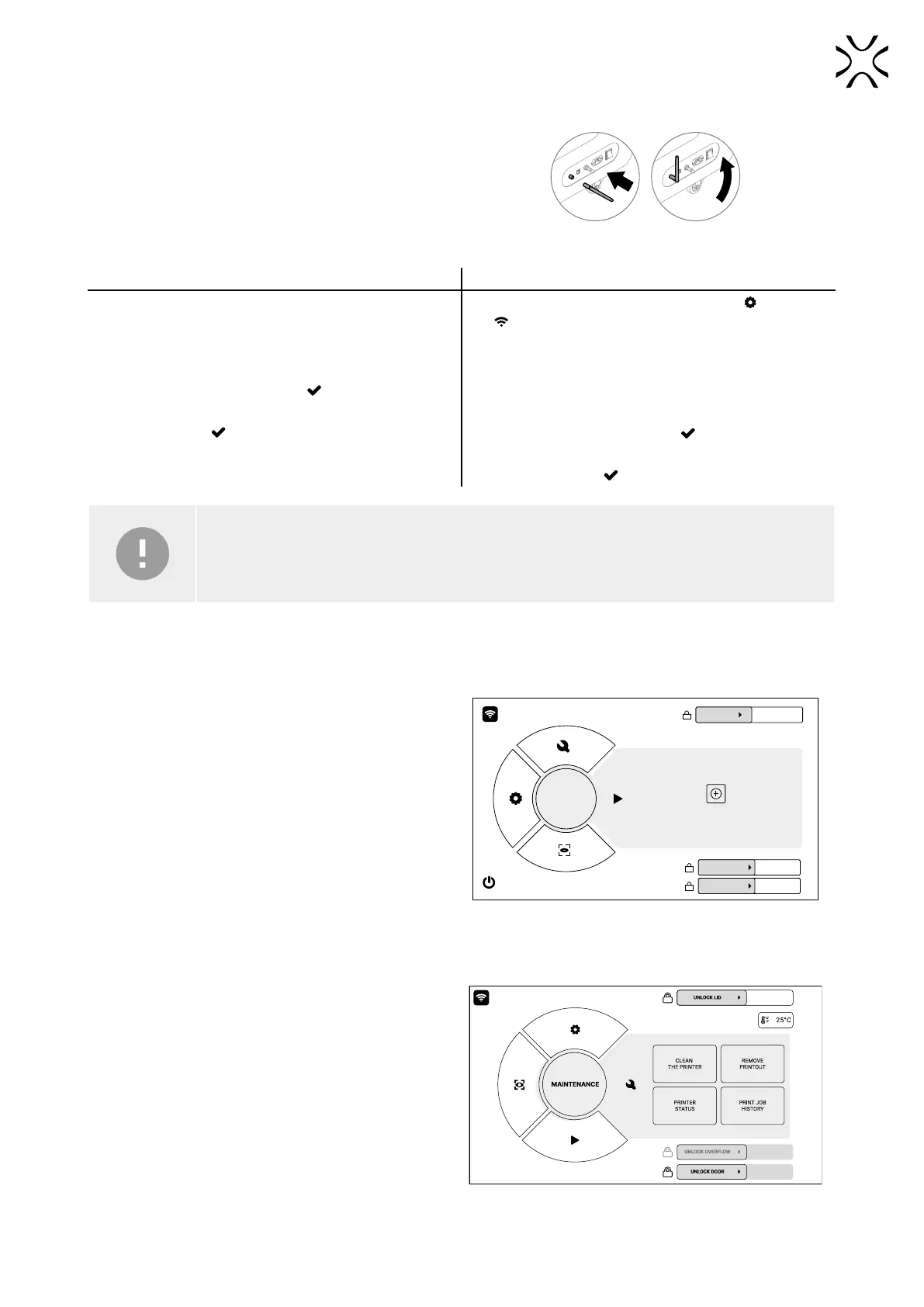
1. Remove the antenna from the Start up box.
2. Insert antenna connector and rotate clockwise to lock it
in place. Then rotate the antenna on the hinge so that
it is facing up. Press DONE.
Fig. 5.6 Connecting the antenna to the printer.
FIRST USE REGULAR USE
2. Press the CONNECT button to select a network.
3. Choose the name of the network, to which you want
to connect.
4. Press CONNECT by the chosen network name.
5. Input the password and press
.
6. The connection has succeeded, the network will be
marked with a .
3. From the main menu choose SETTINGS
, or press
top left corner.
4. Choose WI-FI on the printer screen.
5. Choose the name of the network, to which you want
to connect.
6. Press CONNECT by the chosen network name.
7. Input the password and press
.
8. Once the connection has succeeded, the network will
be marked with a .
IMPORTANT!
In case you want to change the connected network, press FORGET and repeat the steps above.
5.4 MAIN MENU
The main menu consists of four positions: PRINTING, MAINTENANCE, SETTINGS and CAMERA VIEW.
PRINTING – starts a new printing process
• ADD NEW PRINT JOB – with this you can start a new
print job and start printing process.
PRINTING
UNLOCK LID
ADD NEW PRITJOB
UNLOCK OVERFLOW
OPEN TH DOOR
Fig. 5.7 The START NEW PRINT screen.
MAINTENANCE – here you can check component service
life and perform Lisa X maintenance
• CLEAN THE PRINTER – choose this option if you want
to clean the printer, e.g. if this step had been skipped
after the printout was removed,
• REMOVE PRINTOUT – choose this option to remove a
printout still in the printer,
• PRINTER STATUS – choose this option to check the
status of printer components (e.g., how much time is
left to change the Recoater short cord),
• PRINT JOB HISTORY – choose this option lets you view
the history of completed print jobs,
• CONTROL PANEL – this option lets you change the
potion of the overow, Print and Feed Beds and to
initiate homing.
Fig. 5.8 The MAINTENANCE screen.


 To Next Page