CHAPTER 4
USING YOUR DOCUMENT CAMERA IN CAMERA MODE
38 smarttech.com/kb/171225
Presentation setting
options
Description
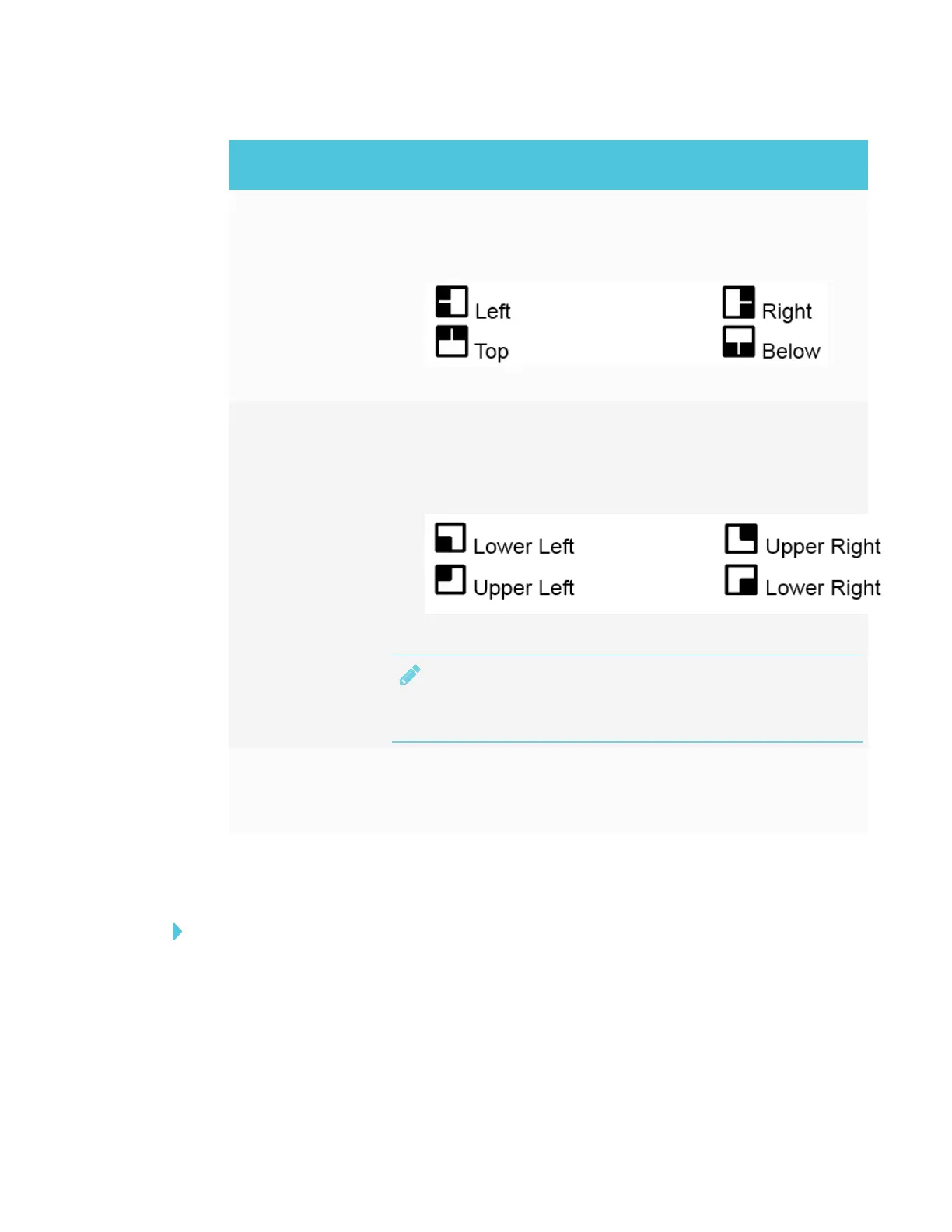
Split Screen Select to divide the screen into two parts. Half of the screen displays
eight thumbnail images and the other half displays the image from
your document camera.
o
Select the display location: left, right, top, or bottom.
o
Select OFF to cancel Split Screen.
Picture in Picture
(PIP)
Select to show captured pictures or videos as thumbnails in the
corner of the screen in Camera mode. PIPdisplays an image from
stored memory within the live camera image.
o
Select the thumbnail playback screen location: lower left, upper
left, upper right, lower right.
o
Select OFF to cancel PIP.
NOTE
The PIP feature is for display only. You can’t capture an image
while in PIP mode.
Timer Select to control presentation time management.
o
Start/Pause/Stop the timer.
o
Set the timer duration.
Accessing the Setting menu
To access the Setting menu
1. Set your document camera to Camera mode.
2. Press the MENU button on the control panel or remote control.
The OSD menu appears.



 To Next Page