EasyManua.ls Logo

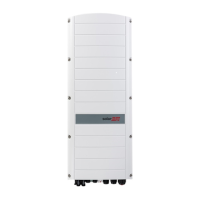
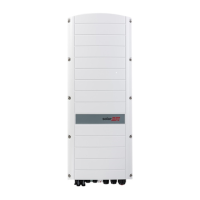
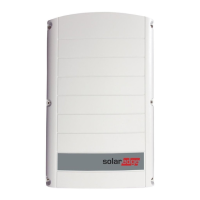
SolarEdge storedge - User Manual

SolarEdge storedge
120 pages
Print Icon
To Next Page IconTo Next Page
Loading...
SolarEdge
StorEdge
Installation Guide
For North America
Version 1.2

Table of Contents

Questions and Answers

  • J
    Jasmin SmithAug 14, 2025
    What to do if my SolarEdge Inverter has no Internet connection?
    • C
      charlene25Aug 14, 2025
      If your SolarEdge Inverter lacks an internet connection, first connect a laptop to check for internet access. If unavailable, contact your IT administrator or internet provider. For Wi-Fi networks, ensure the username and password match those defined in your internet provider's access point or router.
  • M
    Meagan SanchezAug 17, 2025
    What to do if SolarEdge storedge Inverter has LAN cable disconnected?
    • A
      Alex WelchAug 17, 2025
      If your SolarEdge Inverter displays a LAN cable disconnected error, check the cable pin-out assignment and cable connection for any physical faults.
  • M
    Margaret HowardAug 21, 2025
    What to do if SolarEdge storedge gateway is not responding?
    • E
      Eric AndersonAug 21, 2025
      If the SolarEdge Inverter gateway isn't responding, start by checking the physical connection to the switch or router. Ensure the link LED at the router or switch is lit, indicating a physical link. If the physical link is OK, contact your network IT. Otherwise, replace the cable or change it from a cross to a straight connection.
  • M
    Maureen PowellAug 25, 2025
    Why is the string voltage 0V on my SolarEdge storedge Inverter?
    • R
      Richard LeeAug 25, 2025
      If the string voltage on your SolarEdge Inverter is 0V, it could be because the power optimizer output(s) are disconnected. Ensure that all power optimizer outputs are properly connected.
  • W
    wilcoxrebeccaAug 27, 2025
    How to troubleshoot SolarEdge Inverter when string voltage is not 0V but lower than number of optimizers?
    • D
      Dr. William WilliamsAug 27, 2025
      If the string voltage on your SolarEdge Inverter is not 0V but lower than the number of optimizers, consider these potential causes and solutions: * Power optimizer(s) not connected in the string: Connect all power optimizers. * Panel(s) not connected properly to power optimizer inputs: Connect the models to the optimizer inputs. * String reverse polarity: Check string polarity using a voltmeter and correct if needed.
  • T
    Tara SmithAug 30, 2025
    What to do if SolarEdge storedge Inverter operation conditions verification failed?
    • M
      Maria HowardAug 30, 2025
      If the SolarEdge Inverter's operation conditions verification fails, verify that the battery is connected to the inverter as required, that the battery voltage is within the correct range, and that the battery is enabled (both power and communication).
  • R
    Rodney BeckSep 3, 2025
    What to do if my SolarEdge storedge shows high DC voltage fault?
    • W
      William BrewerSep 3, 2025
      If your SolarEdge Inverter reports a high DC voltage fault, verify that the connection between the DCDC PCB and the inverter PCB is connected as required and check for short in string - inverter power connection.
  • A
    ashlee54Sep 6, 2025
    What to do if my SolarEdge storedge Inverter has no DHCP?
    • P
      ploweSep 6, 2025
      If your SolarEdge Inverter is not getting a DHCP address, check the router and inverter configuration. It may be necessary to consult your network IT professional.

Summary

Disclaimers

Important Notice

Key information and copyright notices regarding the document content and its usage.

FCC Compliance

Details on the equipment's compliance with FCC rules for digital devices and interference.

Handling and Safety Instructions

Safety Information

Explanation of safety symbols used in the document and their meanings.

Important Inverter Safety Instructions

Key Inverter Safety Warnings

Critical warnings covering electrical shock, fire hazards, proper handling, and system requirements.

Chapter 1: Overview

StorEdge Solution Components

Description of the main components of the StorEdge system and their functions.

About this Guide

Information on the document's scope and target audience for system installation.

Installation Workflow

Step-by-step process overview for installing the StorEdge system components.

Installation Equipment List

List of tools and equipment recommended for installing the SolarEdge system.

Inverter Transport and Storage

Guidelines for safely transporting and storing the inverter unit.

Chapter 2: Installing Power Optimizers

Safety for Power Optimizer Installation

Crucial safety notes and warnings specifically for installing power optimizers.

Power Optimizer Package Contents

List of items included in the power optimizer package.

Power Optimizer Installation Guidelines

Recommendations and best practices for mounting and connecting power optimizers.

Mounting and Grounding Power Optimizers

Detailed steps for physically mounting and properly grounding power optimizers.

Connecting PV Module to Optimizer

Procedure for connecting individual PV modules to their respective power optimizers.

Connecting Optimizers in Strings

Instructions on how to connect multiple power optimizers in series to form strings.

Verifying Power Optimizer Connection

Steps to confirm that power optimizers are correctly connected and functioning.

Chapter 3: Installing the Inverter

Inverter Package Contents

List of components included with the SolarEdge inverter.

Identifying the Inverter

How to locate and identify the inverter using its serial number and rating label.

Inverter Interfaces and Components

Overview of the inverter's connectors, LEDs, and LCD panel.

StorEdge Connection Unit Details

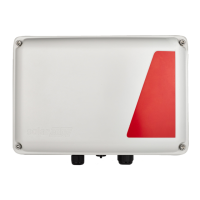
Description of the DC safety switch and conduit entry openings on the SCU.

Internal AC Breaker and Bypass Switch

Explanation of the AC breaker and bypass switch functions within the SCU.

Mounting the Inverter

Step-by-step guide for securely mounting the inverter unit onto a support structure.

Chapter 4: Auto-transformer and Backup Loads Panel Installation

Mounting the Auto-transformer

Procedure for determining the location and mounting the auto-transformer.

Installing the Backed-up Loads Panel

Instructions for installing a secondary AC panel for managing backup loads.

Chapter 4: Meter Installation

RS485 Wiring Specifications

Details on cable type and wire cross-section for RS485 communication with the meter.

Chapter 5: StorEdge Inverter Connections

Installing the 9 V Battery and Fuses

Procedure for installing the 9V battery and 25A fuses in the StorEdge Connection Unit.

Connecting PV Strings to the Inverter

Steps for connecting the DC wires from PV strings to the inverter's DC terminals.

Connecting the Battery to the Inverter

Guidelines for connecting the battery to the inverter, including recommended procedure and distance.

DIP Switch Setup

Instructions for configuring DIP switches on meters and inverters for RS485 termination.

Connecting Communication to the Meter

How to connect a meter to the StorEdge Connection Unit using RS485.

Connecting to the Auto-transformer

Wiring instructions for connecting the auto-transformer to the inverter and SCU.

Connecting to the Grid and Backed-up Loads

Procedure for connecting the inverter to the AC grid and the backup loads panel.

Chapter 6: Commissioning the Installation

Removing the Inverter Cover

Steps for safely removing the inverter cover for access to internal components.

Activating the System

Procedure for powering up and activating the inverter using the activation card.

Pairing Power Optimizers to the Inverter

Steps to logically pair power optimizers with the inverter for system operation.

Verifying Proper Activation

How to confirm the inverter and optimizers are correctly activated and communicating.

Reporting and Monitoring Installation Data

Steps for setting up communication to the SolarEdge monitoring platform.

Chapter 7: User Interface

LCD User Buttons

Explanation of the four buttons used to navigate the inverter's LCD menu.

Inverter Configuration - Setup Mode

Guide to entering setup mode and performing initial inverter configuration.

Configuring Inverter Using LCD User Buttons

Detailed steps for configuring the inverter settings using the internal LCD buttons.

Configuring Inverter Using LCD Light Button

Alternative method for configuration using the inverter's external LCD light button.

Configuration Menu Options

Overview of menu options for Country, Language, Communication, and Power Control.

Status Screens - Operational Mode

Description of various status screens displayed on the inverter's LCD.

Chapter 8: Setting Up Communication

Communication Options Overview

Description of available communication methods: Ethernet, RS485, ZigBee, GSM, CDMA.

Communication Connectors

Details on the communication glands and internal connectors for various options.

Creating an Ethernet (LAN) Connection

Instructions for setting up an Ethernet connection for LAN communication.

Creating an RS485 Bus Connection

Steps for establishing an RS485 bus connection for multiple devices.

Verifying the Connection

Procedure to confirm successful communication setup with the monitoring server.

Chapter 9: System Configuration

Configuring RS485 Bus for Battery and Meter

Setup steps for RS485 communication between inverter, battery, and meter.

Configuring StorEdge Application

Guide to configuring the system for different StorEdge applications.

Backup Power Applications

Details on configuring the system for backup power functionality.

System Basic Configuration

Enabling and accessing system configuration functionalities like Backup and Energy Ctrl.

Setting Backup-Only Mode

Procedure to configure the system for backup power supply only during outages.

Setting MSC + Backup Power

Configuring for maximizing self-consumption and reserving battery for backup.

Setting Charge;Discharge Profile + Backup Power

Configuring time-of-use profiles and AC charging with backup reserve.

Verifying StorEdge Components Functionality

Steps to verify that all system components are functioning correctly after setup.

Appendix A: Troubleshooting

Communication Troubleshooting

Diagnosing and resolving communication issues between system components.

Troubleshooting Ethernet Communication

Steps to diagnose Ethernet connection problems using the Server Status window.

Meter Troubleshooting

Common issues and solutions for meter connectivity and data display.

Battery Troubleshooting

Guidance for resolving battery communication and status errors.

Power Optimizer Troubleshooting

Common problems and solutions related to power optimizer pairing and voltage.

StorEdge Connection Unit LEDs

Interpreting the status indicators (LEDs) on the StorEdge Connection Unit.

Additional StorEdge Troubleshooting

Troubleshooting scenarios for backup power and inverter operation.

Appendix B: Opening Conduit Knockouts

To Open Conduit Knockouts

Procedure for opening conduit knockouts on the StorEdge Connection Unit.

Appendix C: Replacing and Adding System Components

Replacing an Inverter

Step-by-step guide for safely removing and replacing the inverter unit.

9 V Battery Replacement

Instructions for replacing the 9V battery in the StorEdge Connection Unit.

Fuse Replacement

Procedure for safely replacing fuses in the StorEdge Connection Unit.

StorEdge Connection Unit Replacement

Detailed steps for removing and installing a new StorEdge Connection Unit.

Appendix D: Inverter Arc Detection and Interruption

To Enable;Disable Arc Detection

How to enable or disable the inverter's arc fault detection feature.

Manually Test Arc Detection Functionality

Procedure for manually testing the inverter's arc detection system.

Troubleshoot Arc-Fault Failures

Steps to diagnose and resolve issues related to detected arc faults.

Appendix E: Additional Battery Connections

Connection with One Battery

Wiring diagrams for connecting a single LG Chem or Tesla battery.

LG Chem RESU10 H Connection

Specific wiring and DIP switch setup for LG Chem RESU10H battery.

Tesla Powerwall1 Connections

Wiring diagrams for connecting Tesla Powerwall1 batteries (Type B and E).

Connections with Two Batteries

Wiring diagrams for connecting two Tesla Powerwall1 batteries.

DIP-Switch Setup - Two Powerwall1 Batteries

Batteries DIP Switch Configuration

DIP switch settings for Tesla Powerwall1 batteries (Type B, C, E) for communication and addressing.

Meter and Inverter DIP Switch Configuration

DIP switch settings for SolarEdge meter and inverter communication board termination.

SolarEdge storedge Specifications

General IconGeneral
TypeHybrid Inverter
TopologyTransformerless
Battery CompatibilityLG Chem, Tesla Powerwall
Communication InterfacesRS485, Ethernet
Frequency50 Hz / 60 Hz
Operating Temperature-25°C to 60°C
CoolingConvection cooling

Related product manuals