Chapter 4: Setup and Operation 37
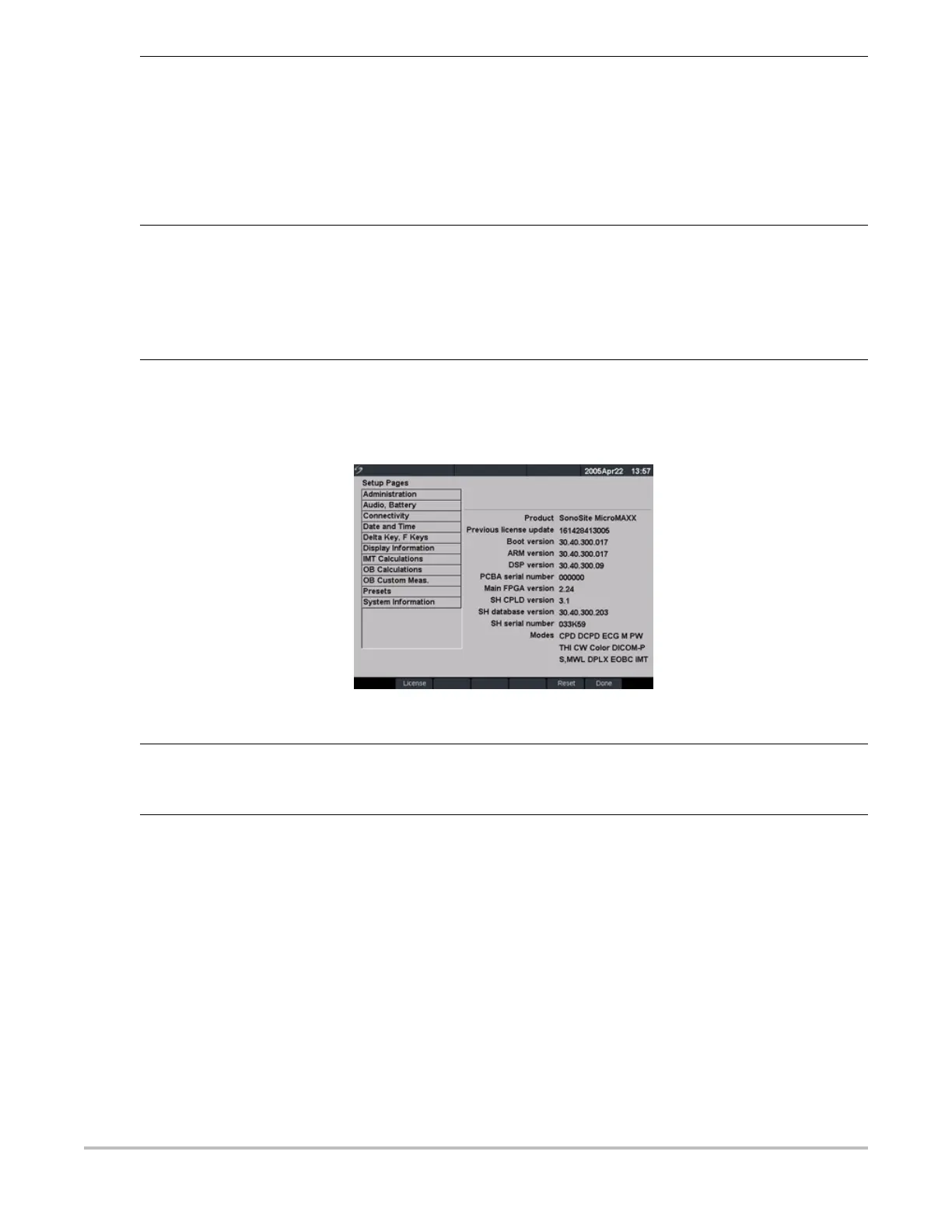
System Information
Figure 19 Setup Screen: System Information
Save Key 1 Press the Setup key.
2 Select Presets.
3 In the Save key list, select Image Only or Image/Calcs to designate the function
of the Save key.
• Selecting Image Only allows the Save key to save the image to the
CompactFlash card.
• Selecting Image/Calcs allows the Save Key to save the image to the
CompactFlash card and to save the current calculation to the report.
Dynamic Range 1 Select the desired exam type.
2 Press the Setup key.
3 Select Presets.
4 Select the desired dynamic range setting (-3, -2, -1, 0, +1, +2, +3).
Note: Negative numbers show higher contrast images and positive numbers show
lower contrast images.
Reset Select Reset from the on-screen menu to return settings for this setup page to
factory default.
System Information 1 Press the Setup key.
2 Select System Information from the on-screen menu.
Note: To install a license key see “Install License Key” on page 47.
Change to Default
Settings
1 Turn the system off.
2 Connect the system to AC power. See “Operate System Using AC power” on
page 40.
3 Simultaneously press and release 1 and the Power key.
The system beeps several times and then the image display appears with all
default settings.
Note: Default settings cannot be changed by the user. Default settings are set at
the factory.


 To Next Page