Chapter 4: Setup and Operation 47
To receive your license key, you will need to provide the following information, which is displayed on the system
information screen of your system:
Installing a License Key
When you have obtained a license key for your software, you must enter it into the system. Once a valid license key
has been entered, the system remains licensed until the next time the system software is upgraded.
Table 4.4: Software License Key Information
System Software Transducer Software
Name of the person installing the upgrade Name of the person installing the upgrade
Serial number (located on the bottom of your system) Serial number
ARM version REF number
PCBA serial number SH database version
Install
License Key
1 Turn on the system.
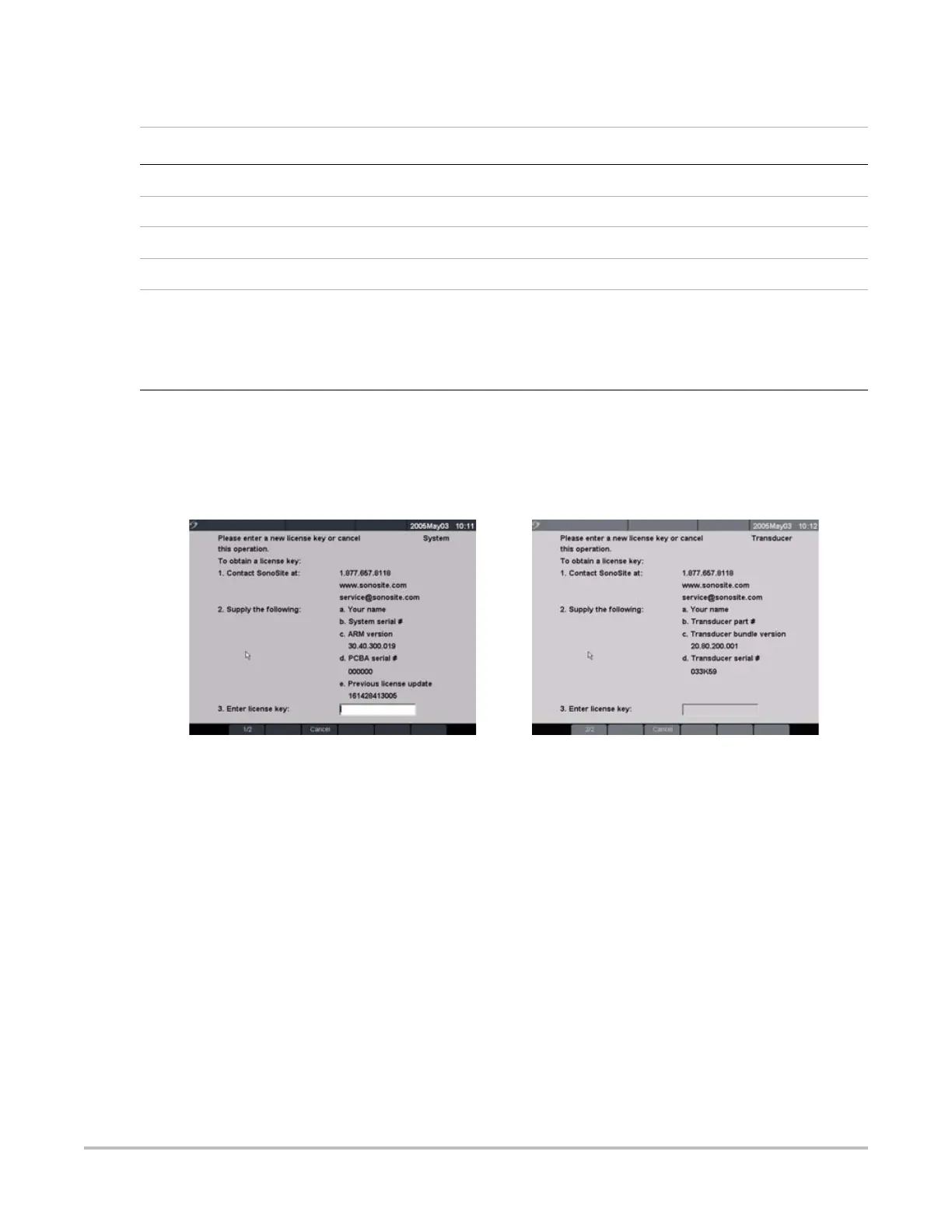
If the software is not yet licensed, the license update screen displays.
The license update screen displays the following information: how to contact SonoSite, the
required information to obtain the license key, and the grace period (time remaining) on your
system.
Figure 4.14 System and Transducer License Screens
2 Enter your license key in the license number field.
3 Select Done from the on-screen menu to install the license key and license your software.
Note: If you have entered a valid license key and you cannot complete the licensing procedure, verify
that the license key has been entered correctly. The license key should be exactly 12 digits (for example,
123348990552) with no other characters or punctuation.
Note: If after confirming correct entry of the license key, you are still unable to license your system, call
SonoSite technical support. USA/Canada customers call 1-877-657-8118. International customers
call your local representative or 1-425-951-1330.


 To Next Page