Help Guide
Color Video Camera
BRC-AM7
Importing a Desired Base Look
You can import a 3D LUT file, created on a computer or other device, as a base look. Up to 16 files can be imported.
File format: CUBE file (*.cube) for a 17-grid or 33-grid 3D LUT created using Catalyst Browse or DaVinci Resolve
*
(by
Blackmagic Design Pty. Ltd.).
Input color gamut/Gamma: [S-Gamut3.Cine/S-Log3] or [S-Gamut3/S-Log3]
To adjust for underexposure
If there is a tendency for underexposure when auto exposure is selected when using the imported base look, adjust the look
using [Paint/Look] – [Base Look] – [AE Level Offset] in the web menu.
Verified with Resolve V9.0, V10.0, and V11.0.
*
Save the 3D LUT file on the device running the Web App.
1
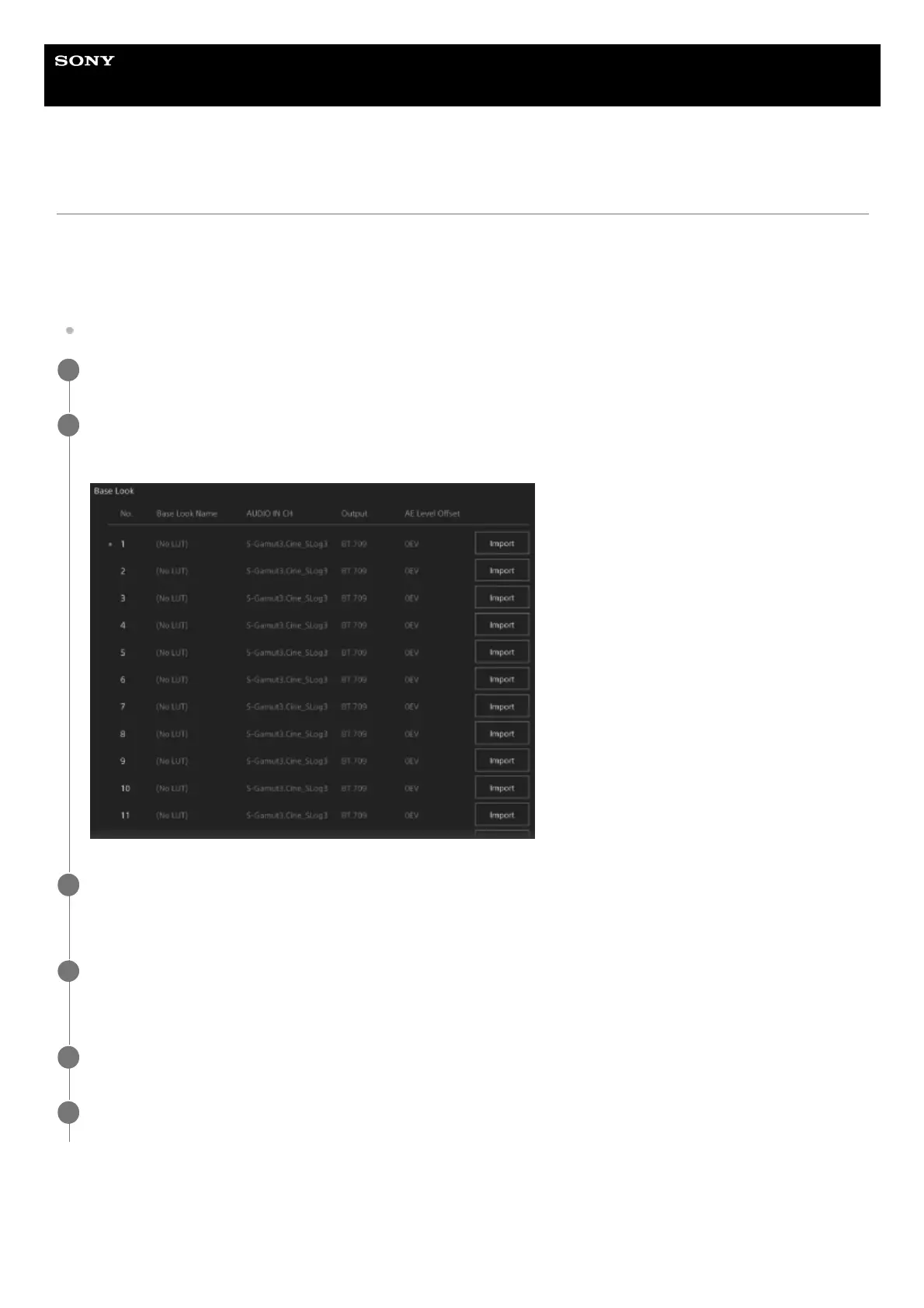
Open [Paint/Look] – [Base Look] in the web menu.
A list of registered base looks appears.
2
Press the [Import] button in the row where you want to import the file.
The file selection dialog appears.
3
Select the prepared 3D LUT file.
The imported 3D LUT file becomes the base look of the unit.
4
Select the imported 3D LUT file using [Paint/Look] – [Base Look] – [Select] in the camera menu.
5
Configure [Paint/Look] – [Base Look] – [Input] and [Output] in the camera menu to match the attributes of the
imported 3D LUT file.
6



 To Next Page