Help Guide
Color Video Camera
BRC-AM7
Applying a LUT to SDI2 Output/HDMI Output and Streaming
You can apply a LUT to SDI2 output/HDMI output and streaming.
Note
The image in the Web App camera image panel is also included in the streaming image.
Hint
This can also be set using [Shooting] – [LUT On/Off] – [SDI2/HDMI/Stream] in the camera menu.
SDI1 output can be set in the same way.
You can set proxy clip video settings using [Shooting] – [LUT On/Off] – [Proxy] in the camera menu.
A
(3D LUT file attachment error) displayed in front of the [Base Look/LUT] display indicates that 3D LUT files cannot be attached to
clips recorded in log shooting mode. Import the 3D LUT file again.
This icon is also displayed when attachment fails due to temporary processing congestion.
TP1001804564
5-065-326-11(1) Copyright 2024 Sony Corporation
Check that [Project] – [Base Setting] – [Shooting Mode] is set to [Flexible ISO] in the web menu or camera
menu.
Hint
In log shooting mode, the [Base Look/LUT] button is displayed in the camera basic configuration panel.
1
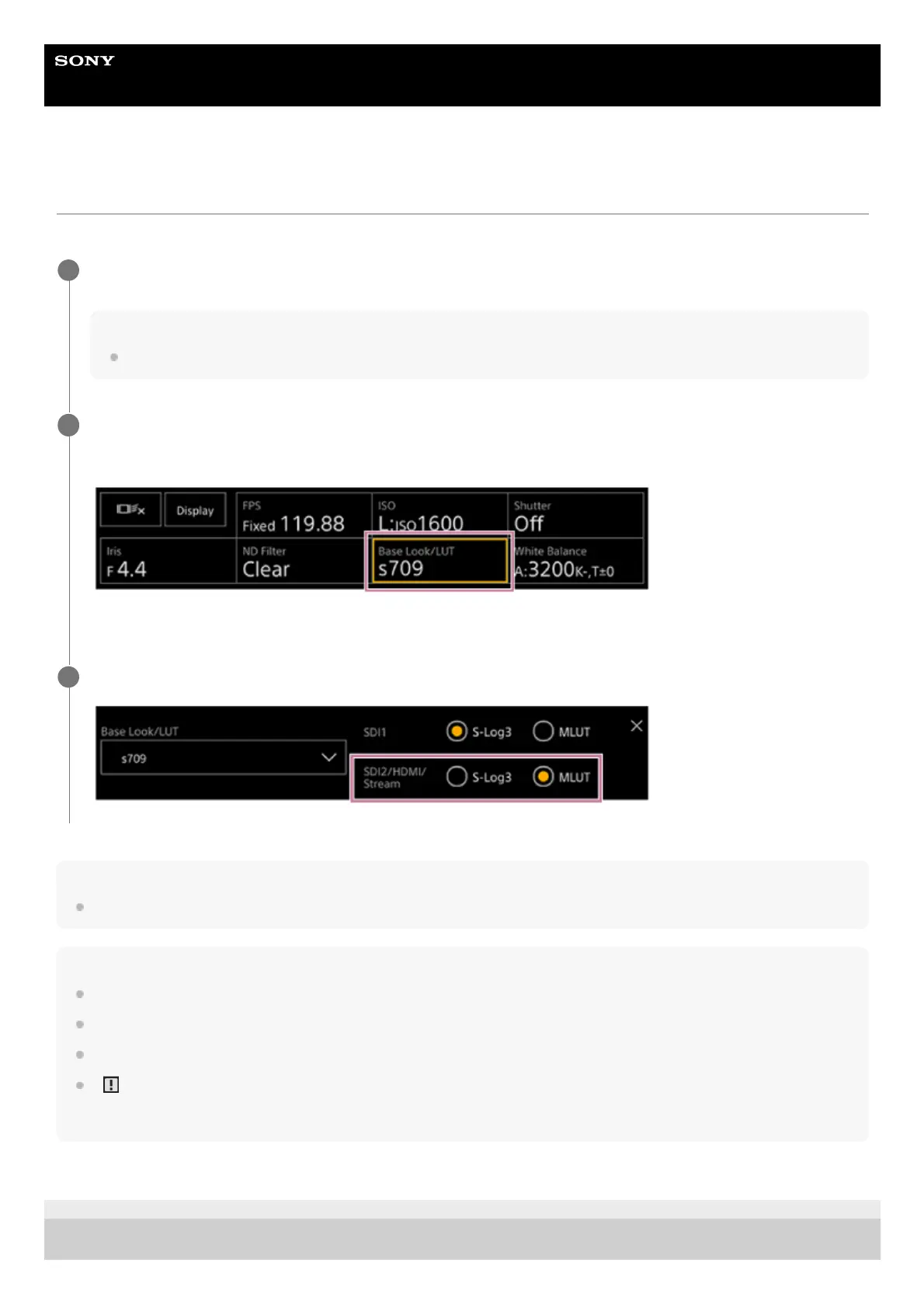
Press the [Base Look/LUT] button in the camera basic configuration panel.
The frame of the [Base Look/LUT] button changes to orange.
The Base Look/LUT adjustment panel appears.
2
Select [SDI2/HDMI/Stream] – [MLUT].
3



 To Next Page