For details, see “Tracking a Specified Subject (Realtime Tracking AF).”
Record START/STOP button
Press the button to start recording. During recording, the record START/STOP button lights up red.
Press during recording to stop recording.
You can set the Hold switch to the Hold state to prevent misoperation of the record START/STOP button.
3.
PTZ AFR control panel
PTZ auto framing is enabled when the PTZ AFR switch is set to the on position. Tap a person to track in the camera
image panel.
You can also set the camera to automatically track a person who appears in a specific position on the PTZ AFR setup
screen beforehand. For details, see “Configuring PTZ Auto Framing Initial Settings.”
During tracking, the area around the [Pause] button lights up blue.
A blinking blue light indicates that operator intervention is required. Check the message displayed in the camera control
panel and take the required action.
4.
Composition preset control panel
Displays the registered framing composition presets as thumbnails. Double-tap a thumbnail to return to the framing stored
in the preset.
Displayed when PTZ auto framing is enabled.
5.
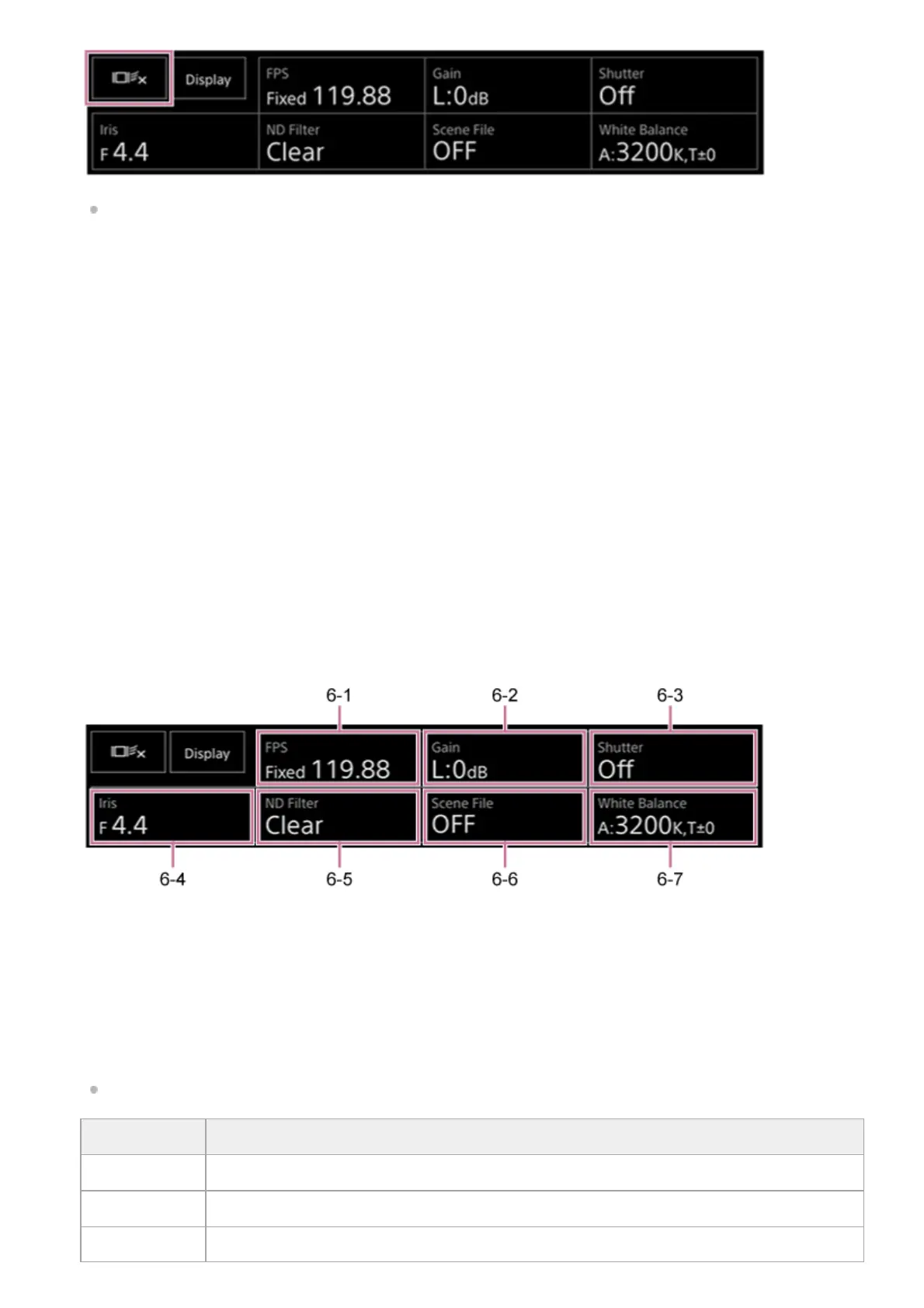
Camera basic configuration panel
Displays settings for basic functions required for shooting on buttons. Press a button to display the corresponding setup
screen for each function in the camera basic configuration adjustment panel below (7).
6-1 [FPS]
6-2 [ISO/Gain]
6-3 [Shutter]
6-4 [Iris]
6-5 [ND Filter]
6-6 [
Scene File / Base Look/LUT]
6-7 [White Balance]
For details, refer to the description of each function.
6.
Function Reference
[FPS] “Slow & Quick Motion”
[ISO/Gain] “Adjusting the Gain Automatically” and “Adjusting the Gain Manually” in “Adjusting the Gain”
[Shutter] “Adjusting the Shutter Automatically” and “Adjusting the Shutter Manually” in “Adjusting the Shutter”


 To Next Page
 Loading...