Help Guide
Color Video Camera
BRC-AM7
Camera Screen Display
You can display the status and settings of the unit superimposed on the output image from the camera. You can set the
output to overlay on the screen display using [Monitoring] – [Output Display] in the web menu.
You can show/hide the information using the [Display] button. Even when hidden, it will appear while performing direct menu
operations.
You can show/hide items individually using [Monitoring] – [Display On/Off] in the camera menu.
Information displayed on the screen while shooting
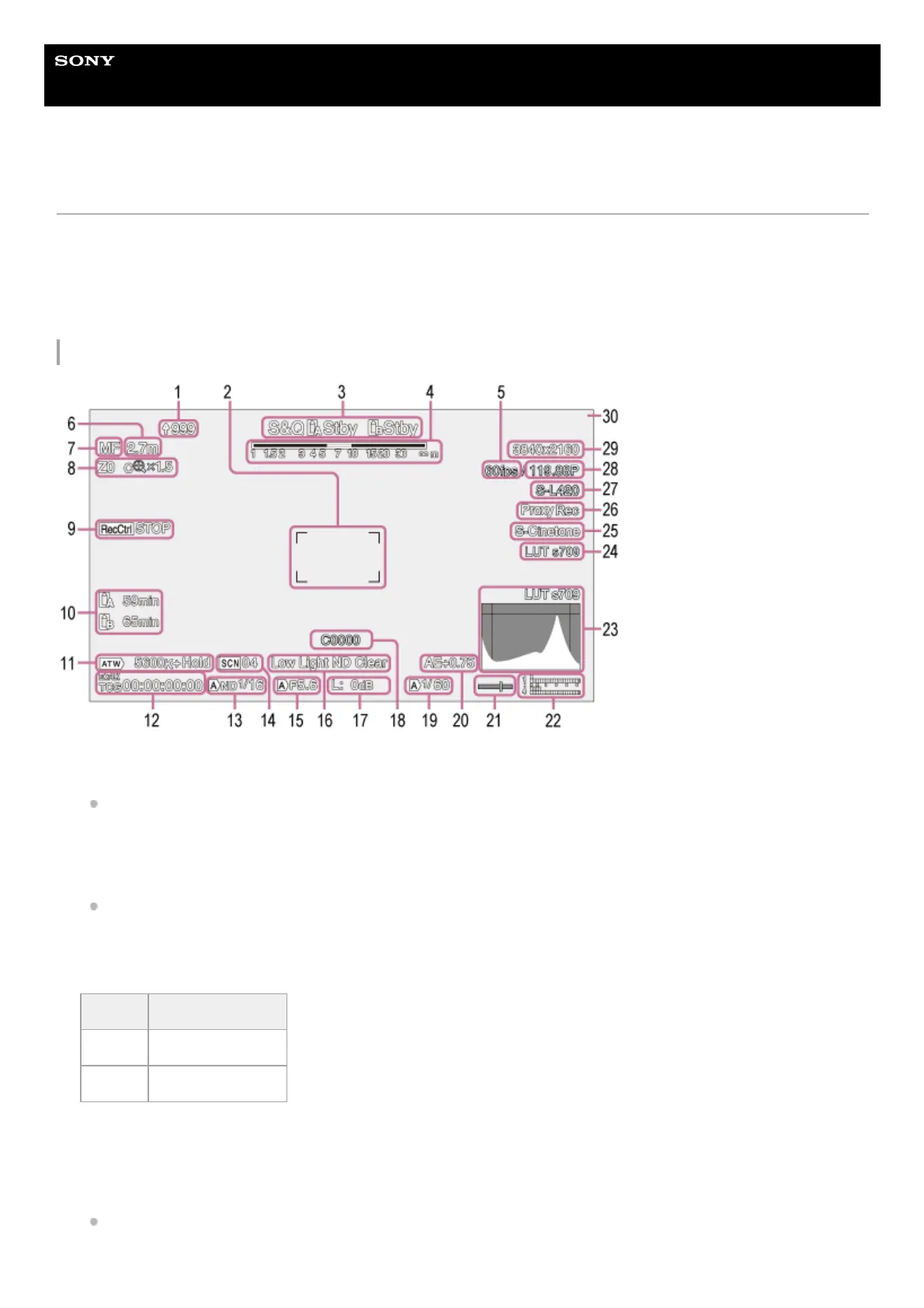
Upload indicator/remaining files indicator
For details about transferring files, see “About File Transfer” and other topics in “Transferring Files.”
1.
Focus area indicator
Displays the focus area for auto focus.
For details about auto focus, see “Adjusting the Focus Automatically Using the Web App” and other topics in
“Adjusting the Focus Automatically (Auto Focus).”
2.
Recording mode, slot A/B, operating status indicator3.
Display Meaning
●Rec Recording
Stby Recording standby
Depth-of-field indicator4.
Slow & Quick Motion shooting frame rate indicator
For details about Slow & Quick Motion, see “Slow & Quick Motion.”
5.



 To Next Page