us
16
To
adjust
the
sound
volume
of
movies
When playing back a movie, touch 0.::
(OPTION)
--+
IE
tab
--+
[VOLUME],
then adjust the volume with
[=:J/[±]
.
.
~.
Tips
• On the VISUAL INDEX screen,
I~I/~
appears
with the image on the tab that was most recently
played back/recorded. When you touch an
image marked with
I~I/~,
you can play it back
from the point it was previously stopped.
~Iayirig
.
Connection methods and quality
of
the
image (HD (high definition)/SD (standard
definition)) viewed on the TV screen differ
depending on what type
of
TV
is connected,
and the connectors used.
Use the supplied AC Adaptor as the power
source (p. 9).
Refer also
to
the instruction manuals
supplied with the device to be connected.
" Notes
• When recording, set [X.V.COLOR] to [ON] to
play back on
an
x.v.Color-compliant TV. Some
settings may need to be adjusted on the TV
when playing back. Refer to the instruction
manual
of
your TV for details.
Operation
flow
Switch the input on the TV to the
connected jack.
Refer
to
the instruction manuals
of
the
TV.
!
Connect your camcorder and TV
referring to [TV CONNECT Guide].
Touch A (HOME)
--+
m(OTHERS)
--+
[TV CONNECT Guide].
!
Make the required output settings
on your camcorder.
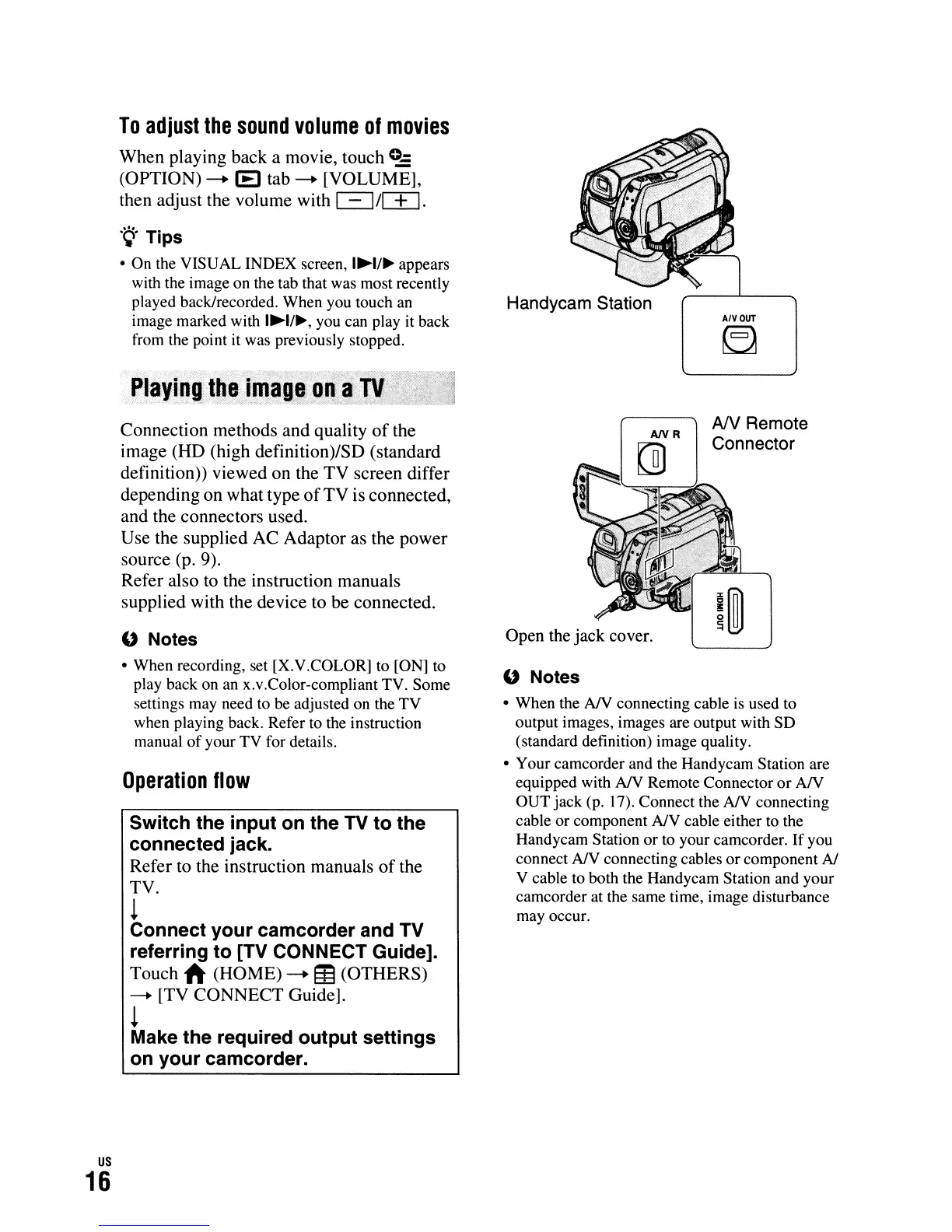
AIVOUT
~
AN
Remote
Connector
Open
the
jack cover.
" Notes
• When the AIV connecting cable
is
used to
output images, images are output with SD
(standard definition) image quality.
• Your camcorder and the Handycam Station are
equipped with AIV Remote Connector
or
AN
OUT
jack (p. 17). Connect the AIV connecting
cable
or
component AlV cable either to the
Handycam Station
or
to your camcorder.
If
you
connect AIV connecting cables
or
component
AI
V cable to both the Handycam Station and your
camcorder at the same time, image disturbance
may occur.




 To Next Page