Dubbing
to
other
devices
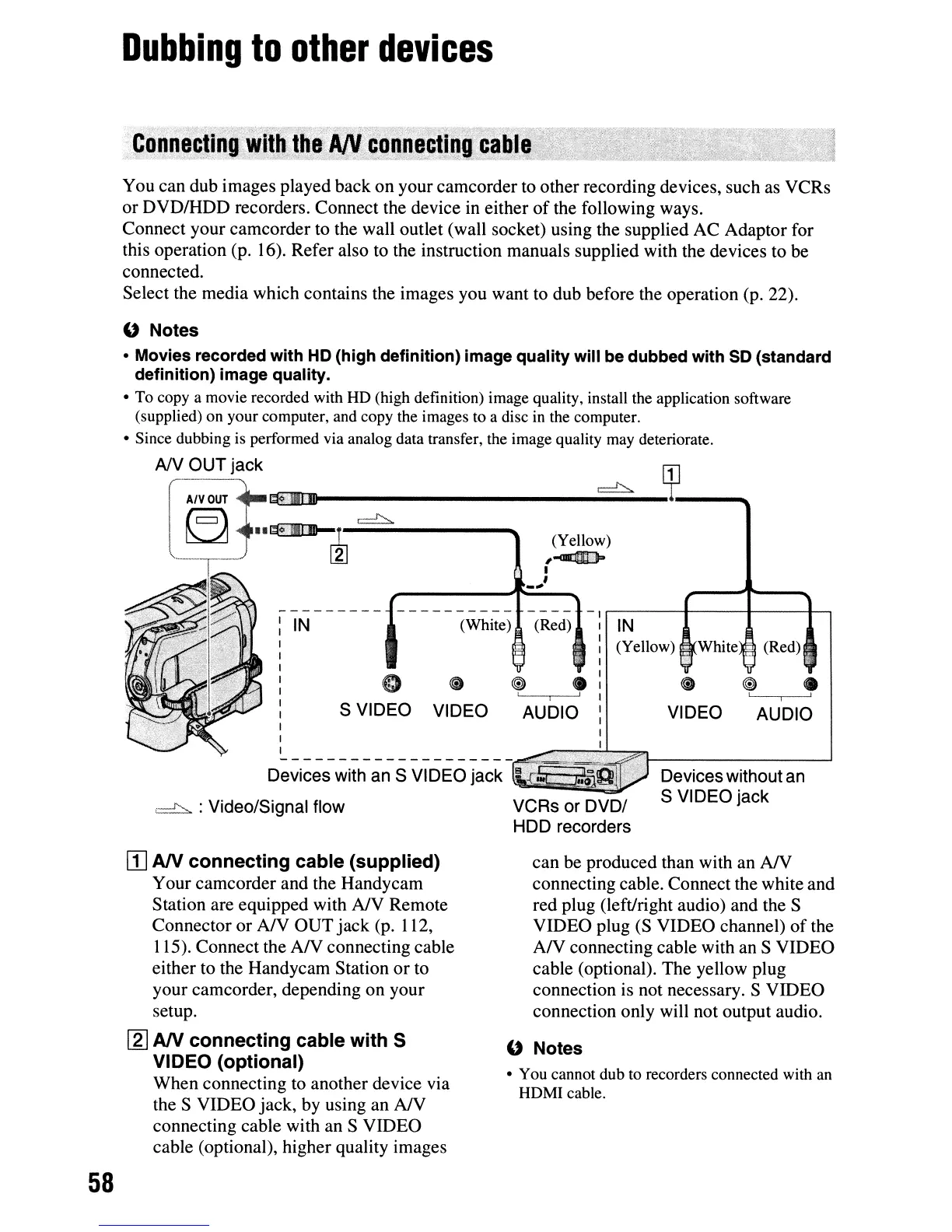
You can dub images played back on your camcorder to other recording devices, such as VCRs
or DVDIHDD recorders. Connect the device in either of the following ways.
Connect your camcorder to the wall outlet (wall socket) using the supplied AC Adaptor for
this operation (p. 16). Refer also to the instruction manuals supplied with the devices to be
connected.
Select the media which contains the images you want
to
dub before the operation (p. 22).
"
Notes
• Movies recorded with
HO
(high definition) image quality will be dubbed with
SO
(standard
definition) image quality.
• To copy a movie recorded with HD (high definition) image quality, install the application software
(supplied) on your computer, and copy the images to a disc in the computer.
• Since dubbing is performed via analog data transfer, the image quality may deteriorate.
"
Notes
• You cannot dub to recorders connected with
an
HDMI cable.
9 @ •
, I
VIDEO AUDIO
Devices without an
S VIDEO jack
IN
(Yellow)
White·
(Red)
can be produced than with an
AN
connecting cable. Connect the white and
red plug (left/right audio) and the S
VIDEO plug
(S
VIDEO channel)
of
the
AN
connecting cable with an S VIDEO
cable (optional). The yellow plug
connection is not necessary. S VIDEO
connection only will not output audio.
(Yellow)
,~
I
,
-,;
VCRs or DVD/
HDD recorders
@ •
, I I
AUDIO
(White) (Red)
o 0
S VIDEO VIDEO
IN
I
--------------------
AN
OUT jack
[~-O~
t:=-1-==:':::::::..----...
-
--
[Z]
Devices with an S VIDEO jack
==:':::::::..
:Video/Signal flow
m
AN
connecting
cable (supplied)
Your camcorder and the Handycam
Station are equipped with
NV
Remote
Connector or A/V OUT jack (p. 112,
115). Connect the
AN
connecting cable
either to the Handycam Station
or
to
your camcorder, depending on your
setup.
[2]
AN
connecting cable
with
S
VIDEO (optional)
When connecting to another device via
the S VIDEO jack, by using an
AN
connecting cable with an S VIDEO
cable (optional), higher quality images
58




 To Next Page