22
• The information
is
displayed or hidden (display
-
no
display) each time
you
press DISPI
BATIINFO.
You
can
view
images
using the
viewfinder
with the
LCD
panel
closed
to
avoid
wearing
down
the battery,
or
when
the
image
seen
on
the
LCD
screen
is poor.
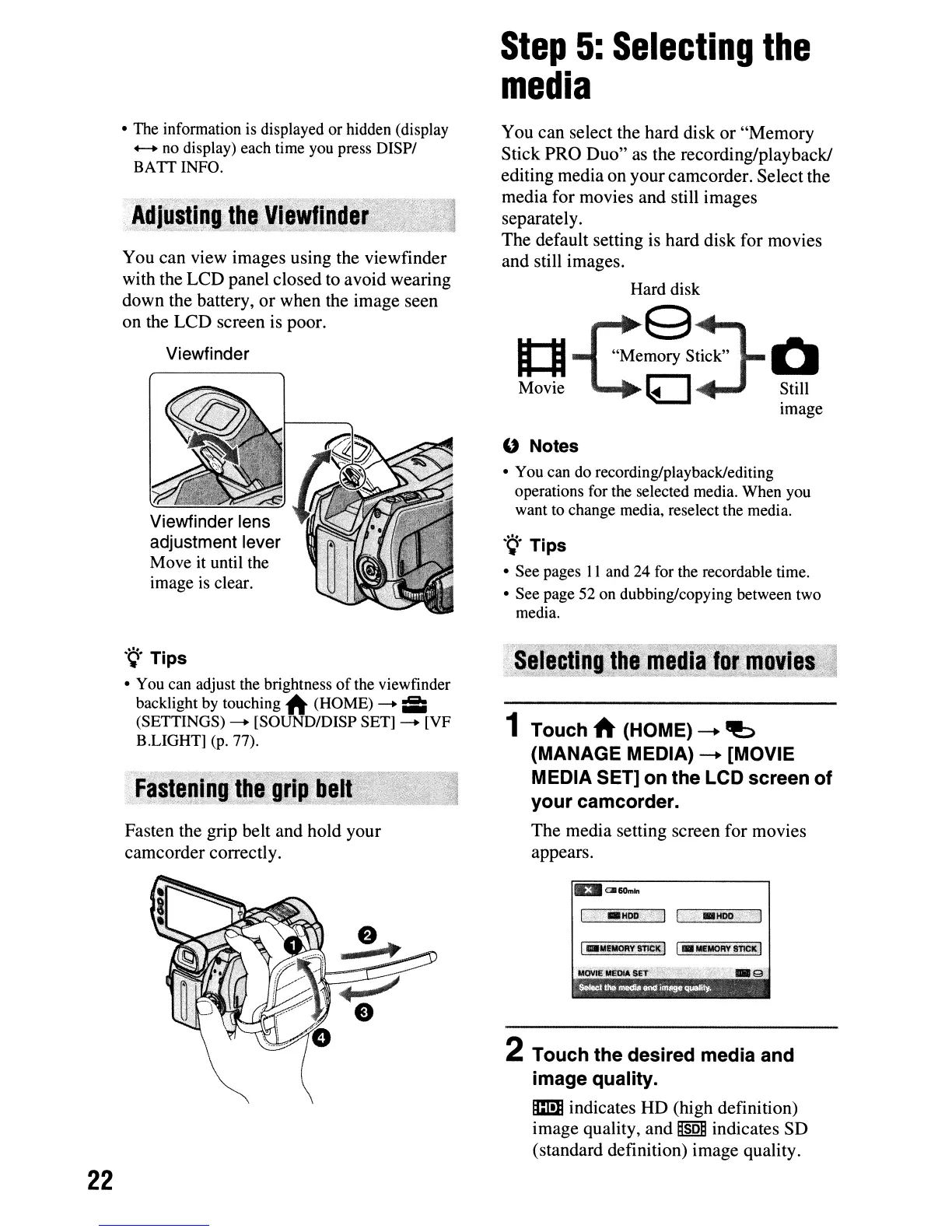
Viewfinder
Viewfinder lens
adjustment lever
Move it until the
image is clear.
.
~.
Tips
•
You
can
adjust the brightness
of
the viewfinder
backlight by touching
A (HOME)
--+
;;;
(SETTINGS)
--+
[SOUND/DISP SET]
--+
[VF
BLIGHT]
(p.
77).
Fasten
the
grip
belt
and
hold
your
camcorder
correctly.
Step
5:
Selecting
the
media
You
can
select
the
hard
disk
or
"Memory
Stick
PRO
Duo"
as
the
recording/playback!
editing
media
on
your
camcorder.
Select
the
media
for
movies
and
still
images
separately.
The
default
setting is
hard
disk
for
movies
and
still images.
Hard disk
It:I
"Me~:;L
Q
Movie
~:;;..r-
~till
Image
" Notes
•
You
can
do
recording/playback/editing
operations for the selected media. When
you
want
to
change media, reselect the media.
.~.
Tips
• See pages
II
and
24
for
the recordable time.
• See page
52
on
dubbing/copying between two
media.
1 Touch A (HOME) ---+
~
(MANAGE MEDIA) ---+ [MOVIE
MEDIA SET] on the LCD screen of
your
camcorder.
The
media
setting
screen
for
movies
appears.
I£lI
CII&Om
..
2 Touch the desired media and
image quality.
m indicates
HD
(high
definition)
image
quality,
and
Mso@
indicates
SD
(standard
definition)
image
quality.




 To Next Page