62
Utilizing
recording
media
~
(MANAGE
MEDIA)
category
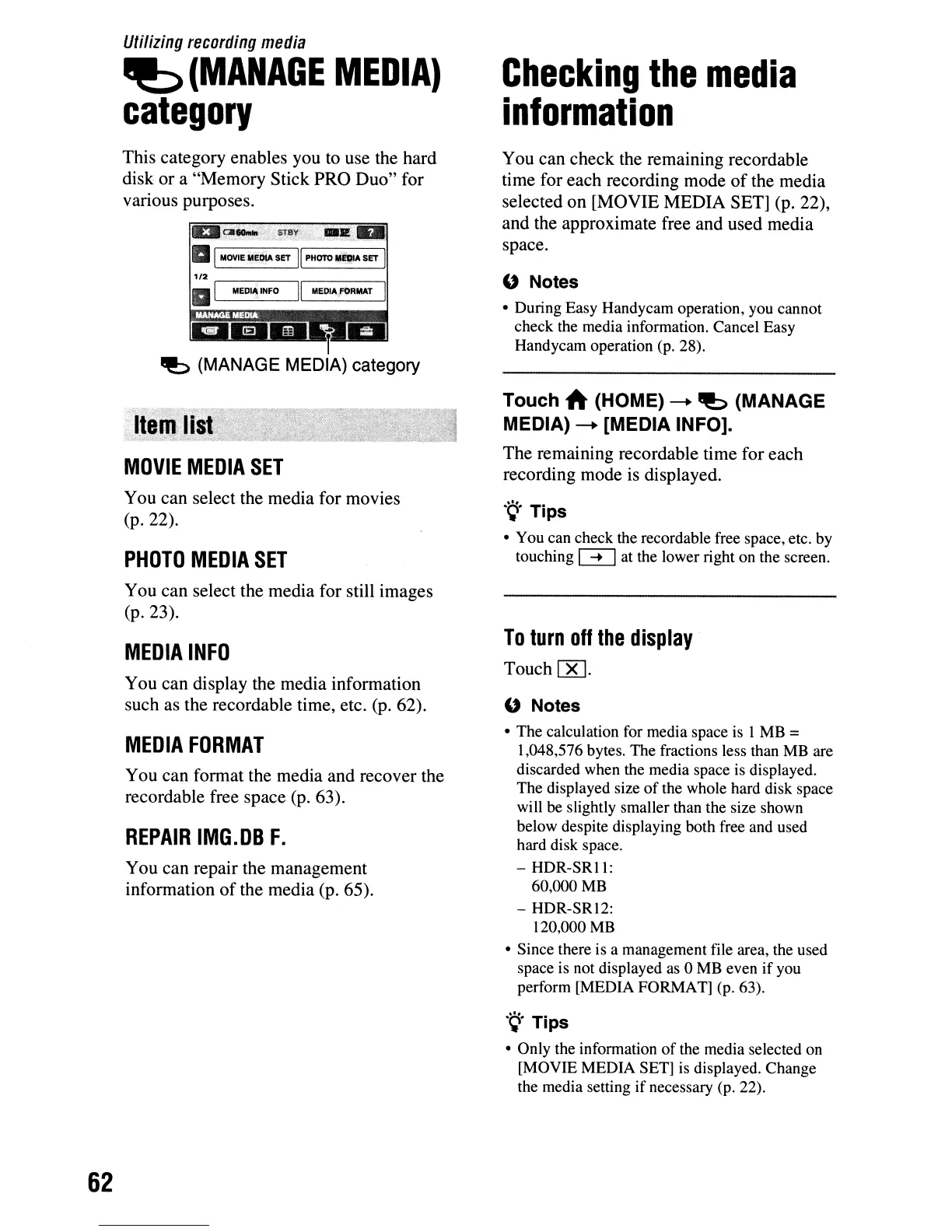
This category enables you to use the hard
disk or a "Memory Stick PRO Duo" for
various purposes.
Dalla..
STay,
.2"
aI
MOVIE
MEDIA
SET
II
PHOTO
-..,.
SET
I
1/2
,.--_,--_
,.------,1
III
MEDIA
INFO
II
MEDIA
FORMAT
r
"b
(MANAGE MEDIA) category
···118':+"
.
N./';>L>,o::-;"
MOVIE
MEDIA
SET
You can select the media for movies
(p.22).
PHOTO
MEDIA
SET
You can select the media for still images
(p.23).
MEDIA
INFO
You can display the media information
such as the recordable time, etc.
(p.
62).
MEDIA
FORMAT
You can format the media and recover the
recordable free space
(p.
63).
REPAIR
IMG.DB
F.
You can repair the management
information of the media (p. 65).
Checking
the
media
information
You can check the remaining recordable
time for each recording mode
of
the media
selected on [MOVIE MEDIA SET] (p. 22),
and the approximate free and used media
space.
" Notes
• During Easy Handycam operation, you cannot
check the media information. Cancel Easy
Handycam operation (p. 28).
Touch A (HOME)
--+
"b
(MANAGE
MEDIA)
--+
[MEDIA INFO].
The remaining recordable time for each
recording mode
is
displayed.
.".
Tips
• You can check the recordable free space, etc. by
touching
~
at the lower right on the screen.
To
turn
off
the
display
Touch[K].
" Notes
• The calculation for media space is I MB =
1,048,576 bytes. The fractions less than MB are
discarded when the media space is displayed.
The displayed size
of
the whole hard disk space
will be slightly smaller than the size shown
below despite displaying both free and used
hard disk space.
-
HDR-SRll:
60,000 MB
- HDR-SR12:
120,000 MB
• Since there is a management file area, the used
space is not displayed as 0 MB even
if
you
perform [MEDIA FORMAT] (p. 63).
.
~.
Tips
• Only the information
of
the media selected on
[MOVIE MEDIA SET] is displayed. Change
the media setting
if
necessary (p. 22).




 To Next Page