Step
3:
Selecting
the
media
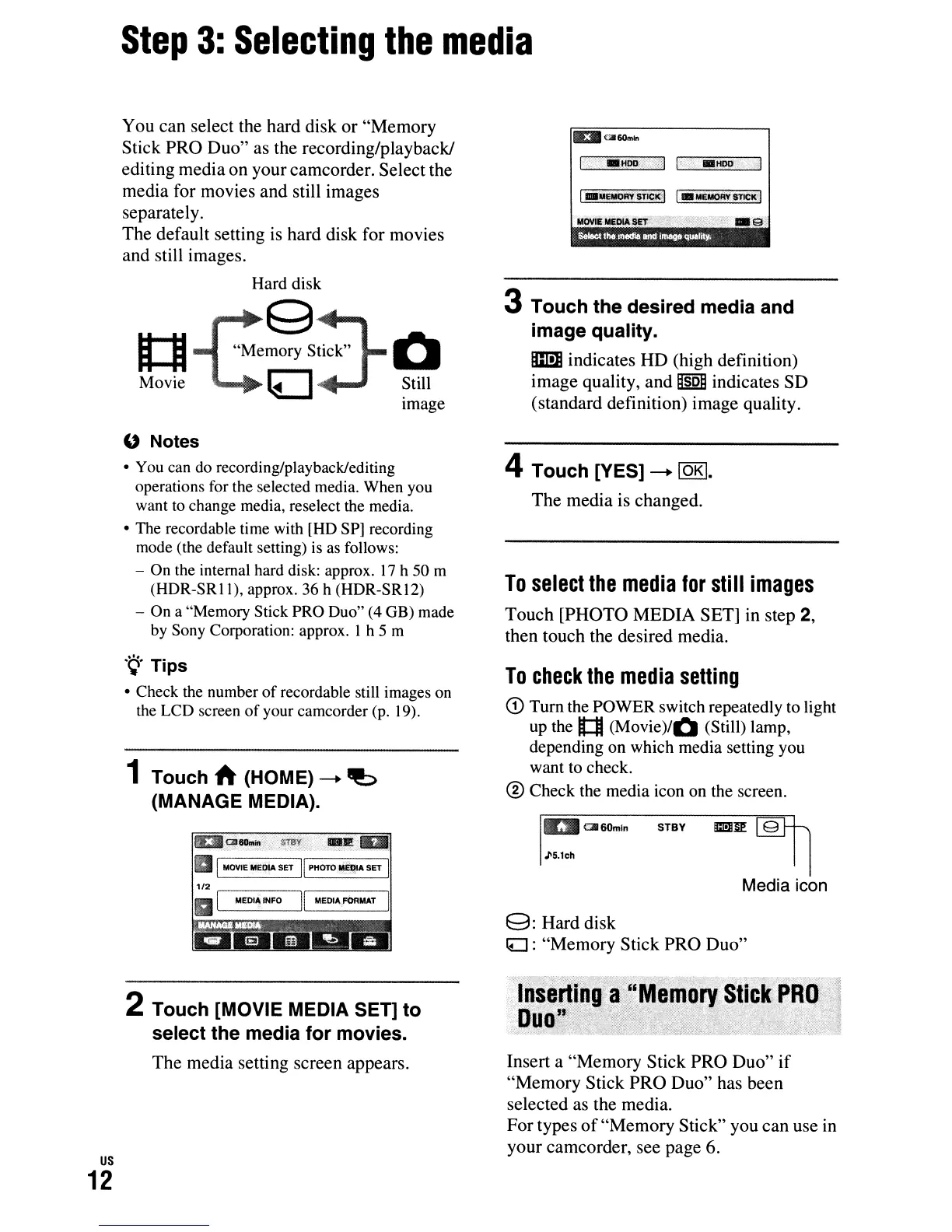
3 Touch the desired media and
image quality.
m indicates HD (high definition)
image quality, and
MsoM
indicates SD
(standard definition) image quality.
You can select the hard disk or "Memory
Stick PRO Duo" as the recording/playback!
editing mediaon your camcorder. Select the
media for movies and still images
separately.
The default setting
is
hard disk for movies
and still images.
Hard disk
101
"Me§?s:::-L
Q
Movie
~
~
~till
Image
1131
CII6Om'n
MOYIEMiEDlA
SET
SeIacllhe
media
IIJllI
image
qWllity.
.
'.Ef
us
12
" Notes
• You can do recording/playback/editing
operations for the selected media. When you
want to change media, reselect the media.
• The recordable time with [HD SP] recording
mode (the default setting) is as follows:
- On the internal hard disk: approx.
17
h 50 m
(HDR-SRII),
approx. 36 h (HDR-SRI2)
- On a "Memory Stick PRO Duo" (4 GB) made
by Sony Corporation: approx. I h 5 m
.
~.
Tips
• Check the number
of
recordable still images on
the LCD screen
of
your camcorder (p. 19).
1 Touch h (HOME)
--+
~
(MANAGE MEDIA).
IEII.GilIoo..
smy
li!i!_
III
MOYlE MEDIA SET
II
PHOTO
Ii£OIA
SET I
1/2
,--------,.,--------,1
III
MEDIA; INFO
II
MEDIA FORMAT I
2 Touch [MOVIE MEDIA SET] to
select the media for movies.
The media setting screen appears.
4 Touch [YES]
--+
lOKI.
The media is changed.
To
select
the
media
for
still
images
Touch [PHOTO MEDIA SET] in step 2,
then touch the desired media.
To
check
the
media
setting
CD
Turn
the
POWER switch repeatedly
to
light
up
the t:I (Movie
)/Q
(Still) lamp,
depending
on
which media setting
you
want
to
check.
® Check the media icon
on
the screen.
~
G1160mln
STBY
!Jm]I~
9
Jl5.1ch
Media icon
9:
Hard disk
lLJ
: "Memory Stick PRO Duo"
Insert a "Memory Stick PRO Duo"
if
"Memory Stick PRO Duo" has been
selected as the media.
For types
of
"Memory Stick" you can use
in
your camcorder, see page 6.




 To Next Page