30
Adjusting the LCD Display
Chapter 2 Preparations
2 Press the M or m button to set the year
then press the < or , button.
The cursor moves to the month-setting
column.
3 Set the month, day, hour, minute, and
second in sequence in the same
manner.
4 Press the SET button at “SET”.
The cursor moves back to “Date/
Time”.
5 Press the M or m button to move the
cursor to “Finish” then press the SET
button.
The initial setting display disappears,
and the clock setting is completed.
The time zone and date/time settings can be
changed later using “Time Zone” (see page
92) and “Clock Set” (see page 93) of the
OTHERS menu.
Adjusting the LCD
Display
You can adjust the display conditions of the
LCD display for the best view in various
situations.
These adjustments of the LCD display have
no effect on pictures being recorded.
To adjust the color density,
contrast, and brightness
These adjustments can be made using the
LCD SET menu.
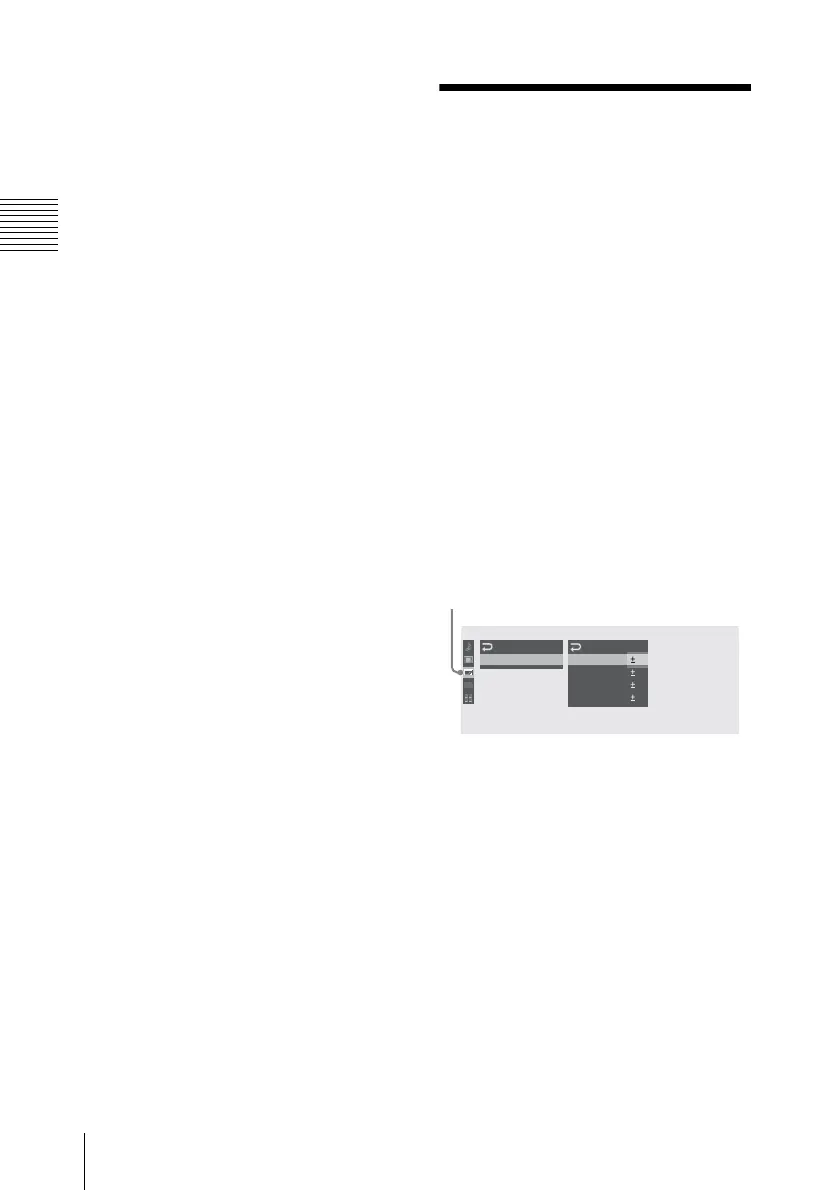
Press the MENU button to display the menu
icons. Display the select LCD SET menu
with the LCD SET menu icon, and use the
<, ,, M or m button to select “LCD”
from the menu.
Set the color density, contrast and
brightness of the LCD display with the
corresponding LCD SET menu items:
Color, Contrast, and Brightness.
For details on menu operations, see “Basic Menu
Operations” (page 84).
To adjust the backlight
Use the LCD SET menu.
Select “LCD” from the LCD SET menu and
change the “Back Light” setting.
00:00
LCD
LCD
SET
Color
C
ont rast
Bright ness
Back Light
:
0
:
0
:
0
: 0
:
0
B
LCD SET menu icon


 To Next Page