77
Connecting an External Device with the i.LINK Connector
Chapter 6 Example Connections for Various Applications
To perform dubbing
1 Set the video format to SP 1080/60i
(when “Country” is set to “NTSC
Area”) or SP 1080/50i (when
“Country” is set to “PAL Area”) on
this unit.
2 Set “i.LINK I/O Select” (see page 90)
of the VIDEO SET menu to
“DVCAM” or “HDV”.
Be sure to turn off the power of the
connected devices before changing the
“i.LINK I/O Select” setting.
3 Put the HVR-M35 into recording
standby mode.
4 Insert the SxS memory card into this
unit and cue up the clip you want to
dub.
5 Start recording on the HVR-M35.
6 When dubbing finishes, stop recording
on the HVR-M35 and stop playback on
this unit.
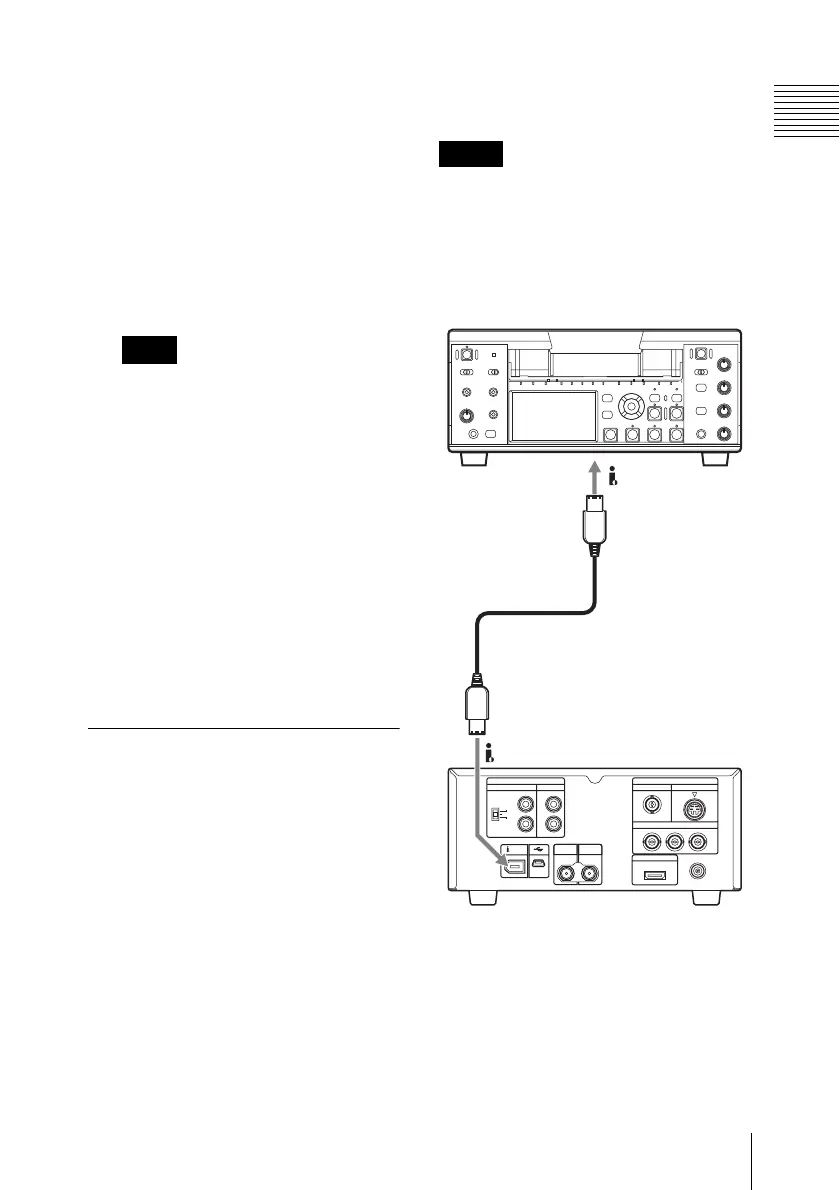
Recording an input signal
from an external device
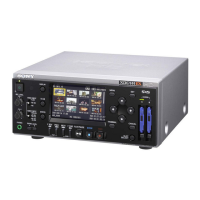
This section shows an example for
connecting this unit and the HVR-M35
HDV Videocassette Recorder to record the
playback picture from the HVR-M35 on an
SxS memory card. When the video format
is set to SP 1080/60i (when “Country” is set
to “NTSC Area”) or SP 1080/50i (when
“Country” is set to “PAL Area”) on this
unit, HDV-format signals can be recorded.
The timecodes superimposed on the i.LINK
input are recorded regardless of the settings
of the unit.
On how to use the HVR-M35, refer to the Operating
Instructions supplied with the HVR-M35.
• DVCAM signals cannot be recorded on
this unit.
• Be sure to turn off the power of the
connected devices before switching the
output format (between HDV and
DVCAM).
a) i.LINK cable
b) Set “i.LINK I/O Select” (see page 90) of the
VIDEO SET menu to “HDV”.
Note
Notes
HVR-M35
HDV/DV
b)
a)
HDV/DV
This unit


 To Next Page