63
Clip Operations
Chapter 4 Clip Operations
Displaying the SHOT
MARK screen
When one or more shot marks are recorded
for a single clip, the SHOT MARK screen
permits you to display only the marked
frames as the thumbnail images on the
screen.
1 Select a clip on the thumbnail screen.
2 Press the SET button.
The Clip Operation menu pops up.
3 Select “SHOT MARK”, “SHOT
MARK1”, or “SHOT MARK2”.
SHOT MARK: To display
thumbnails only of the frames
marked with shot mark 1 and/or
shot mark 2 recorded
SHOT MARK1: To display
thumbnails only of the frames
marked with shot mark 1
SHOT MARK2: To display
thumbnails only of the frames
marked with shot mark 2
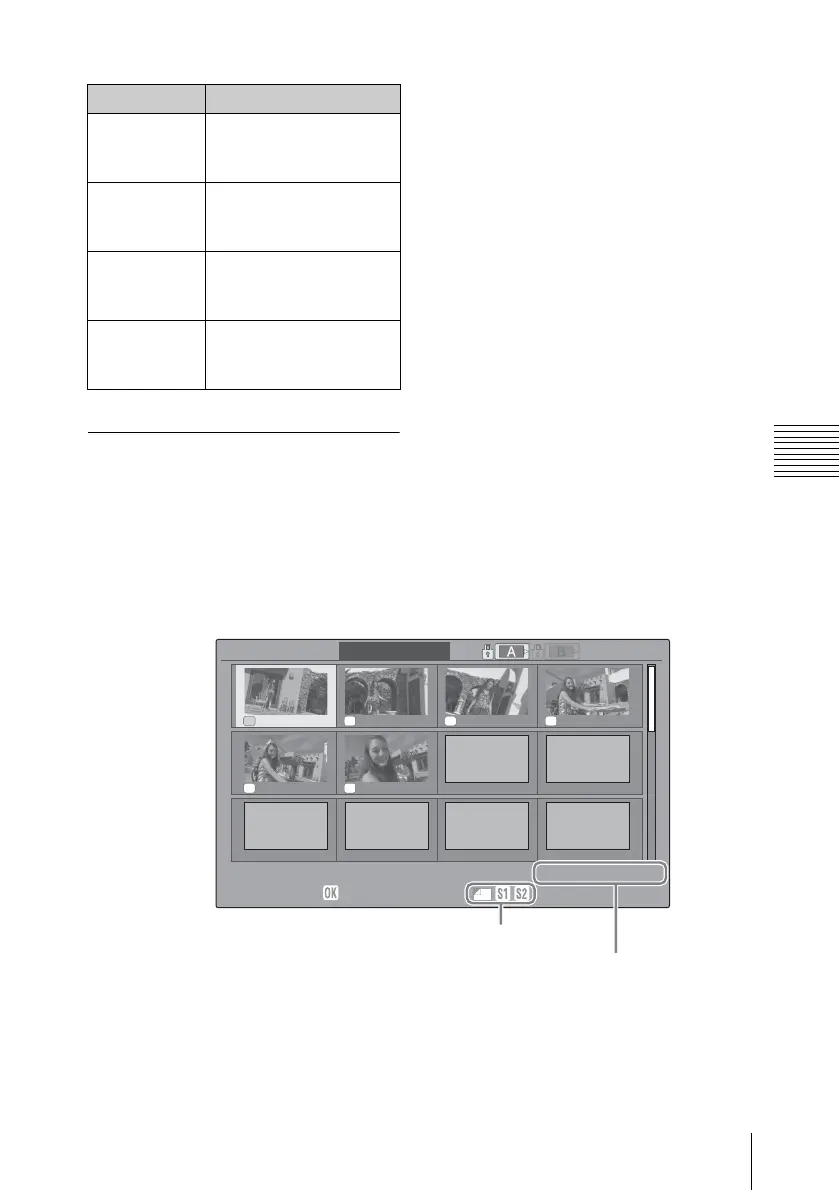
SHOT MARK screen example (when “SHOT MARK” is selected)
The detailed information of the clip is
displayed at the bottom of the screen.
The items other than the following are the
same as those on the EXPAND CLIP
screen.
SHOT
MARK2 ADD
To add shot mark 2 to
the selected frame (see
page 64)
SHOT
MARK1 DEL
To delete shot mark 1
from the selected frame
(see page 64)
SHOT
MARK2 DEL
To delete shot mark 2
from the selected frame
(see page 64)
DIVIDE CLIP To divide the clip into
two clips at the selected
frame (see page 65)
Item Function
S1 S2 S2 S1
S1 S1
DC IN 12.0V
SHOT
MARK
01:10:20:00 01:10:30:00 01:10:40:00 01:10:50:00
01:11:00:00 01:11:10:00
-
-
-
-
-
-
-
-
-
-
-
-
-
-
-
-
-
-
0031 / 0031
01 / JAN / 2008
10:53
S
&
Q
M
otion
29/24fps
JPAN0011
(
1
)
HQ
1080/24p
TCR
01:12: 00 :00
DUR
00:03:19:23
Frame information (see page 62)
Timecode indication (see page 62)


 To Next Page