Chapter
7
80
Showing the Status Display
Chapter 7 Status Display
Status Display
Showing the
Status Display
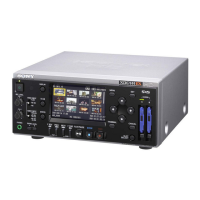
This unit provides a status display
switchable through three types of screens,
allowing you to check the various settings
and statuses of the unit.
You can view the status display on the
monitor screen.
For connections of an external video monitor, see
“Connecting External Video Monitors” (page 69).
Available status screens
• Audio status screen (see page 81)
• Video status screen (see page 81)
• Remote/media status screen (see page
82)
To show one of the status
display
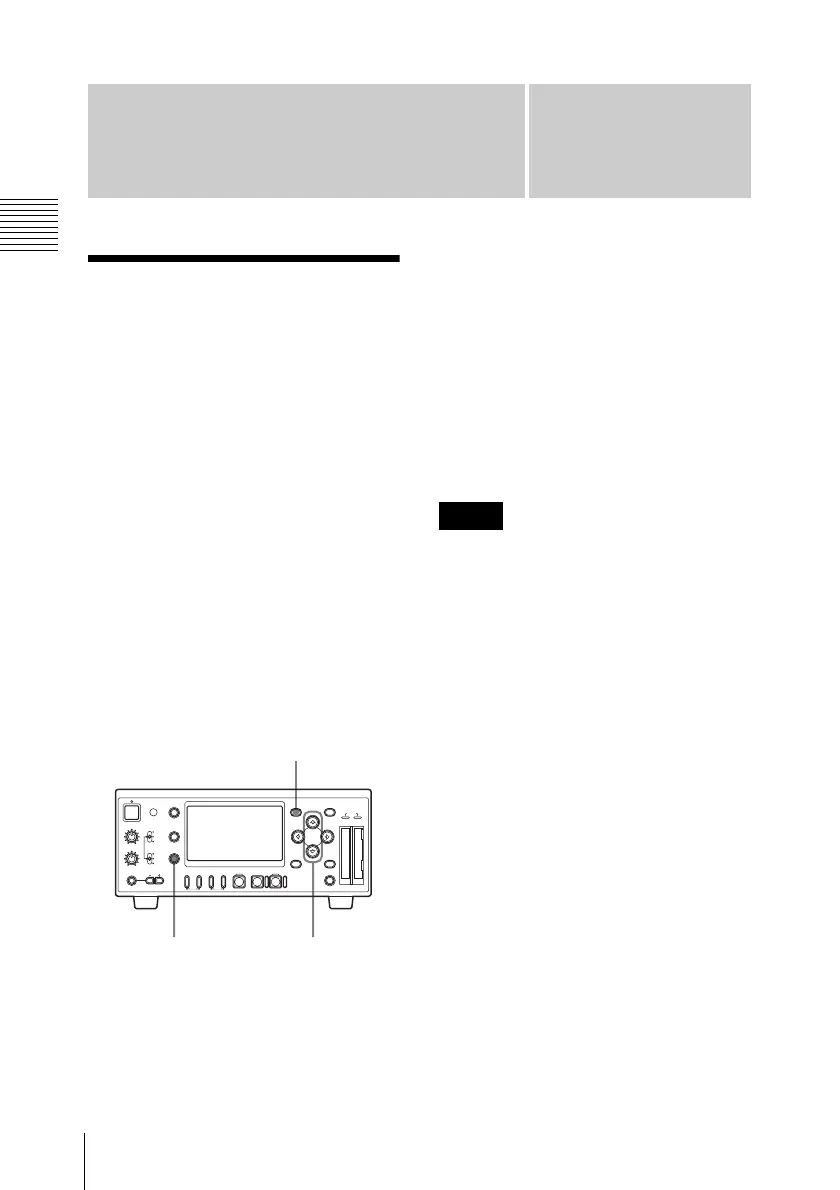
Press the STATUS button.
To switch the status screens
Pressing the M or m button switches the
screens in sequence.
To clear the status display
Press the STATUS button again.
The status display is cleared if you press the
MENU button to show the menu and start or
stop (with the STOP button) playback.
• When playback starts after the status
display is shown in playback pause
mode, the status display is not cleared
automatically.
• When you show the status display during
recording, it is not cleared automatically
after you stops recording by pressing the
STOP button.
REC LEVEL
CH-1
VIDEO INPUT
PHONES
DISPLAY
MENU
TC/UB
STATUS
F REV PLAY/PAUSE
m
u
SLOT
SELECT
CH-2
iLINK
HD SDI
SG
AUDIO INPUT
PHONE LEVEL
PREV
.
NEXT
>
F FWD
M
SET
AB
THUMBNAIL CANCEL
ANALOG
HD SDI
CH-1/2
HD SDI
CH-3/4
ACCESS
1
STOP
x
REC
z
TOP END
STATUS button
M, m buttons
Menu button
Notes


 To Next Page