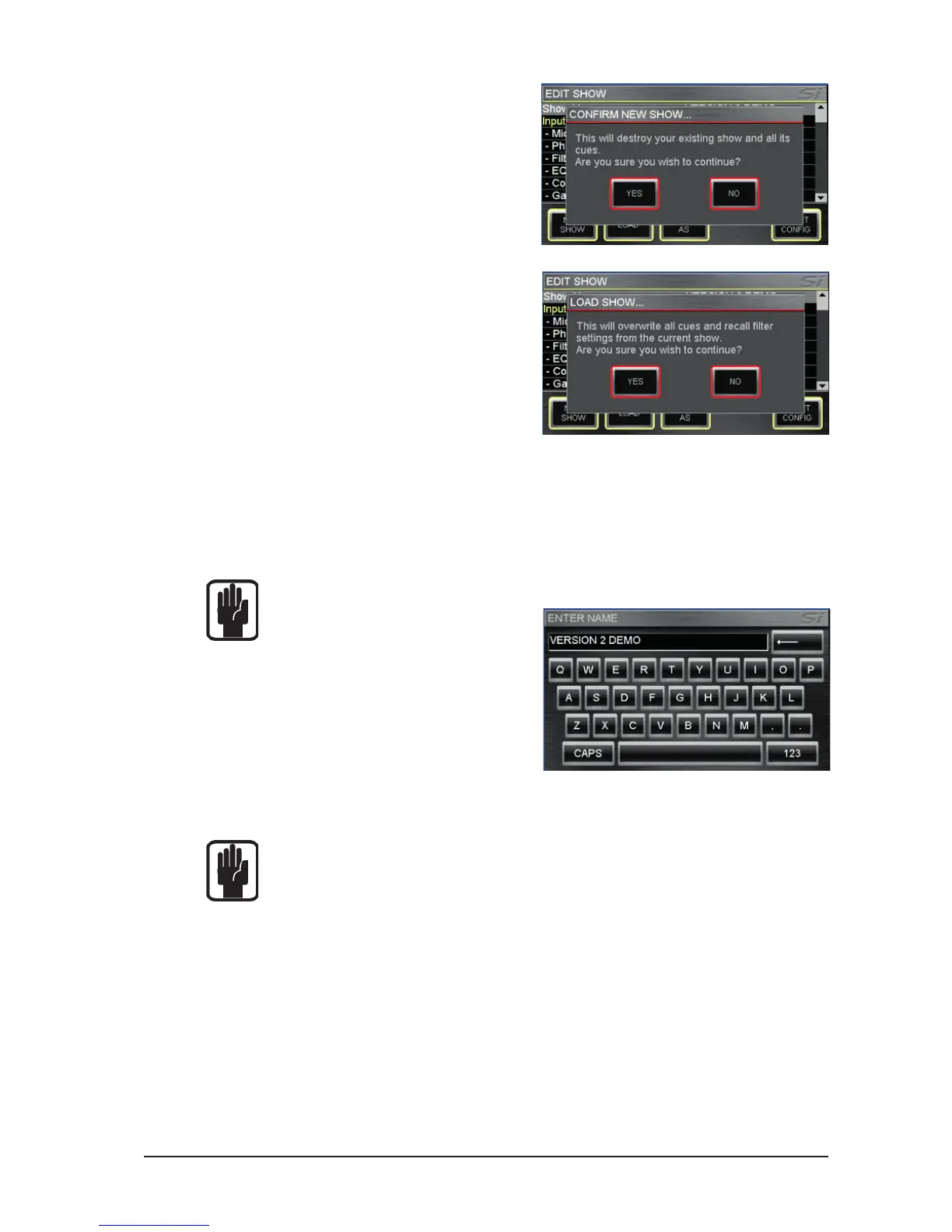
NEW SHOW: Invokes the creation of a new
show. The system will provide a warning that
the action will overwrite the current show
and allow the action to be aborted.
LOAD: Invokes loading of a new show
from the internal MultiMedia Card (MMC-
SD Card) or USB key if installed. Use the
SCROLL/ADJUST encoder to navigate to
the storage device and through the folder
structures to select the le to load. The
system will provide a warning that the
action will overwrite the current show and
allow the action to be aborted.
DELETE (not shown): This button allows the deletion of a selected le or folder within a
storage device. Use the SCROLL/ADJUST encoder to navigate to the storage device and
through the folder structures to select the le or folder to delete. The system will require a
conrmation of the action before any delete action is invoked.
NOTE: It is not possible to delete a folder containing les.
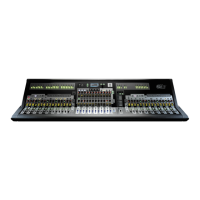
SAVE AS: Allows saving of the current
show. When pressed the QWERTY keyboard
opens and the <current show name>. is
displayed, this may be modied to allow
saving different versions of a show such
as ‘SHOW – MONDAY’, ‘SHOW – TUESDAY’
etc. Press the APPLY key to conrm the new
show name. Once the name is conrmed
use the SCROLL/ADJUST encoder as required to navigate to the storage device and through
the folder structures to select an alternative save location.
NOTE: If a le in the same folder has the same name a warning regarding le overwrite
is displayed with the option to abort.
NOTE: When using the Off-Line Editor importing or saving shows opens a typical Windows
le open/save dialogue.



 To Next Page