4G+ROUTER1200 - User Guide
15
/
84
Copyright © STRONG 2024. All Rights Reserved.
15
/
84
6. Changing the administrator password in the Web UI
We strongly recommend updating the administrator password and username once you’re
connected to the Web UI, and after you set up all the necessary parameters for your device.
Please note that we strongly advise you to change the admin password. If you decide to
change it, your new password must contain at least 8 characters with upper and lower
cases, number, and special characters.
We strongly suggest using the same password
as the one used for the Wi-Fi connection, as this password is unique for your
device.
1. To do so, you must connect to the Web UI according to the process described in:
Connecting your Device with an Ethernet Cable and Accessing the Web UI
Connecting to the Wi-Fi and Accessing the Web UI
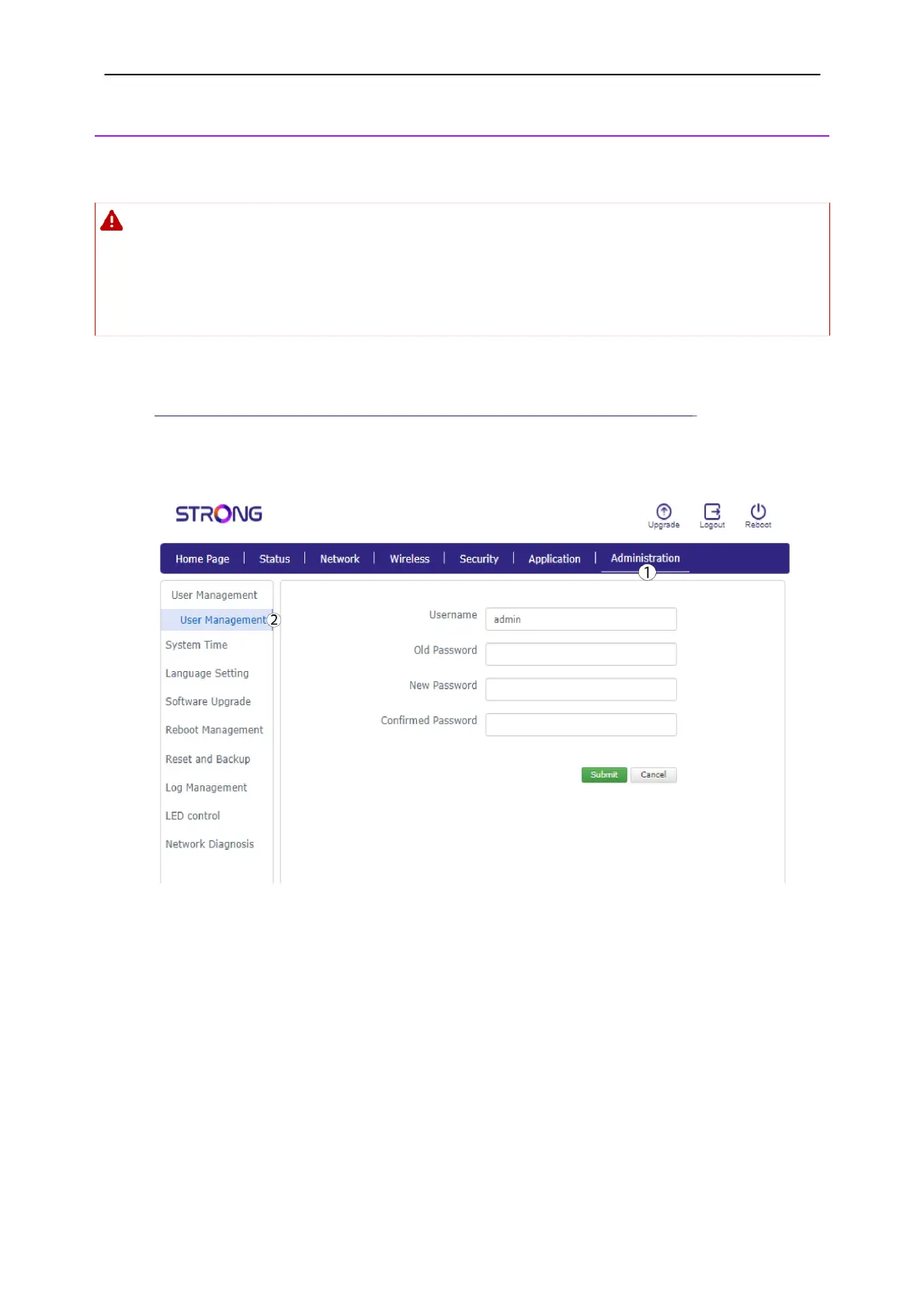
2. Once this is done, click Administration
and
User Management.
3. Enter the following information in the fields before clicking Submit:
Old Password: Enter the current password that you used to connect to the Web UI.
New Password: Enter a new password to connect to the Web UI.
Confirmed Password: Enter the same password as in the New Password field.


 To Next Page