4G+ROUTER1200 - User Guide
29
/
84
Copyright © STRONG 2024. All Rights Reserved.
29
/
84
3. Changing the SSID (Wi-Fi Network Name) and password
After setting up your device and connecting to it for the first time, it is possible for you to change
the SSID, also known as the name of your Wi-Fi Network and its password.
Warning: Please note that we strongly recommend using a network name and password
that is different from the one of your Internet box. Why? As you may know, your devices
automatically connect to the known networks, so if you put the same names and password for
your router network and your Internet box, you will not be able to differentiate them.
1.
To change the SSID and/or password of your network, you must connect to the device Wi-Fi or
Internet connection by following one of these procedures:
• Connecting to the Wi-Fi and Accessing the Web UI
• Connecting your Device with an Ethernet Cable and Accessing the Web UI
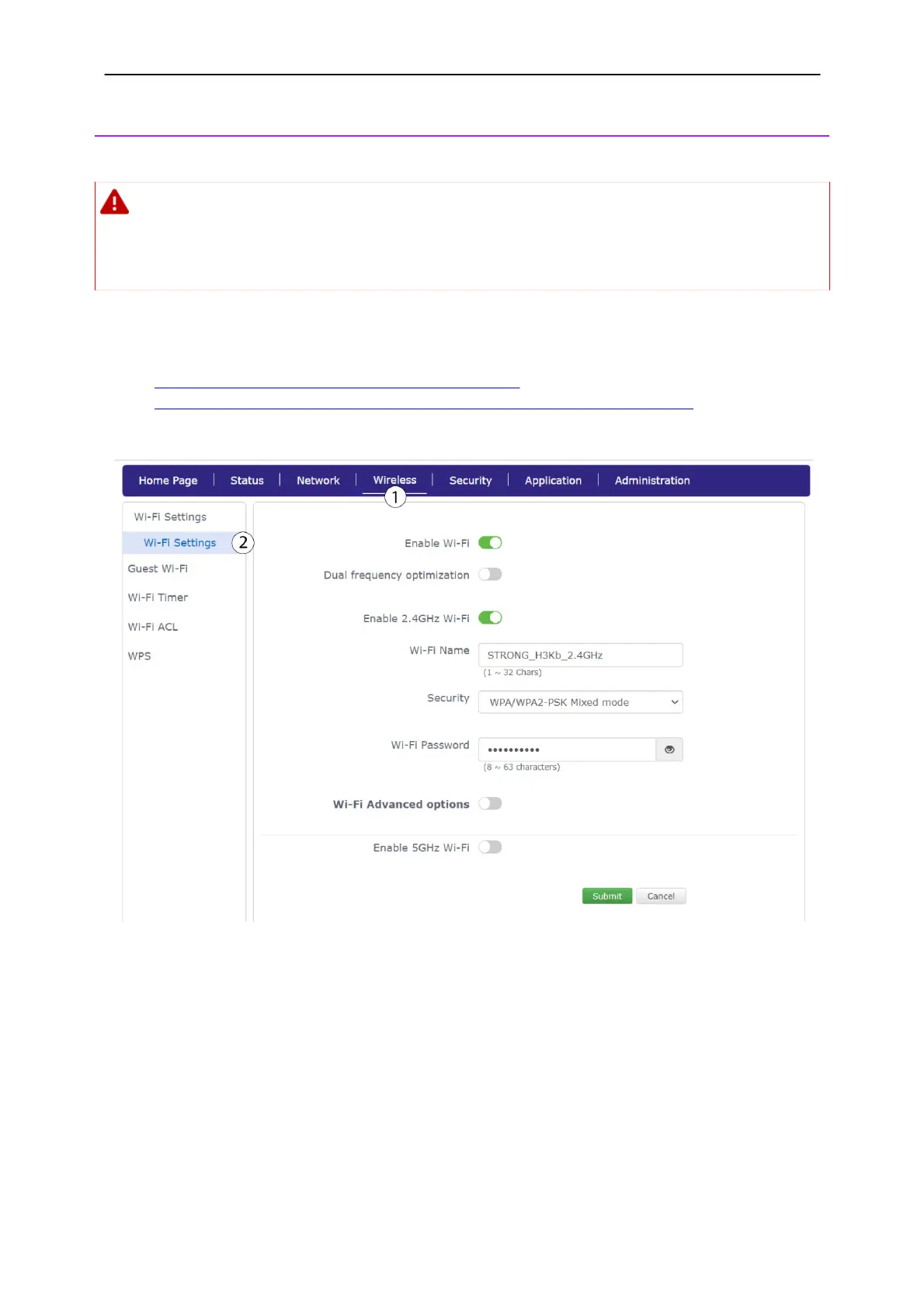
1. Click
Wireless
and select Wi-Fi Settings.
2. Change the name entered in the Wi-Fi Name field and click the eye icon next to the Wi-Fi
Password field. Then change the password entered in the Wi-Fi Password
field and click
Submit to save the changes.


 To Next Page