4G+ROUTER1200 - User Guide 6
/
84
Copyright © STRONG 2024. All Rights Reserved. 6
/
84
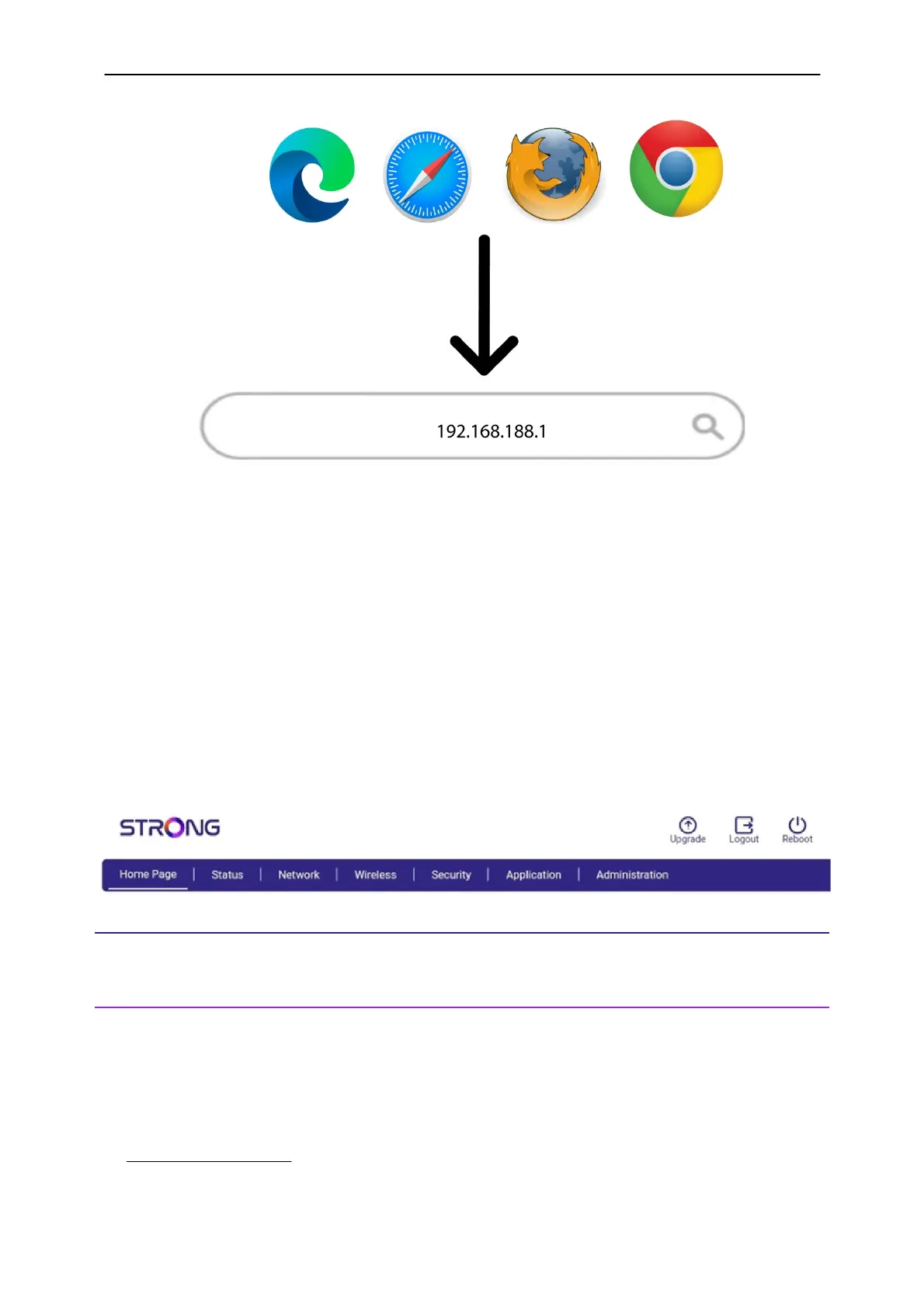
2. Once you have entered the username and password, you can see that the Web UI is divided into
seven categories:
Home Page: where you can see the status of your connection, SIM Card and PIN Code.
Status: where you can see the information about the device, Internet, LAN and wireless
connections.
Network: where you can set up the APN, change or enter the PIN code, WAN, LAN and
Speed Limit.
Wireless: where you can set up WPS and Wi-Fi ( SSID (Wi-Fi Network Name) and Wi-Fi
password change, guest Wi-Fi, etc.)
Security: where you can set up a firewall, URL/MAC filters, IP filters and parental/service
control.
Application: where you can set up DNZ, DDNS, UPnP settings and IGMP.
Administration: where you can update the firmware, change the username and
password, languages, reboot the device, reset to factory settings, etc.
II. Configuring your Device and Network
1. Inserting your SIM card
When you are setting up your device, the first step is to insert your SIM card as it is used as the
source of your internet connection. A full-size SIM card must be inserted in our device.
If your SIM card is micro or nano, please place the SIM card in the adapter provided in the package.
1. To place your SIM card in the dedicated slot: follow the procedure below:
Case 1: Micro SIM Card


 To Next Page