3
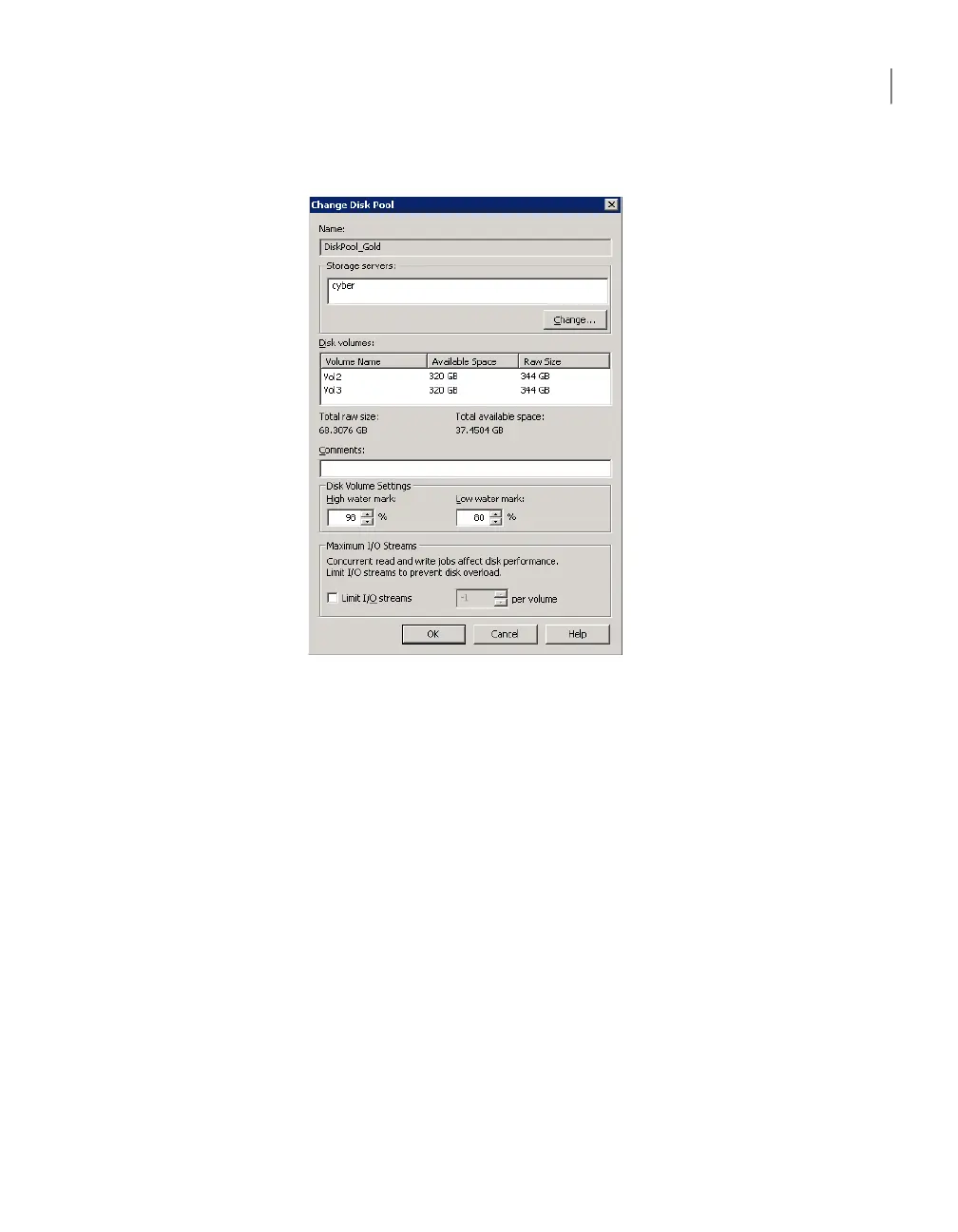
Click Edit > Change.
4
In the Change Disk Pool dialog box, change properties.
See “OpenStorage disk pool properties” on page 90.
5
Click OK.
Changing OpenStorage disk pool state
Disk pool state is UP or DOWN.
To change the state to DOWN, the disk pool must not be busy. If backup jobs are
assigned to the disk pool, the state change fails. Cancel the backup jobs or wait
until the jobs complete.
To change OpenStorage disk pool state
1
In the NetBackup Administration Console, in the left pane, select Media
and Device Management > Device Monitor.
2
At the bottom of the right pane, select the Disk Pools tab.
3
Select the disk pool.
4
Select either Actions > Up or Actions > Down.
115Managing OpenStorage
Managing OpenStorage disk pools



 To Next Page