69
Auto-Negotiate
Power supply LAN automatically adjusts its speed to the fastest speed available.
Multicast DNS
The LAN broadcasts its hostname even if no network server is present. This is useful for
connecting over simple peer-to-peer networks.
Logging In
To change power supply output or LAN settings, a user must first log in.
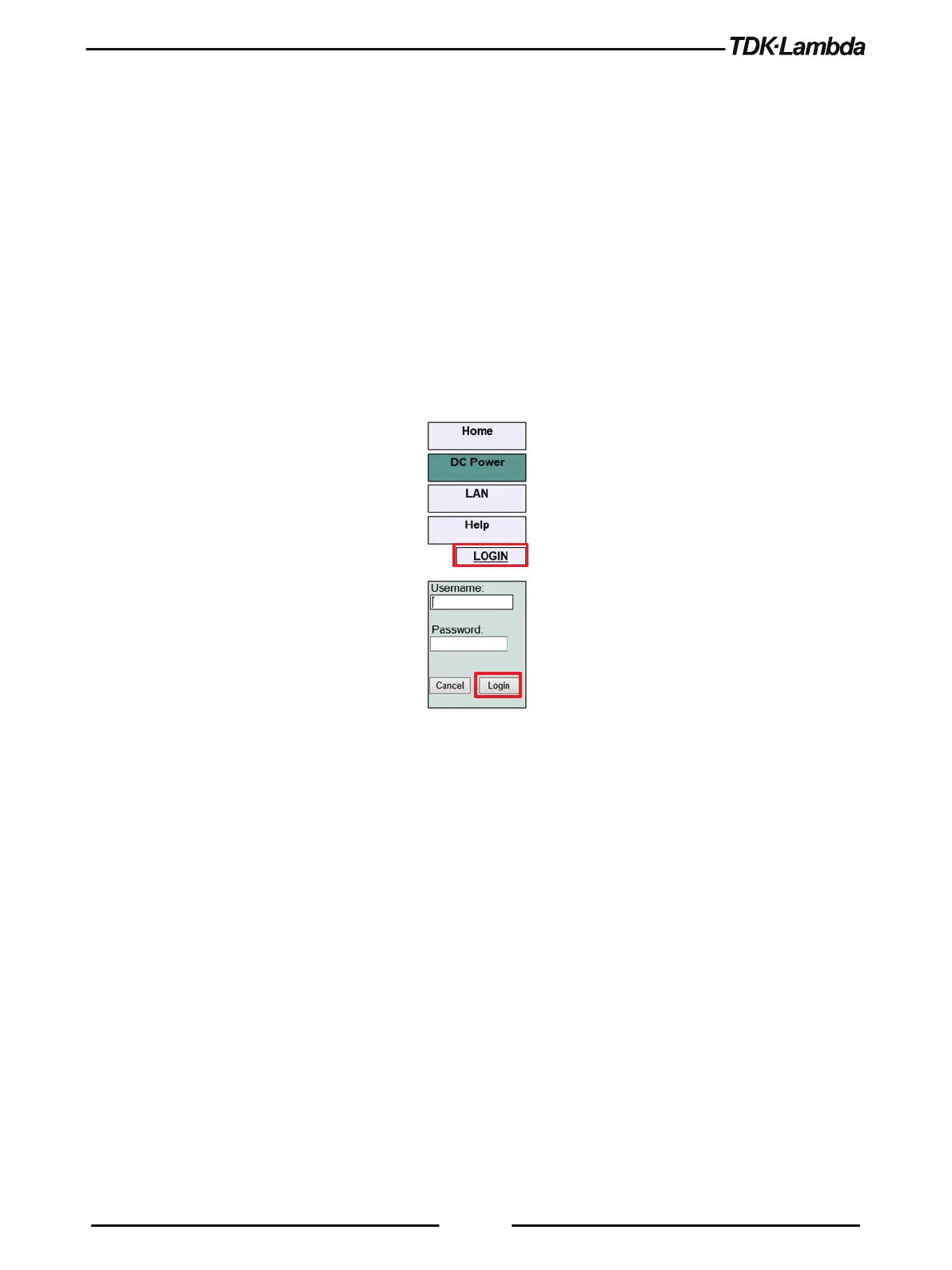
When the DC Power tab or LAN tab is clicked, a login box appears:
6. Click the Login button at the bottom-left side of the web page. A windows appears (refer to the
screenshot below).
The only acceptable user name is “admin". By default, the password field is empty.
Figure 4–10: LOGIN Button
7. Click Login.
8. The password may be set or removed on the LAN -> Users web page.
9. LAN Reset clears the password.
4.7.6.4 Login Rules
•
Up to 2 users may view the web pages of a power supply at the same time. However, the
update rate becomes slower as more web pages are open.
•
Only one user at a time may be logged-in to modify the power supply settings.
•
If an automation program with VISA or socket is running, user may view the web pages but
cannot login to change settings.
•
If a user is logged in, a VISA or socket connection cannot be opened by an automation
program.
•
A user may logout by clicking the Logout button, by closing the web browser or by leaving the
web browser idle for LAN Keep-alive seconds.



 To Next Page