Step 1:
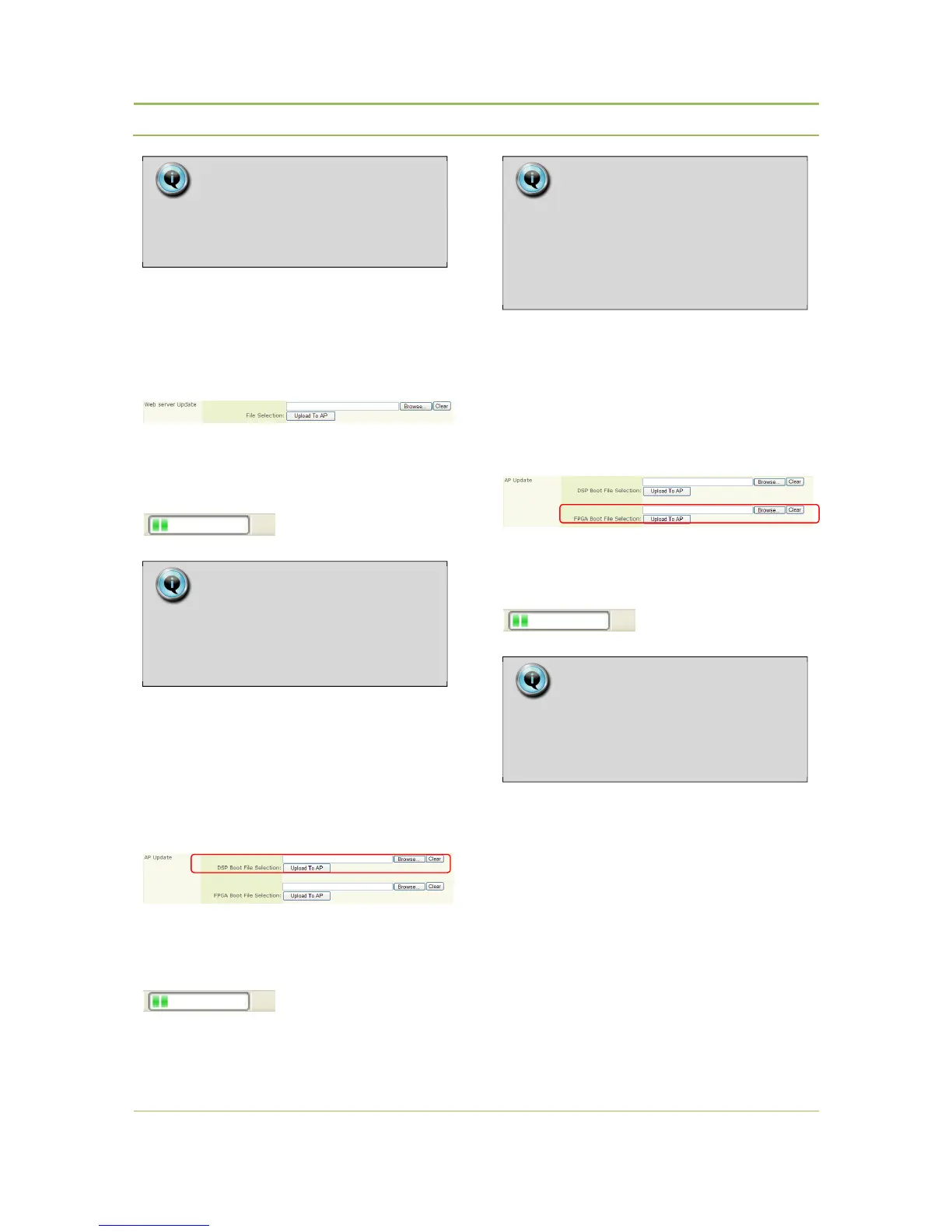
In the Web Server Update screen , browse to and
select the “webrombin.bin” file to update the
webserver.
Select “upload to AP”. A green progress bar appears
at the bottom of the screen and after +/- 5 sec the
screen is refreshed.
Upload is finished.
Step 2:
In the AP Update screen , browse to and select the
DSP Bootfile “firmware_ap.bin” file to update the
AP.
Select “upload to AP”.
A
green progress bar appears at the bottom of the
screen and after +/- 5 sec the screen is refreshed.
Upload is finished.
Attention : The name of the file must be exactly “
firmware_ap.bin ”
Step 3:
In the AP Update screen , browse to and
select the FPGA Bootfile “vhdl_ap.bin” file to
update the AP.
Select “upload to AP”. A green progress bar appears
at the bottom of the screen and after +/- 5 sec the
screen is refreshed.
Upload is finished.
Attention : The name of the file must be exactly
“ vhdl_ap.bin ”
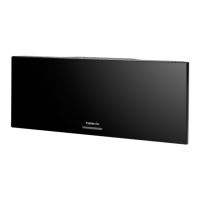
A reboot op the Confidea Accesspoint is needed
to activate the new SW version : Select “Reboot
AP”.
Step 4:
After the AP update procedure , it is advised to
perform a full reset : press the reset button next to
the middle antenna during 5 sec. and release it. (this
will also reset the ip address to the default value)
Note:
Only files that have changed need to be
uploaded.
Note:
Depending on the used
webbrowsertype and version , the
progressbar may not always be visible.
Note:
Depending on the used
webbrowsertype and version , the
progressbar may not always be
visible.
Note:
Depending on the used
webbrowsertype and version , the
progressbar may not always be visible.


 To Next Page