90 | Section 5
After adding the line, you can assign the extension to line buttons in show configuration. Once
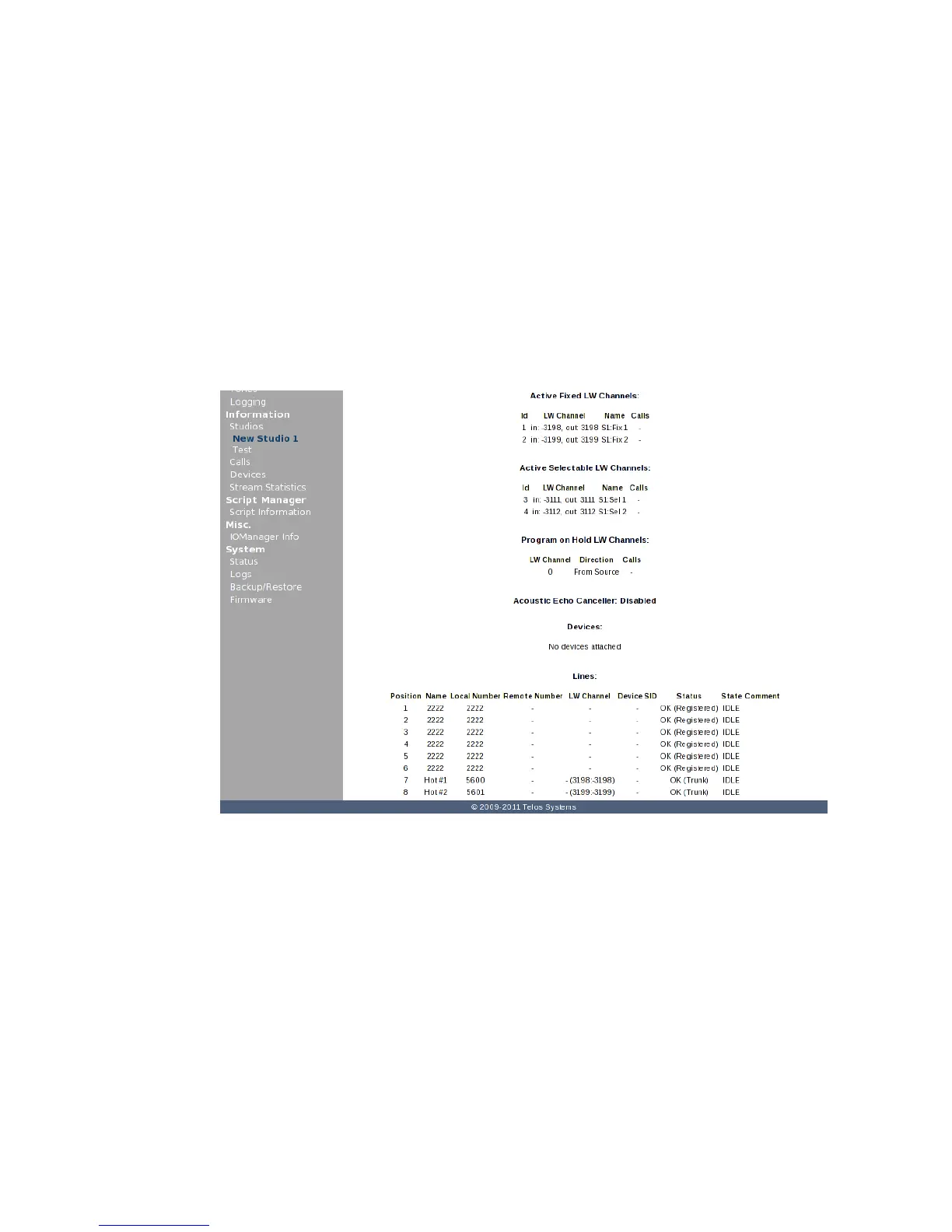
the show is loaded, the information page on VX will show the current status of your lines
and trunks. Notice below, that extension 2222 (and all of its multiple appearances) is OK and
registered. The others say ‘OK’ and trunk. This is because the trunk is ‘assumed’ to be present.
Extension 2222 has been verified as present.
Now we’ll go to the VX Shows page and look at the show that we built earlier. It has a 6 line
‘hunt group’ for extension 2222 and a couple of “back lines” or hot lines. It’s a ‘hunt group’
because there are 6 line keys set to extension 2222. Optionally, we could have the ‘busy all’
box checked only for extension 2222, our ‘public caller’ lines. Only these lines will be busied
out when we press the “block all” key on the VSet or activate that feature from VX producer.
In this example, that’s what we did.
Make a test call on your VSet
Pick up a line using your VSet, and dial ‘1234’ and press the GO button. If you are using PBX in
a Flash, you should hear a congratulatory recorded message from the Asterisk. Then try dialing
‘2222’ One of your 2222 lines should ring and you’ll hear a ringback tone in the handset or on
the studio output. Congratulations!
VX Tech Cheat sheet – Default IP numbers, passwords, etc.
Default Passwords:
VX Engine username = user , password = <blank>
VSet Telephone username = user , password = <blank>


 To Next Page