36 | Section 3
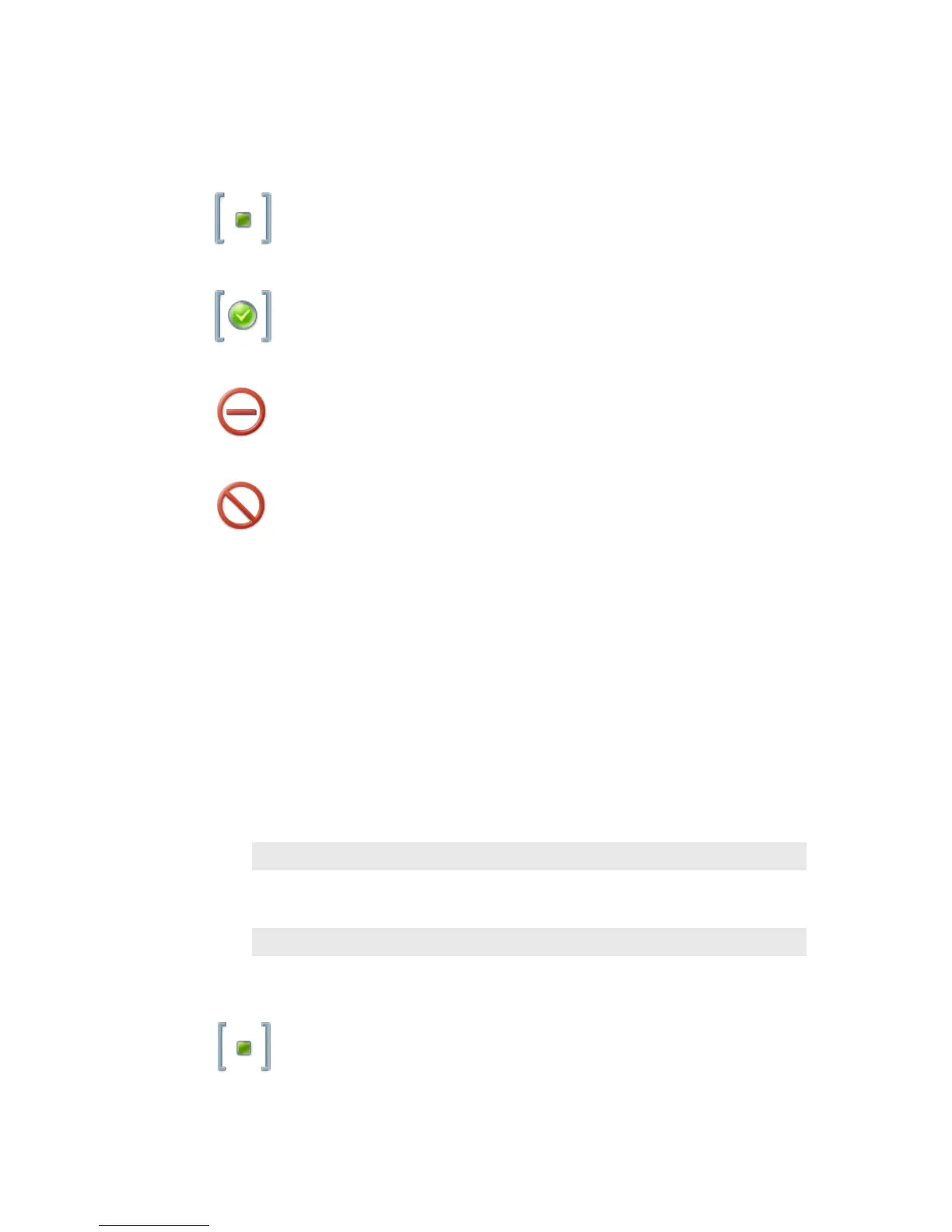
Hold
Ready Hold (Screened Hold)
Used Elsewhere (in another studio)
Line is blocked
Line Button Columns
Each line has 2 associated buttons to the left of the LCD.
Pressing a left column line button puts a held or ringing caller on the handset.
Press the right column button to put a held or ringing line on air, dropping any other unlocked
calls. If a call is already on the air, pressing the right button locks the line, or if already locked,
unlocks it. That is, it toggles between the two states. Not to worry, we’ve made it difficult to
accidentally drop a call. Call screeners or producers should use the Ready Hold button (the one
with the checkmark) to put lines in ready hold mode and assign priority for the Next function.
See “Next” Button and function.
Ready hold works like normal hold, except the line status icon has the checkmark to indicate to
operators that a call has been determined to be ready for air, normally by a producer/screener.
The Vset must be in Producer mode in order to use this key.
Tip: You can re-order the next priority queue at any time. Put lines in Ready Hold - even those
already on Ready Hold - in reverse order from the order you wish to air them. First, Screen
hold the call to be aired last, then the call to be aired second to last and so on. You would
screen hold the call that you want to be aired next, last. At rst blush, this may seem confus-
ing, but it makes sense when you remember that the call held the longest goes rst to air.
Hold Button
Holds a call that is ringing, on the handset, or on-air. If more than one line is in this category,
there will be a small hold icon near the status icon on the lines that could be held. Press the
line that you want to hold.


 To Next Page