56 | Section 5
Note that a Call Control module is required even when no selectable lines will be configured.
The fixed lines rely upon software linked to the Call Control Module.
Conguring the Element to Control the VX
Element configuration is via web.
Do the VX configuration first, and then move on to Element configuration.
Things you will need to know about your VX in order to configure an Element as a controller
are:
♦ The VX Engine IP address
♦ User name and password to access the VX Engine.
♦ The VX Studio name you will connect to.
♦ VX hybrids/Livewire output names and numbers you want to use in this studio
♦ VX Show name if you want to load VX Shows from Element console profiles.
In order to correctly control your VX, your Element and/or PowerStation must be be running
the following software versions:
♦ PowerStation: v1.1.3a or higher
♦ Element: v2.5.0.3 or higher
To obtain and install this software, visit www.AxiaAudio.com/downloads/ and follow the
update instructions contained in the accompanying Release Notes.
There are three steps to configuring the Element for the VX, as follows.
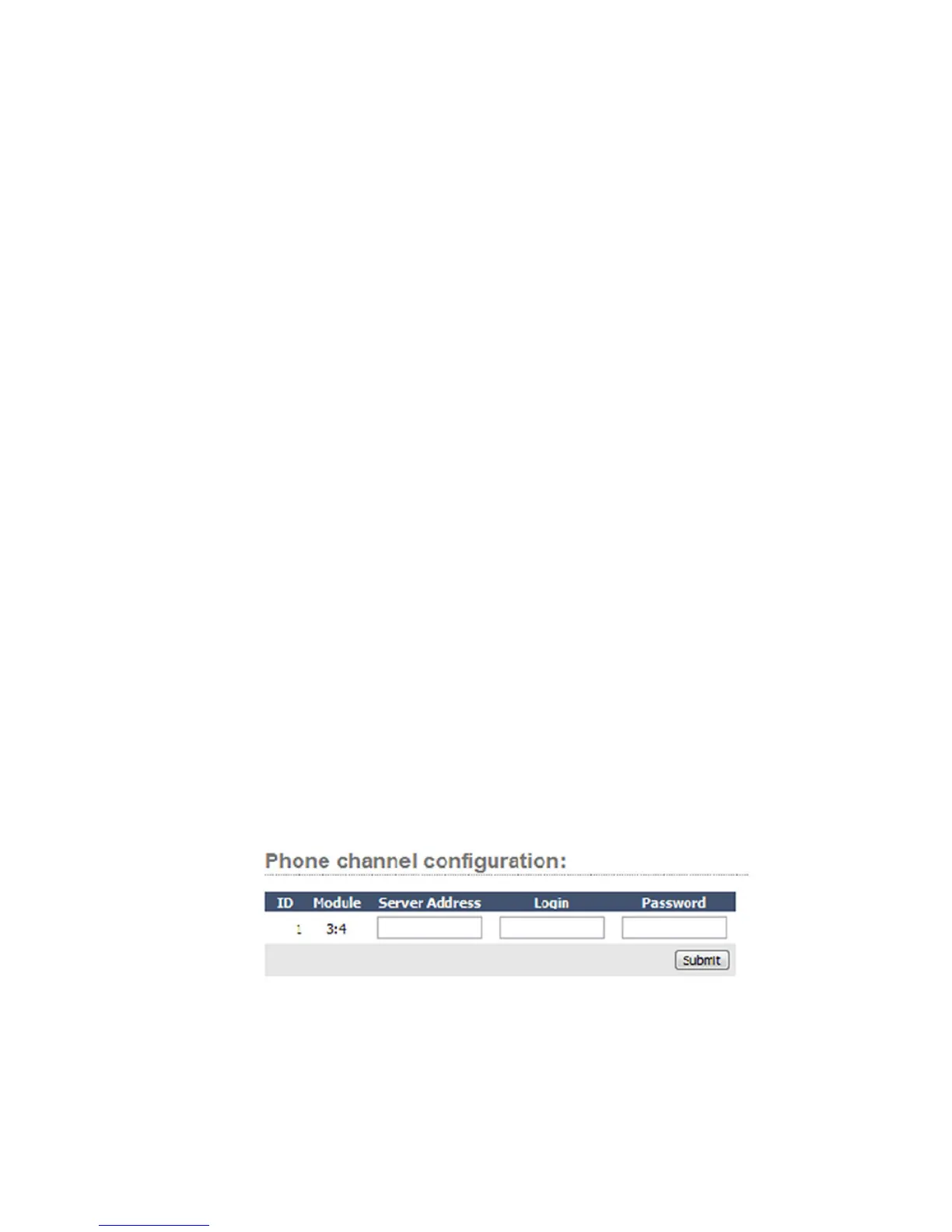
1. Set up the VX-to-Element connection. Open the Element’s Module Manager/Phone
Channels web page. If you have the Caller Controller Module installed, you will see the
following at the top of the screen:
If you don’t see this, or if the ID or Module information is incorrect, you will need to
“Capture” your current module configuration. This is normally done at the factory, but if
you have added the phone module yourself, you will need to execute the Capture so that
the Element can “see” the newly added module.


 To Next Page