iCNC PERFORMANCE
5-6 NESTING Manual 0-5399
Creating a new shape with macros
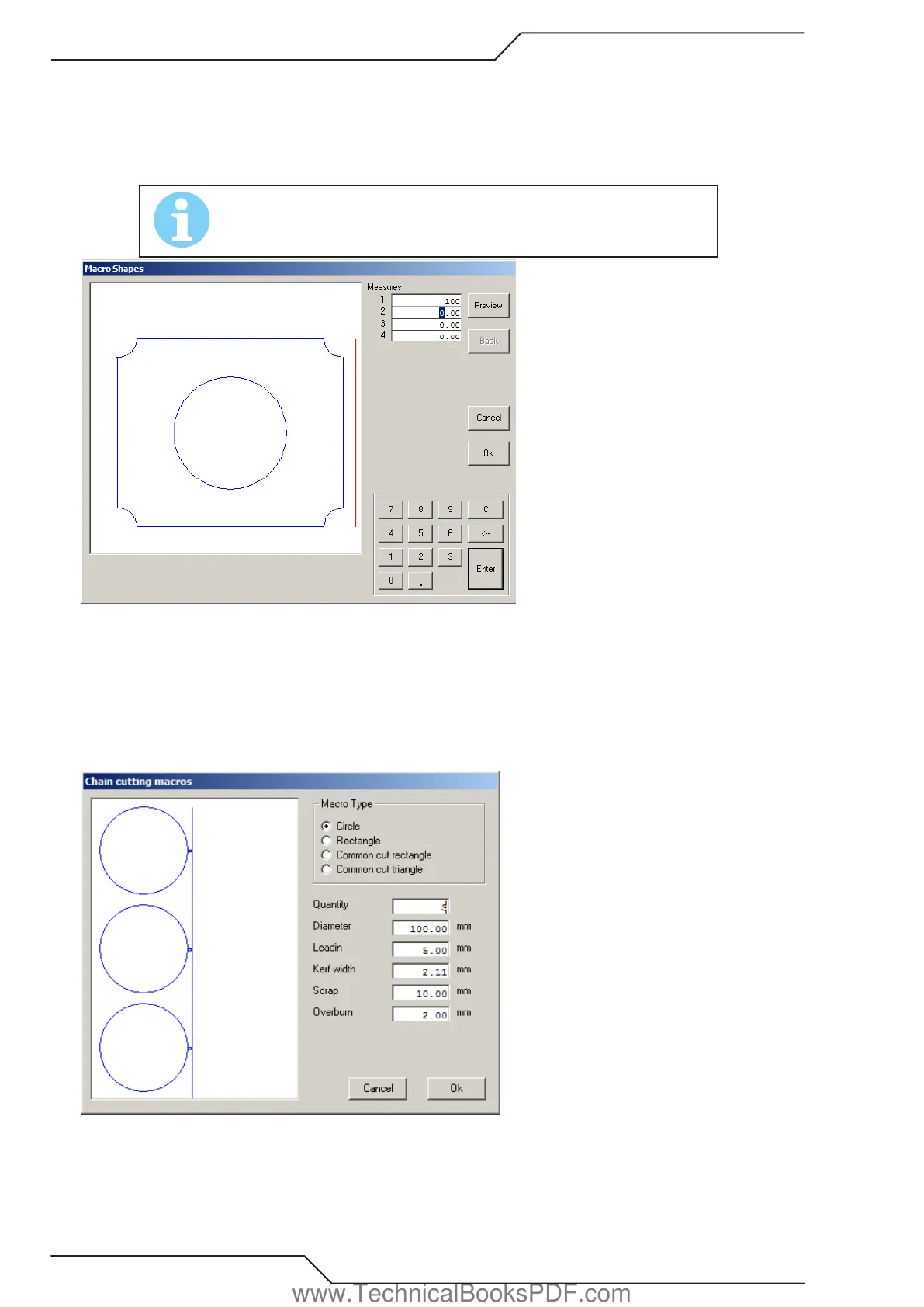
Select the macro you want by double-clicking it. The window below (picture 2) opens. Enter your measurements in the boxes provided.
In the picture on the left side of the window you can see the shape and red lines. Those red lines are measure lines and they show
you which measurement you are entering. When you have entered all the measurements, you can preview the shape by choosing
“PREVIEW”. If you want to change the measurements after you have previewed them, simply choose “BACK” and adjust your mea-
surements. When you are satisfied, choose “OK” and the shape appears in ProMotion® Nest’s work window.
NOTE!
You can input numbers by using the number pad or the wheel of your mouse.
Picture 2.
Chain cutting macros
Chain cutting macros are simple shapes - circles, triangles and rectangles - which are cut in a single line with just one piercing. It is
also possible to make common cut shapes, where two rectangles or triangles have one mutual side.
Using chain cutting macros is really simple. Just insert the correct parameter values and click “OK”. When you change the parameters
you can see the effect of those changes immediately in the preview area.
Picture 3.
www.TechnicalBooksPDF.com



 To Next Page