iCNC PERFORMANCE
Manual 0-5399 NESTING 5-7
Editing the macrolist
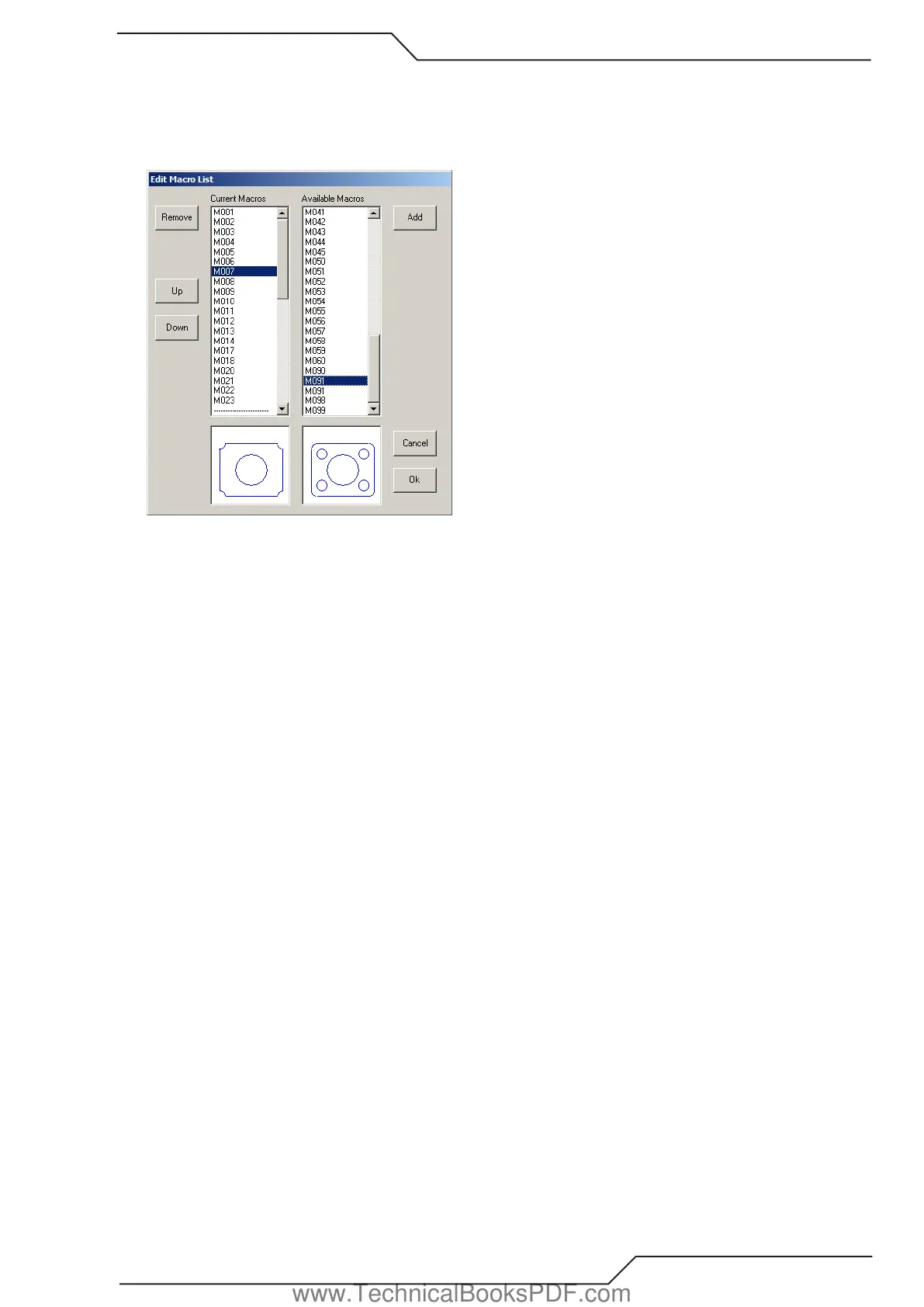
Choose “EDIT MACROLIST” in the first window (picture 1) to open the macrolist edit window (see below). The list “CURRENT MACROS”
shows the macros currently in the list. The list “AVAILABLE MACROS” shows all the macros, which you can add to the macrolist. The
dashed line in the “CURRENT MACROS” list shows where the page break is. There can be only 20 macros visible in any time in the
macro list (see picture 1).
Picture 4.
How to change the order of macros in the macro list:
• Select one of the macros in the list ’CURRENT MACROS “. The macro you selected is displayed in the small picture box just below
the list.
• Choose “UP” to move the selected macro one step towards the beginning of the list.
• Choose “DOWN” to move the selected macro one step towards the end of the list.
How to remove a macro from the macro list:
• Select one of the macros in the list “’CURRENT MACROS”. The macro you selected is displayed in the small picture box just below
the list.
• Choose “REMOVE” and the macro you selected is removed from the list.
How to add a macro to the macro list:
• Select one of the macros in the list “AVAILABLE MARCROS”. The macro you selected is displayed in the small picture box just
below the list.
• Choose “ADD” and the macro you selected is added to the end of the list.
www.TechnicalBooksPDF.com



 To Next Page