11
Smart AC1/TD
w w w . t i m e t e c c l o u d . c o m
Press on the main interface and enter the 1:1
facial verification mode.
Enter the user ID and click [OK].
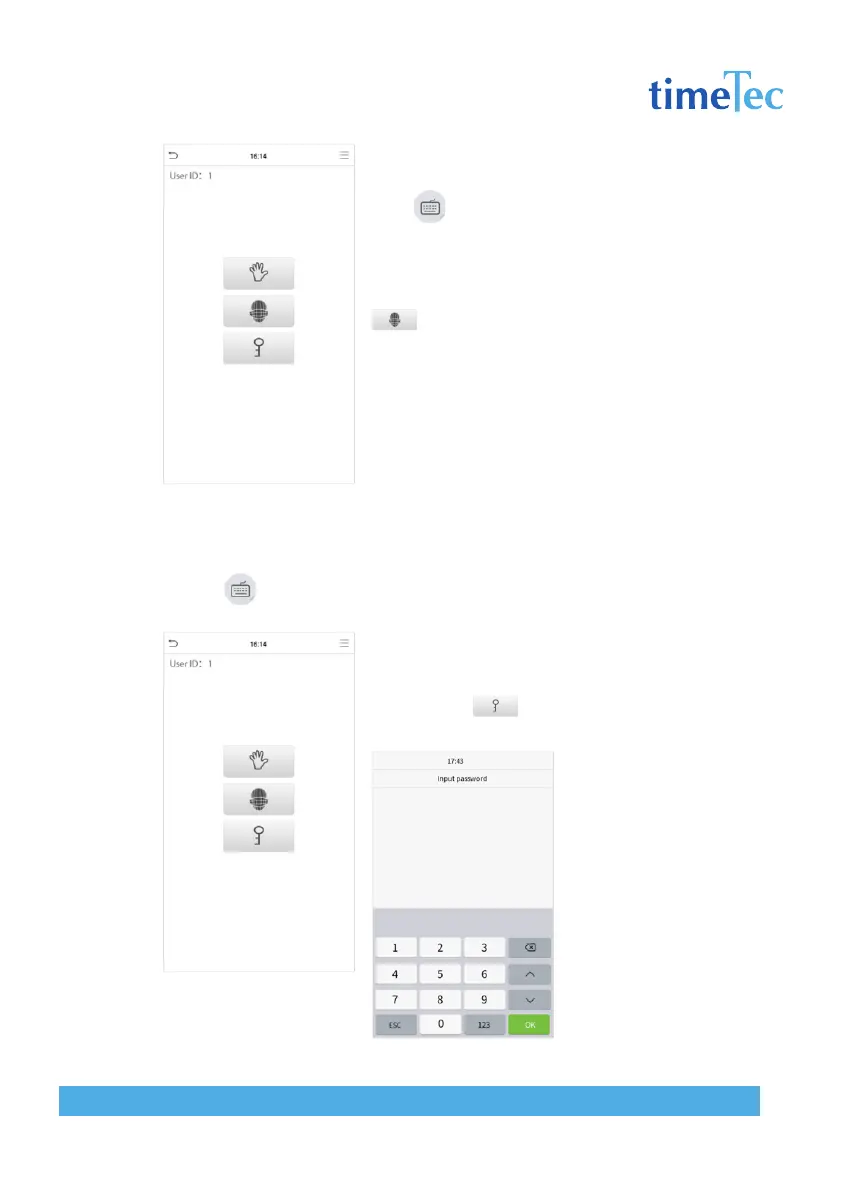
If an employee registers palm and password in addition
to face, the following screen will appear. Select the
icon to enter face verification mode.
After successful verification, the prompt box “success-
fully verified” will appear.
If the verification is failed, it will prompt “Please adjust
your position!”.
Password Verification
Compare the entered password with the registered User ID and password.
Click the button on the main screen to enter the 1:1 password verification mode.
1. Input the user ID and press [OK].
If an employee registers palm and face in addi-
tion to password, the following screen will appear.
Select the icon to enter password verifica-
tion mode.
2. Input the password
and press [OK].



 To Next Page