39
Smart AC1/TD
w w w . t i m e t e c c l o u d . c o m
Descriptions
Scheduled time period for “Normal Open” mode, so that the
door is always unlocked during this period.
When setting up the master and slave, the status of the master
can be set to exit on enter.
Exit: The record verified on the host is the exit record.
Enter: The record verified on the host is the entry record.
Set the door unlock time period and auxiliary output type of the
auxiliary terminal device. Auxiliary output types include None,
Trigger door open, Trigger Alarm, Trigger door open and Alarm.
To transmit a sound alarm or disassembly alarm from the local.
When the door is closed or the verification is successful, the
system will cancel the alarm from the local.
The restored access control parameters include door lock delay,
door sensor delay, door sensor type, verification mode, door
available time period, normal open time period, master device,
and alarm. However, erased access control data in Data Mgt. is
excluded.
Items
Normal open time
Period
Master Device
Auxiliary input
configuration
Speaker Alarm
Reset Access Setting
9.2 Time Schedule
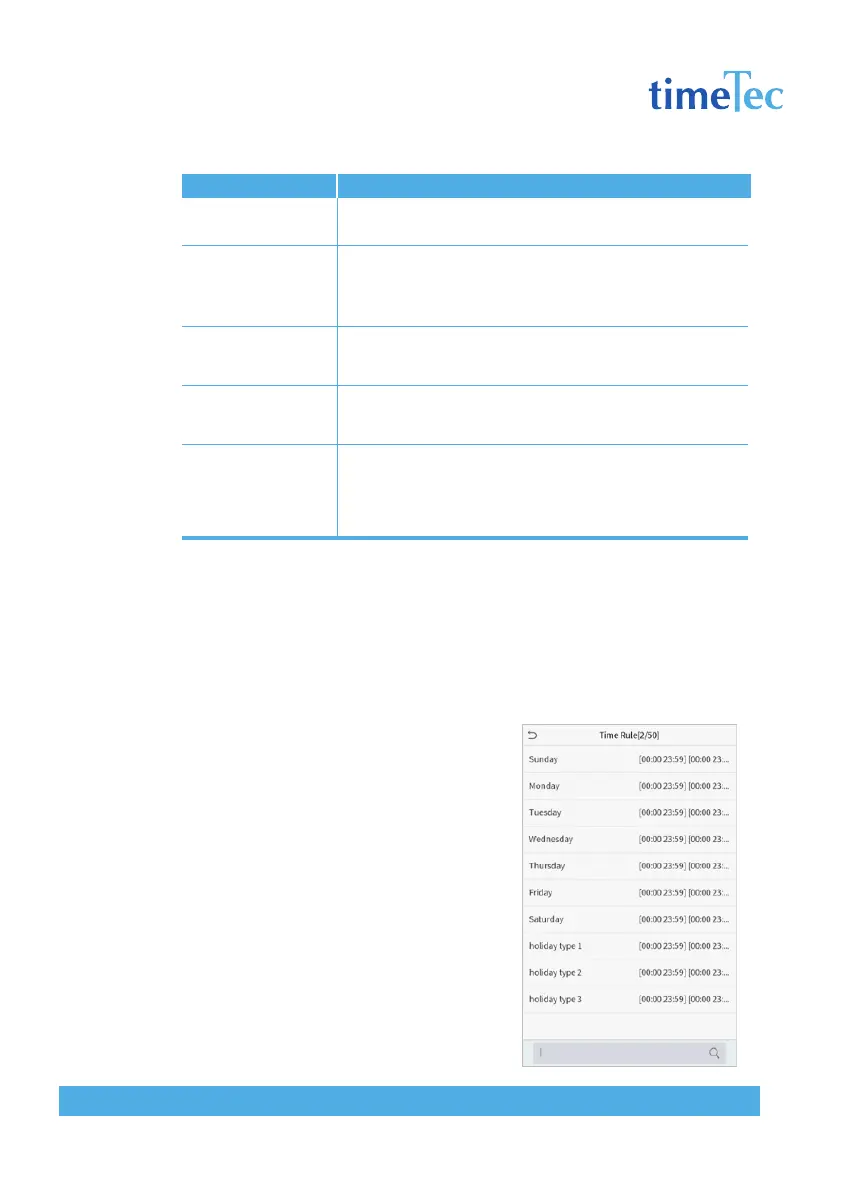
The entire system can define up to 50 time rules. Each time rule represents ten
time zones, i.e. one week and 3 holidays, and each time zone is a valid time period
within 24 hours per day. You may set a maximum of 3 time periods for every time
zone. The relationship among these time periods is “or”. When the verification
time falls in any one of these time periods, the verification is valid. Each time
period format of the time zone: HH
MM-HH MM, which is accurate to
minutes according to the 24-hour clock.
Click Time Rule Setting on the Access
Control interface.
1. Click the grey box to input a time
zone to search. Enter the number of time
zone (maximum: 50 zones).
2. Click the date on which time zone
settings is required. Enter the starting
and ending time, and then press OK.



 To Next Page