16
Smart AC1/TD
w w w . t i m e t e c c l o u d . c o m
Register user photo
When a user registered with a photo passes the authentication, the registered
photo will be displayed.
Click User Photo, click the camera icon to take a photo. The system will return to
the New User interface after taking a photo.
Note: While registering a face, the system will automatically capture a picture as the user photo. If you do not want
to register a user photo, the system will automatically set the picture captured as the default photo.
Access Control Role
User access control sets the door unlocking rights of each person, including the
group and the time period that the user belongs to.
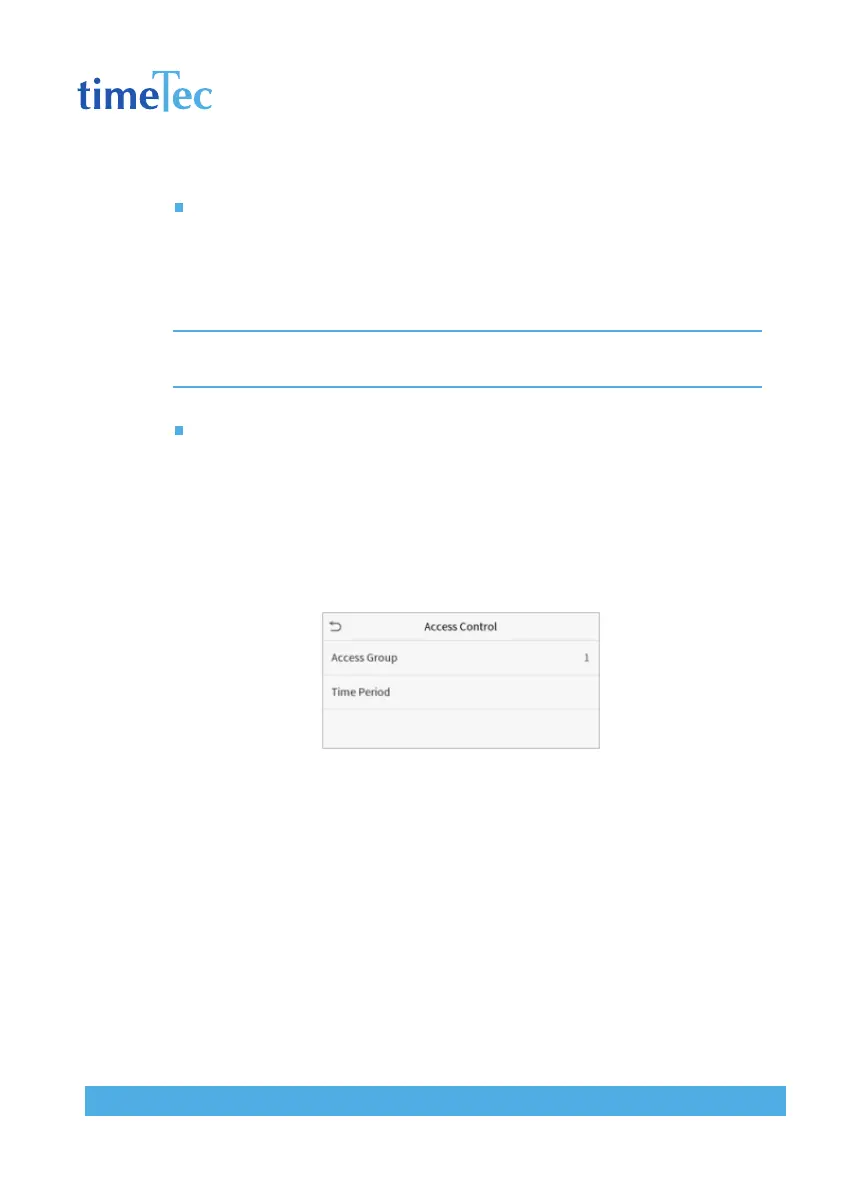
Click Access Control Role > Access Group, assign the registered users to different
groups for better management. New users belong to Group 1 by default, and can
be reassigned to other groups. The device supports up to 99 access control groups.
Click Time Period, select the time period to use.
3.2 Search For Users
Click the search bar on the user list and enter the retrieval keyword (The keyword
may be an ID, surname or full name.). The system will search for the users related to
the information.
3.3 Edit Users
Choose a user from the list and click Edit to enter the edit user interface:



 To Next Page