29
Smart AC1/TD
w w w . t i m e t e c c l o u d . c o m
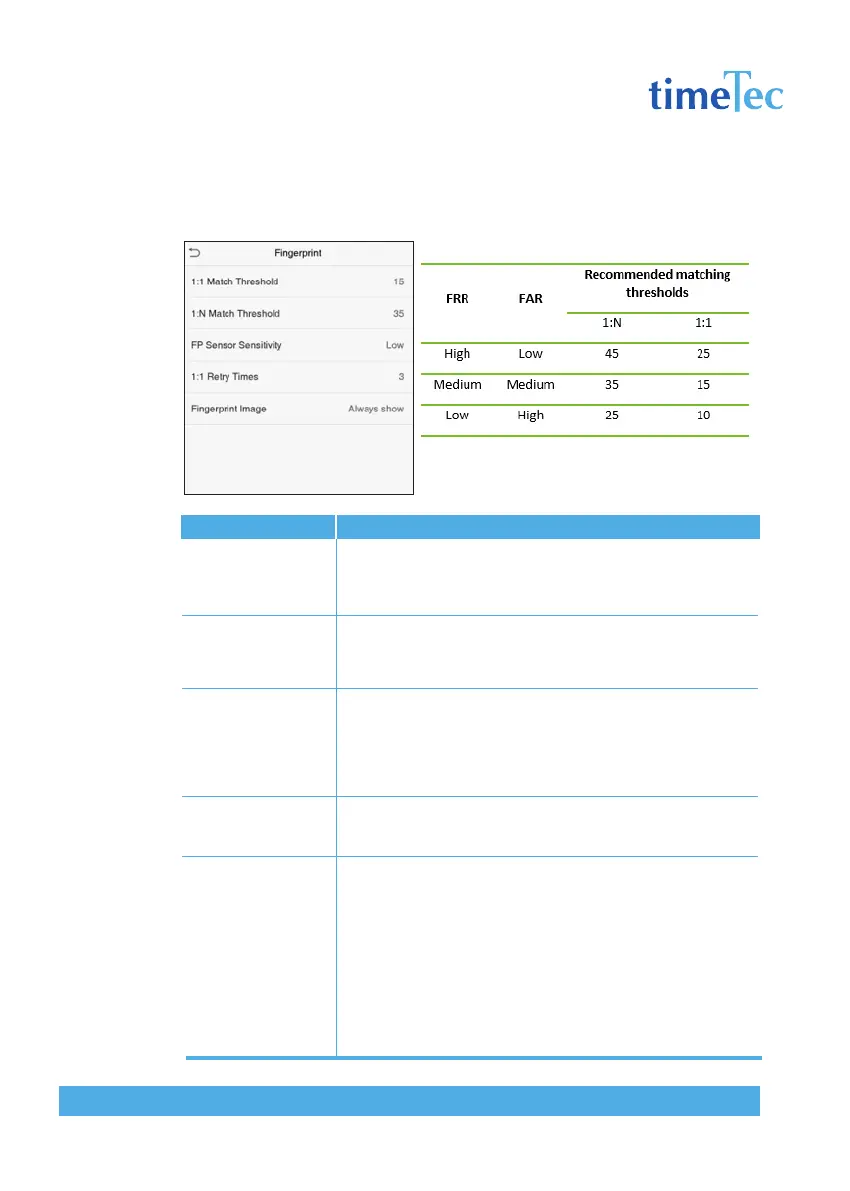
6.4 Fingerprint Parameters
Click Fingerprint on the System interface.
Items
1:1 Match Threshold
1:N Match Threshold
FP Sensor Sensitivity
1:1 Retry Times
Fingerprint Image
Descriptions
Under 1:1 verification method, the verification will only be suc-
cessful when the similarity between the acquired fingerprint data
and the fingerprint template associated with the entered user ID
enrolled in the device is greater than the set value.
Under 1:N verification method, the verification will only be suc-
cessful when the similarity between the acquired fingerprint data
and the fingerprint templates enrolled in the device is greater
than the set value.
To set the sensibility of fingerprint acquisition. It is recommend-
ed to use the default level “Medium”. When the environment is
dry, resulting in slow fingerprint detection, you can set the level
to “High” to raise the sensibility; when the environment is humid,
making it hard to identify the fingerprint, you can set the level
to “Low“.
In 1:1 Verification, users might forget the registered fingerprint,
or press the finger improperly. To reduce the process of re-enter-
ing user ID, retry is allowed.
To set whether to display the fingerprint image on the screen
during fingerprint enrollment or verification. Four choices are
available:
Show for enroll: to display the fingerprint image on the screen
only during enrollment.
Show for match: to display the fingerprint image on the screen
only during verification.
Always show: to display the fingerprint image on screen during
enrollment and verification.
None: not to display the fingerprint image.



 To Next Page