7
Smart AC1/TD
w w w . t i m e t e c c l o u d . c o m
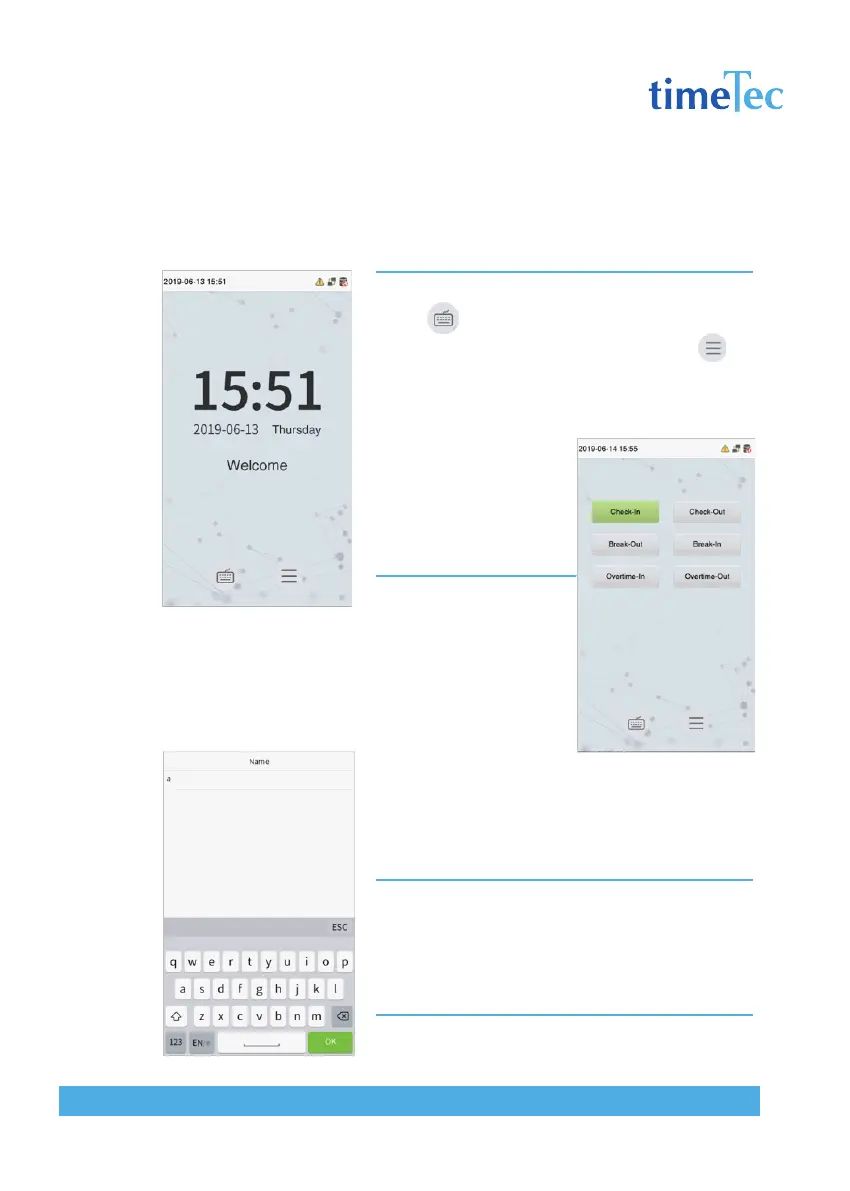
1.5 Standby Interface
After connecting the power supply, enter the following standby interface:
Note:
1 Click to enter the User ID input interface.
2 When there is no super administrator set in the device, click
to enter the menu. After setting the super administrator, it requires
the super administrator’s verification before entering the menu op
eration. For the security of the device, it is recommended to register
super administrator the first time you use the device.
3 The switch of punch state can
be done directly by using the
screen shortcut keys. Click
anywhere on the screen
without icons, and six
shortcut keys appear, as
shown in the figure below:
Press the corresponding shortcut key to select the
current punch state, which is shown in green. Please
refer to “7.5 Shortcut Key Mappings” below for the
specific operation method.
1.6 Virtual Keyboard
Note:
The device supports the input of Chinese, English, numbers and symbols.
Click [En] to switch to English keyboard. Press [123] to switch to the nu-
meric and symbolic keyboard, and click [ABC] to return to the alphabetic
keyboard. Click the input box, virtual keyboard appears. Click [ESC] to exit
the input.



 To Next Page