33
Smart AC1/TD
w w w . t i m e t e c c l o u d . c o m
Edit a bell
On the All Bell Schedules interface, tap the bell to be edited.
Click Edit, the editing method is the same as the operations of adding a bell.
Delete a bell
On the All Bell Schedules interface, tap the bell to be deleted.
Tap Delete and select [Yes] to delete the bell.
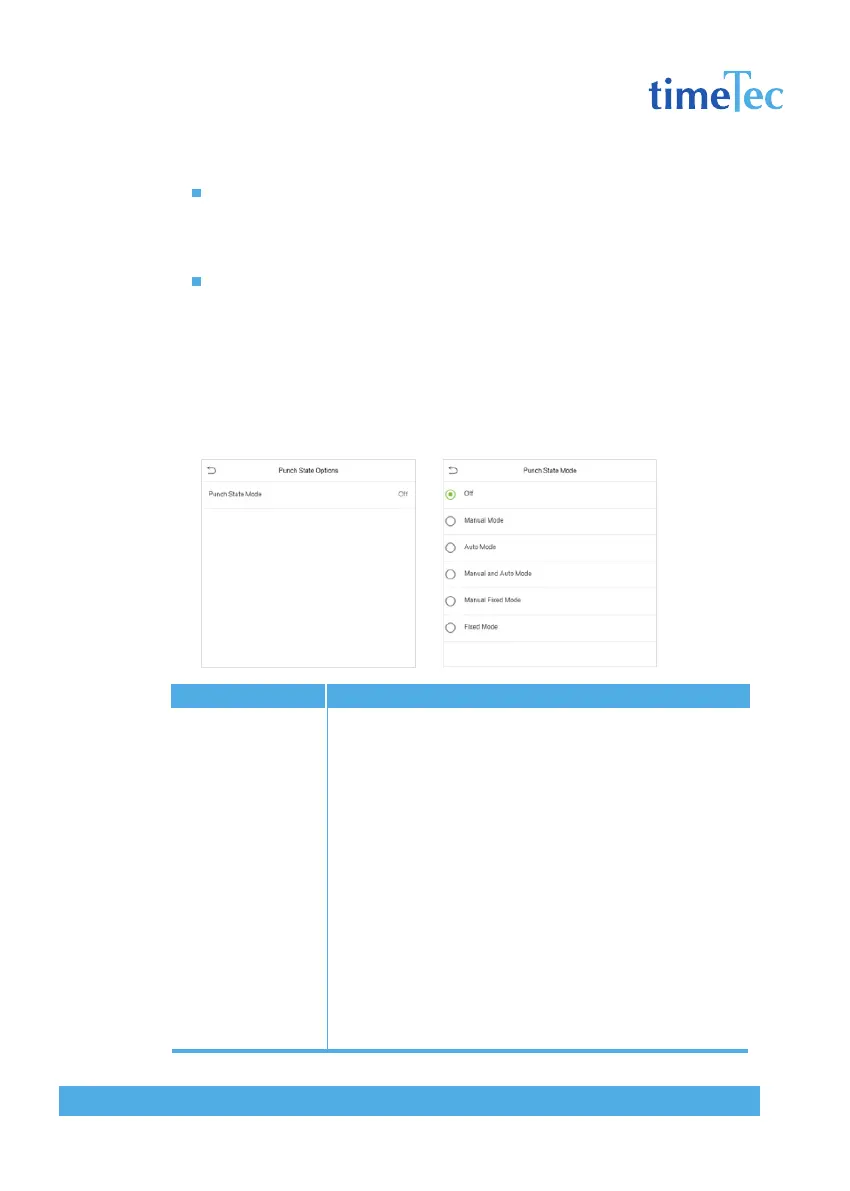
7.4 Punch States Options
Click Punch States Options on the Personalize interface.
Items
Punch State Mode
Descriptions
Select a punch state mode, which can be:
Off: To disable the punch state key function. The punch state key set
under Shortcut Key Mappings menu will become invalid.
Manual Mode: To switch the punch state key manually, and the
punch state key will disappear after Punch State Timeout.
Auto Mode: After this mode is chosen, set the switching time of
punch state key in Shortcut Key Mappings; when the switching time
is reached, the set punch state key will be switched automatically.
Manal and Auto Mode: Under this mode, the main interface will
display the auto-switching punch state key, meanwhile supports
manually switching punch state key. After timeout, the manually
switching punch state key will become auto-switching punch state
key.
Manual Fixed Mode: After punch state key is manually switched,
the punch state key will remain unchanged until being manually
switched next time.
Fixed Mode: Only the fixed punch state key will be shown and it
cannot be switched.



 To Next Page