54
Smart AC1/TD
w w w . t i m e t e c c l o u d . c o m
13.4 Configure AWDMS in Ingress Software
By now, you should have your AWDMS setup completed. Now, you may proceed to
Ingress to configure the AWDMS.
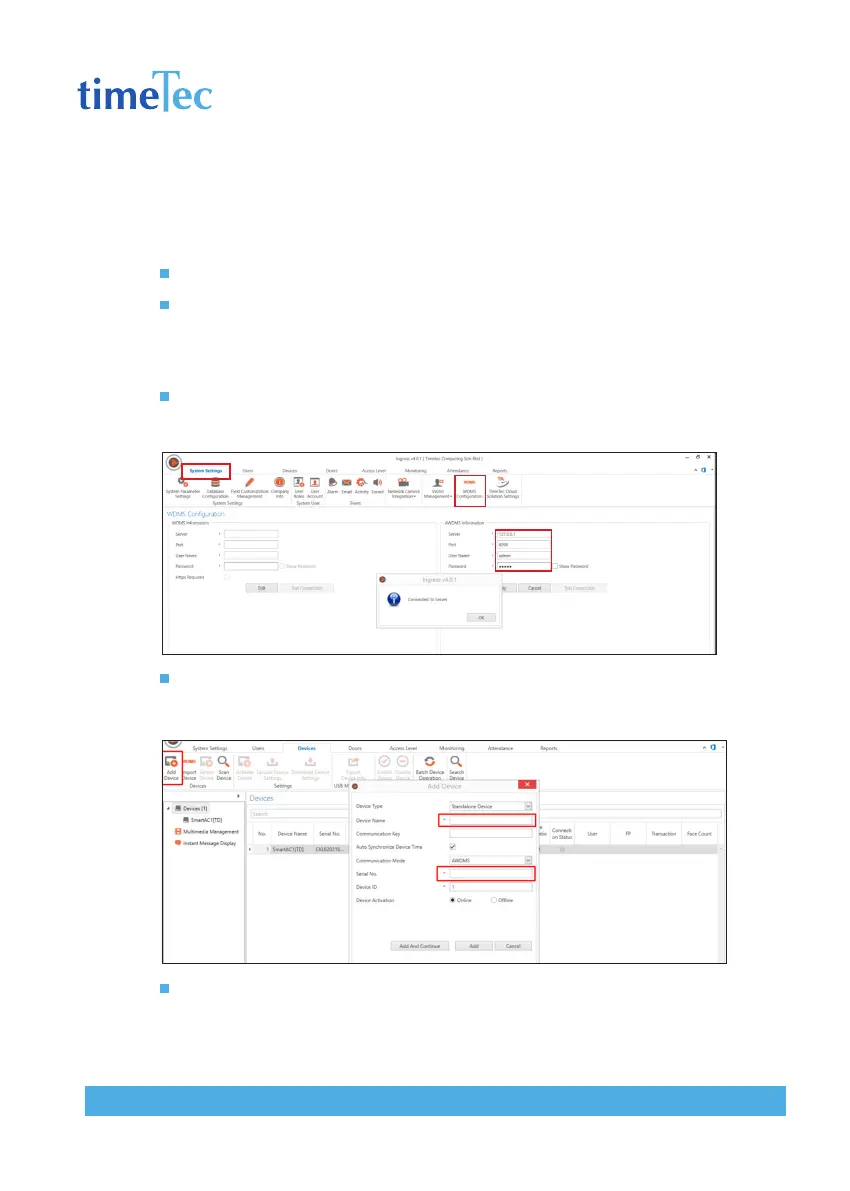
Login to Ingress, go to System Settings > AWDMS Configuration
Key in the AWDMS server IP, Port Number, Login Username and Password. Since
AWDMS and Ingress are running on the same PC, thus, the server IP is 127.0.0.1, the
default port is 8098. The default AWDMS login ID is “admin” and default password is
“admin”.
After keying in the AWDMS information, click on the Test Connection button and
check if the Ingress is able to connect to the AWDMS. A popup dialog box will be
prompted with “Connected To Server” if successful. Click Apply once it is done.
You may now add devices to the Ingress software by clicking the Add Device. Name
the device and key in the device’s serial number. Select online device activation, then
click Add.
After adding the device, it will appear in the Devices list.
The AWDMS installation is now completed. You may now launch the software and start
pulling or updating data from the AWDMS devices.



 To Next Page