4.2.1 Installing driver for the USB service cable
Only Windowsâ operating systems are supported by the driver of the USB
service cable.
1. Connect the USB service cable to a USB port on your computer. Windowsâ detects the
new device and installs the appropriate driver.
2. Open Device Manager from the Windowsâ Start menu. Use search to find it if necessary
(search for "device").
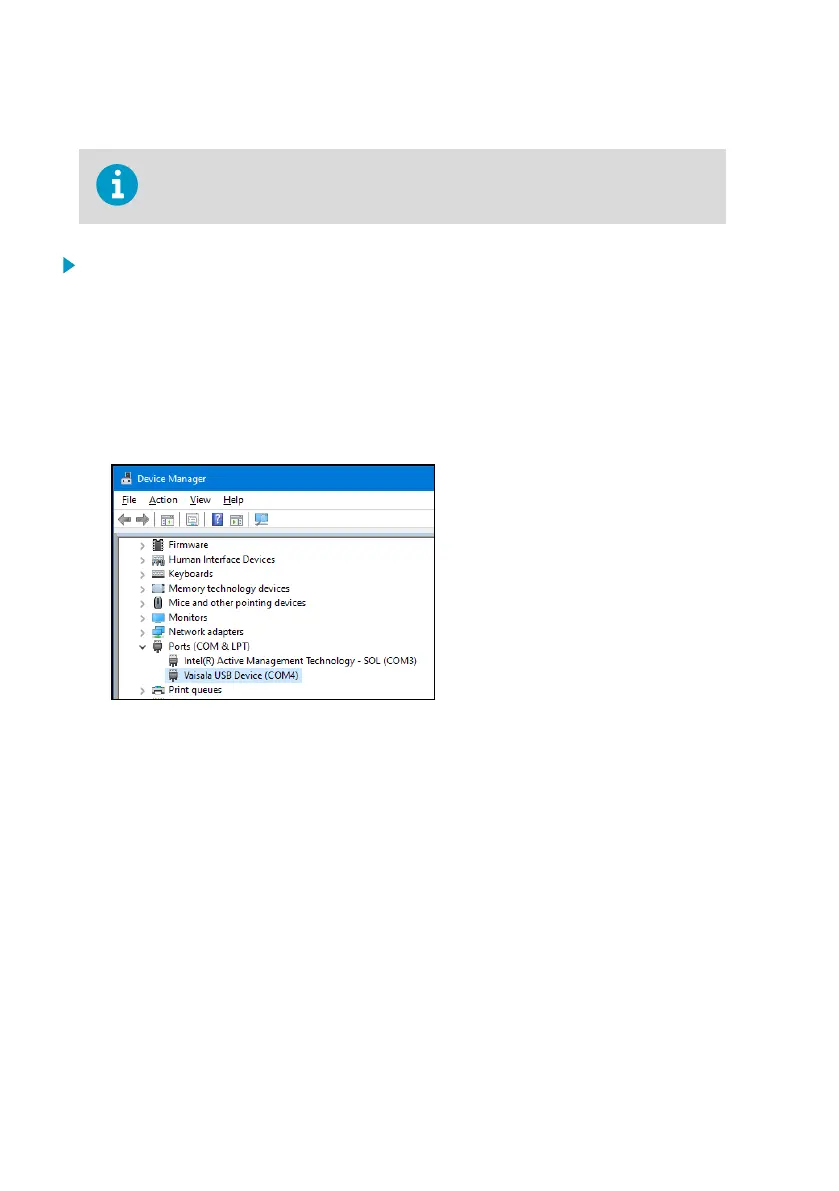
3. Locate the cable in the list of devices:
• If the device is listed as Vaisala USB Device with a COM port number in brackets, the
cable is ready for use. Note the COM port number, you will need it later.
• If the device is listed as Vaisala USB Instrument Cable without a COM port number
listed, you must install the driver manually.
4. To install the driver manually:
a. Disconnect the USB service cable from the computer.
b. Download the Vaisala USB driver at http://www.vaisala.com/software (select the
appropriate USB Instrument Driver Setup for your cable).
c. Extract the driver zip file and run the USB driver installation program Vaisala USB
Device Driver Setup.exe. Accept the installation defaults.
d. Go back to step 1 and verify that the driver installation works as expected.
Indigo300 User Guide M212849EN-A
32




 To Next Page