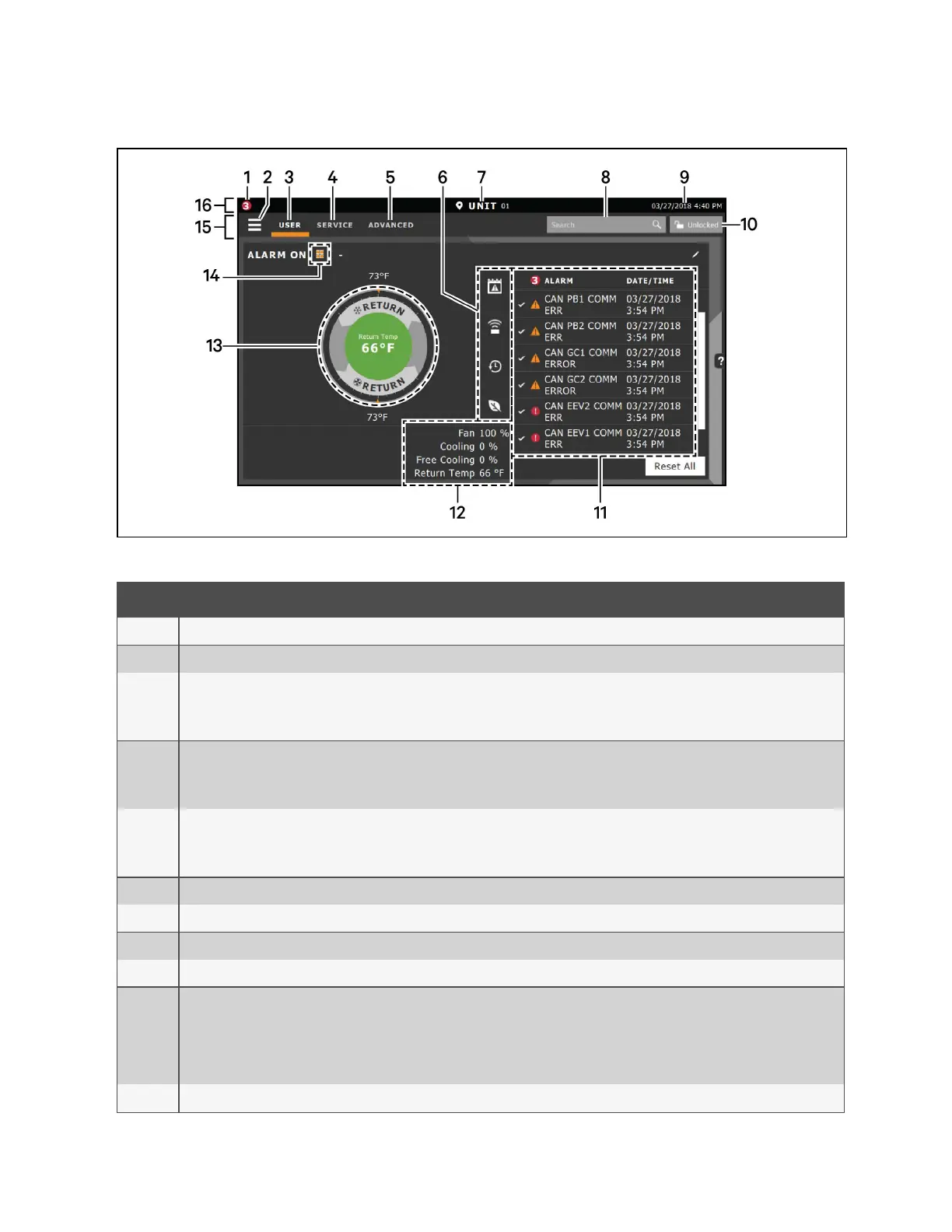
Figure 1.1 Vertiv™ Liebert® iCOM™ Main Display
Item Description
1 Alarms present. Displays the number of active alarms.
2 Menu icon. When unlocked, displays a menu for user or service options depending on which icon is selected.
3
User icon. When selected, the user options are available on the main display and menu.
NOTE: You must unlock the display with the User PIN to access the menu and options.
See Powering On the Vertiv™ Liebert® iCOM™ and Logging In/Unlocking Controls on page6 .
4
Service icon. When selected, the service options are available on the main display and menu.
NOTE: You must unlock the display with the Service PIN to access the menu and options.
See Powering On the Vertiv™ Liebert® iCOM™ and Logging In/Unlocking Controls on page6 .
5
Advanced icon. When selected, the advanced options are available on the main display and menu.
NOTE: You must unlock the display with the Service PIN to access the menu and read-only options.
See Powering On the Vertiv™ Liebert® iCOM™ and Logging In/Unlocking Controls on page6 .
6 Cooling-unit parameters. Status display of selected system parameter settings. See Adding and Adjusting Content on page177
7 Unit Identification. You may customize the unit name up to six characters/numbers.
8 Search icon. Open the keyboard to search for controls and setting locations. See Searching on page9 .
9 Date/Time.
10
Lock/Unlock icon. Indicates whether or not the user and service options are accessible.
• Locked icon: display is read-only
• Unlocked icon: user or service is logged-in and options are accessible.
See Powering On the Vertiv™ Liebert® iCOM™ and Logging In/Unlocking Controls on page6 .
11 Secondary content panel. When accessing settings/configuration via the menus, the settings display in the right, secondary panel.
Table 1.1 Main Display Controls and Options
1 Getting Started with Vertiv™ Liebert® iCOM™Installer/User Guide
2
Vertiv™ Liebert® iCOM™Installer/User Guide




 To Next Page