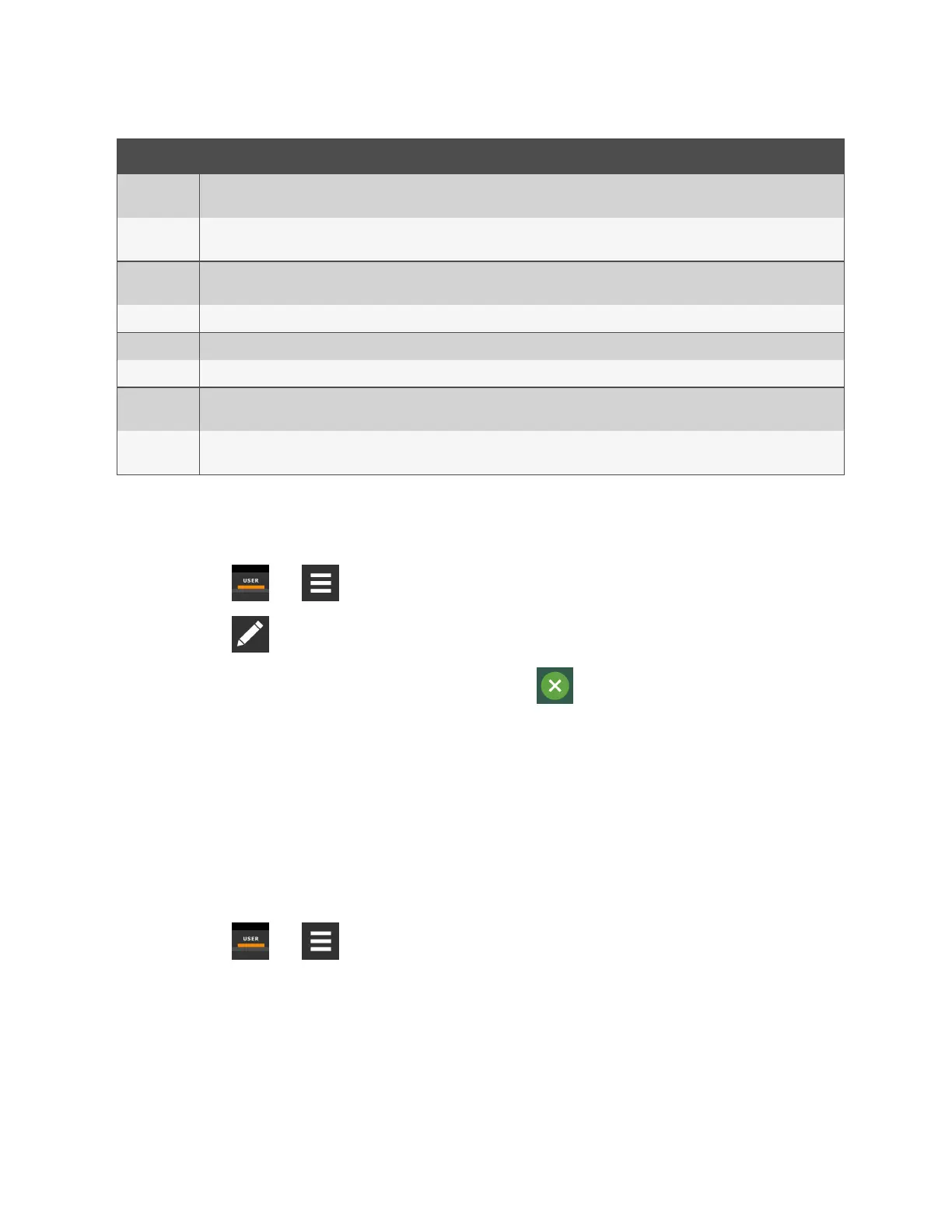
Content Description
Setpoint Bar
Displays a bar graph for a selected setpoint with customizable empty and fulllimits. For example, if a temperature setpoint bar is empty
at 60°F and full at 80°F, and the reading is 70°, the graph will be filled half way.
Sensor Bar
For remote sensors only, functions the same as the setpoint bar, but only offers connected remote sensors, and displays the customer-
assigned name of the sensor next to the graph.
Shortcut
Shortcut opens panels directly instead of browsing through menus. You can select the destination of the shortcut, whether or not an icon
displays, and the size, label, and frame of the shortcut.
Alarms Alarms panel. You can select whether or not the information may be exported.
Event Log Event log panel. You can select whether or not the information may be exported.
Run Hours Run hours panel. Summary of the component run hours and limits.
EconoPhase
Diagram
Liebert® EconoPhase operating diagram.
EconoPhase
Status
Compressor/Liebert® Econophase status bar. Indicates the operating mode and the percentage at which the component is operating.
Table 12.1 Main Use Display Content Options (continued)
12.2.4 Removing Content
You can easily remove content from the main display.
1. Touch , then .
2. Touch in the upper-right corner of the display and just below the control header.
3. Touch an object to select it (highlighted green), then touch , see Figure 12.1 on the previous page .
12.3 Customizing Parameter and Field Labels
You can customize header labels for parameters in the menus and you can customize field names.
NOTE: You can export labels for back up or to use a text editor to customize the labels. See Exporting, Importing and
Customizing Labels Using a Text Editor on page180 .
1. Before going to the customization panel, use the search box and on-screen keyboard to find the label(s) that you
want to customize. Once you know where they are, you’ll be able to find them in the categories on the Customize
Labels panel.
2. Touch , then > Display Options > Custom Labels.
The CUSTOM LABELS panel opens. The labels are divided into categories that represent the names of menus,
sub-menus, and screen panels.
3. Locate the category that contains the label(s) to customize that you determined in step 1 , and touch to expand
it.
12 Customizing the Vertiv™ Liebert® iCOM™ Display
178
Vertiv™ Liebert® iCOM™Installer/User Guide




 To Next Page