User Guide
18
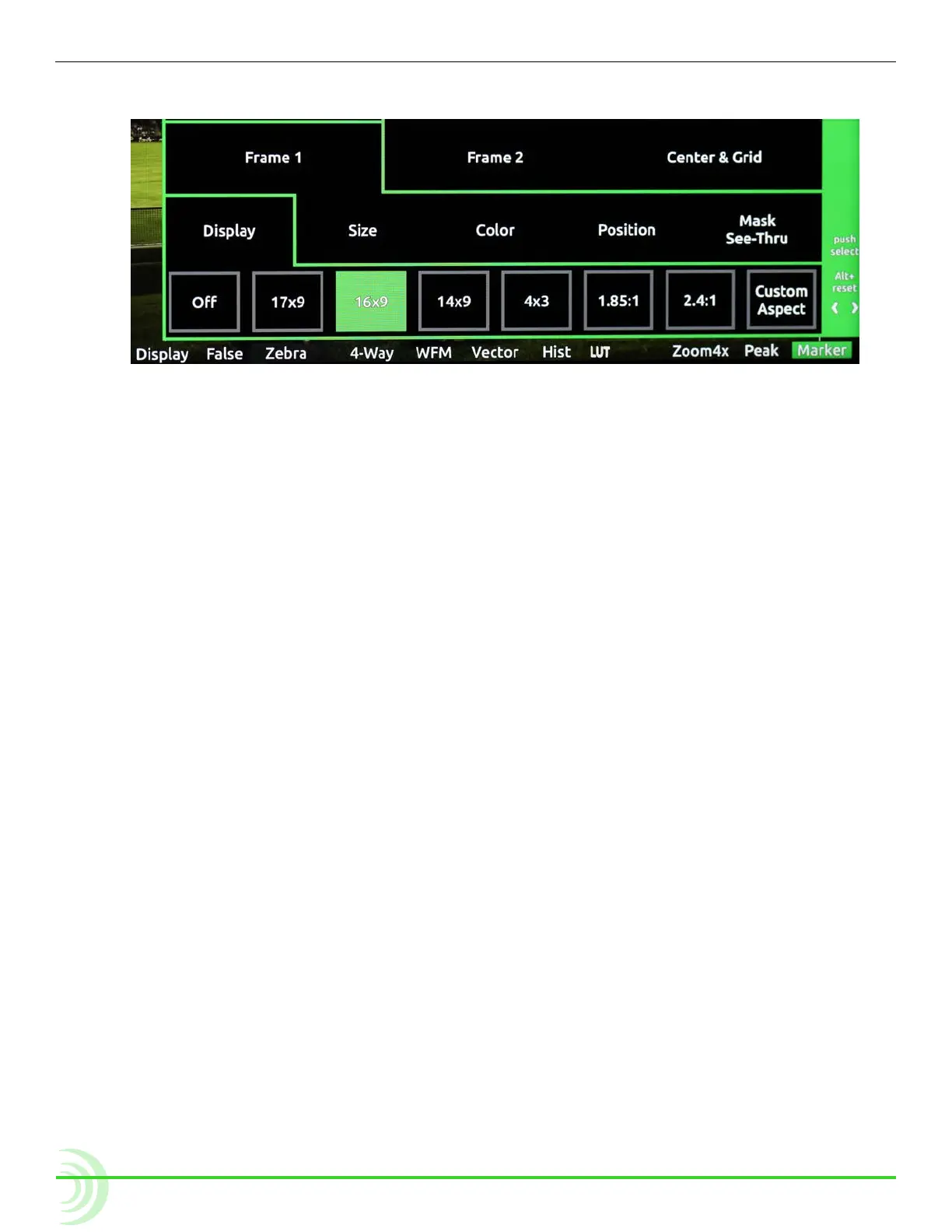
Other such menus will feature settings in a nested tabular format. The tab of
the active setting is outlined in green.
You can use the touch screen or Control knob to navigate soft key menus.
To use a Soft Key menu:
1. Do either of the following:
X Use the Control knob by turning it to navigate tabbed settings and re-
lated options. Press in the Control knob to make a selection, and turn it
to adjust any values, such as sliders.
X Touch the screen to select a tabbed setting or related option. Touch and
swipe your ngertip along sliders to adjust any values.
2. When nished modifying settings, exit the menu by pressing the soft key
button again or touching elsewhere on the screen.
To reset the default of any Soft Key menu setting:
X With the menu’s setting displayed, press and hold the ALT button while
pressing in the Control knob.
Configuring the On-Screen Display
The look of the OSD may vary depending on the conguration of certain set-
tings available in the Monitor menu. For instance, the brightness or contrast of
the display image might need adjusting. Or perhaps, the background for the
information bar and all soft key menus appears opaque instead of transparent
when superimposed over the video image.
To congure the Monitor settings:
1. Press and hold the MENU button for 1 second. The Monitor menu appears
superimposed over the lower portion of the screen.
2. Adjust the following settings as needed to achieve the look you want.



 To Next Page