33
PIX-ASSIST MONITORING SUITE
To view/hide the histogram:
X Press the Hist soft key button.
To adjust histogram settings:
1. Press and hold the Hist soft key button. The Vectorscope menu appears.
2. Use the touch screen or Control knob to change settings.
setting Description options
Histogram Type Sets the type of histogram to display. • Luma (white)
• Luma (green)
• RGB Overlay
• RGB Parade
Background Video
Contrast
The contrast level of the background video
when waveform monitor is displayed.
i For a black background, adjust to 0%.
• 0% - 100%
Using 4-Way Monitoring
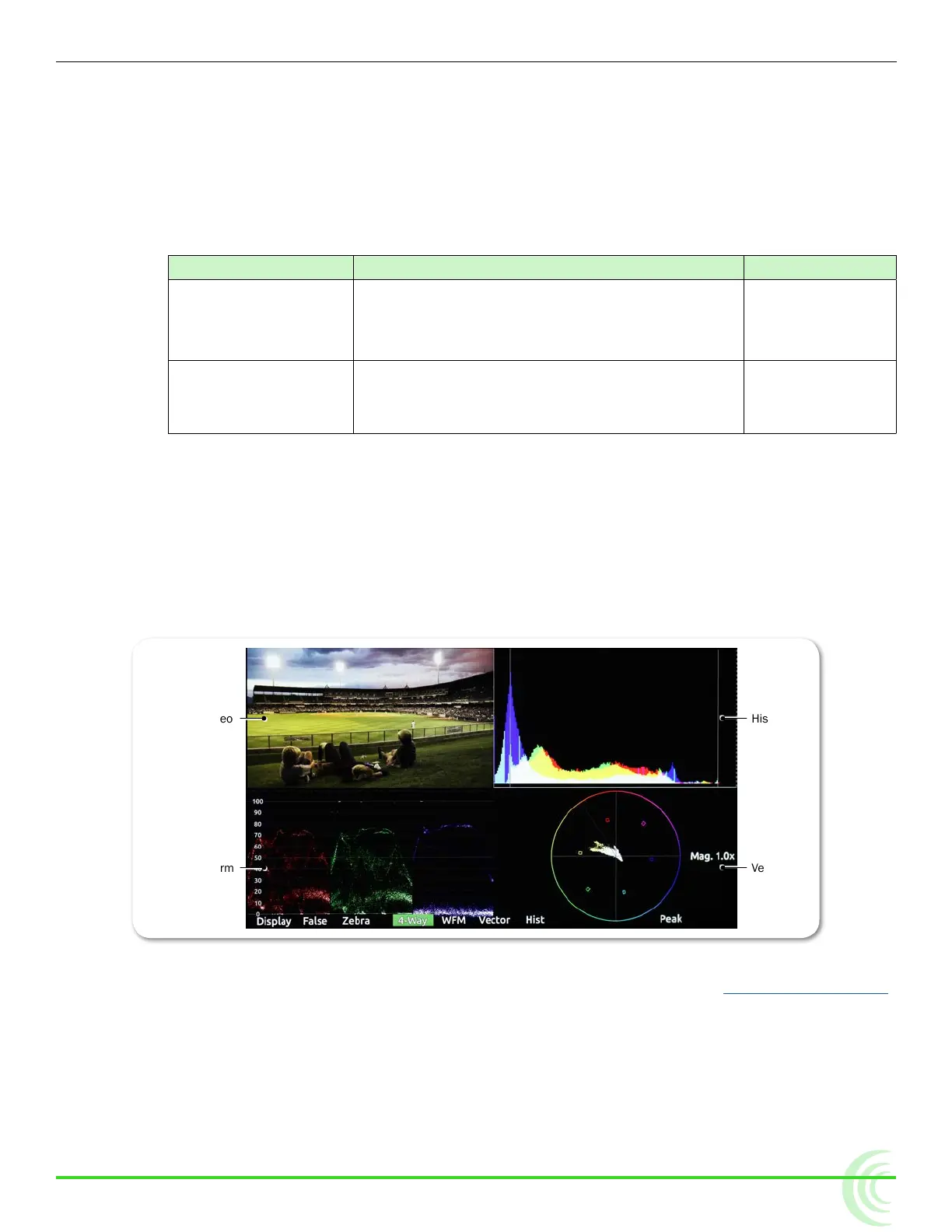
4-Way monitor mode splits the screen into 4 quadrants, simultaneously display-
ing the video signal, histogram, waveform, and vectorscope. This provides a
great overview of exposure and color attributes of the incoming video.
The following image shows an example of the display while in 4-way monitoring
mode.
Vectorscope
HistogramVideo
Waveform
When in 4-way monitoring, a tap on any one of the four quadrants will enlarge
the view displayed in that quadrant to full screen.
see DeMo ViDeo
To begin 4-way monitoring:
X Press the 4-Way soft key button.
X Tap the screen while viewing the full-screen histogram, vectorscope, or
waveform monitor.



 To Next Page