User Guide
34
The overlay monitoring assist tools are still available when 4-way is displayed.
For instance, you can turn on 4-way monitoring and view the video in the top
left quadrant with peaking, false color, or zebras overlaid on the image.
To exit 4-way monitoring:
X Press the 4-Way soft key button again.
X Tap any one of the four quadrants to expand that view full screen.
i While a tap will expand one of the three scopes full screen, a second tap will tog-
gle back to 4-way monitoring. That is not the case with the video quadrant; a tap
there will exit 4-way and restore full screen viewing of the video signal. A second
tap afterward will, if TapZoom is enabled, zoom in on the image.
Using LUTs
To aid onset viewing, most camera manufacturers provide monitoring LUTs
(lookup tables) to convert the cameras’ LOG output into easily viewed imagery
that more accurately represents the nal image.
The PIX-E monitors come equipped with several standard LUTs, but custom
LUTs may also be used via SD card or SpeedDrive.
When a LUT is active, it is applied to the LCD and video outputs.
To activate or deactivate a LUT:
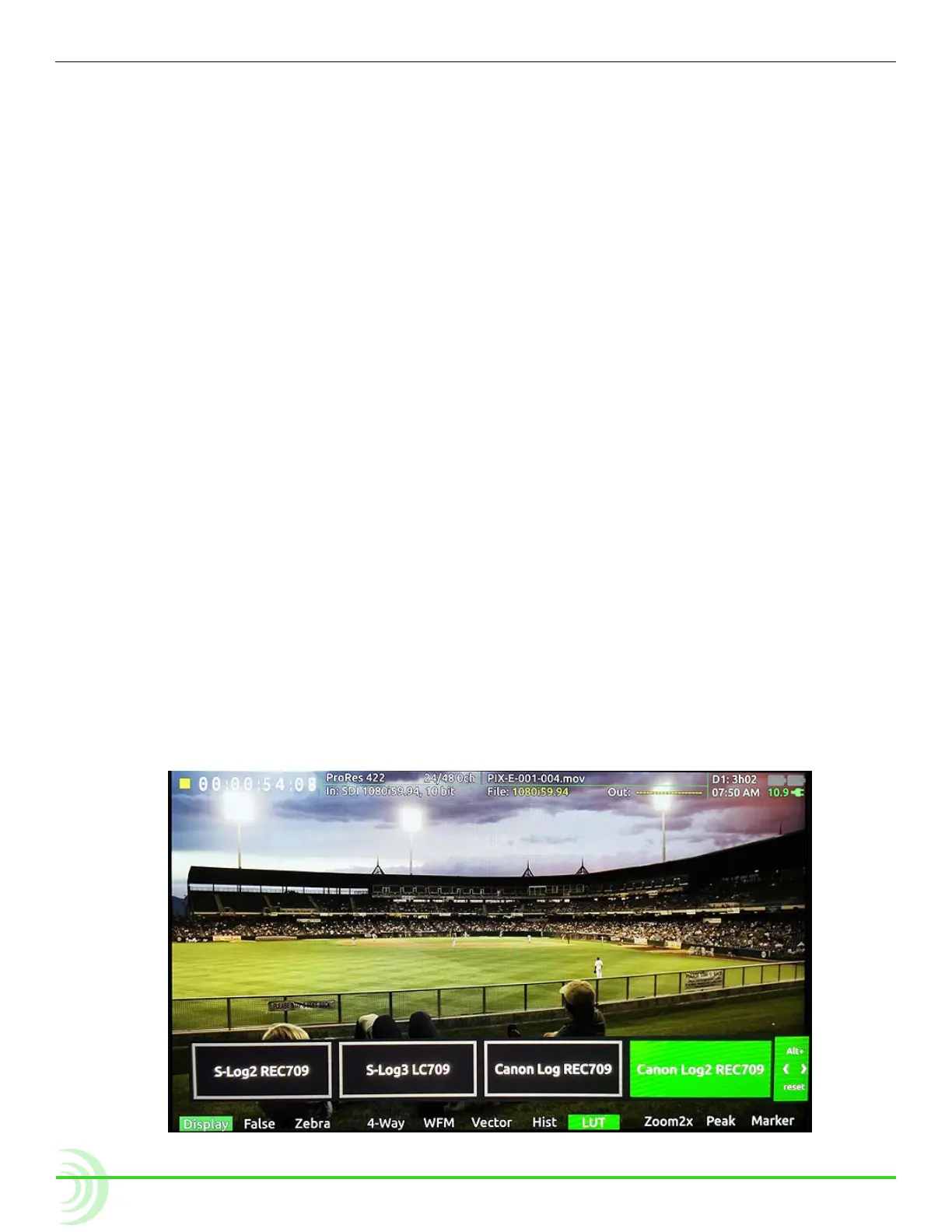
X Press the LUT soft key button. The LUT soft key label appears green when a
LUT is activated.
To compare LUTs and view the name of the currently selected LUT:
1. Press and hold the LUT soft key button.



 To Next Page