47
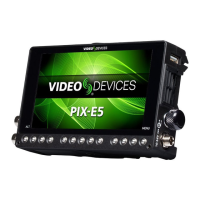
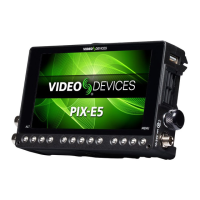
Topics in this section include:Although the PIX-E5 and PIX-E5H are
powerful camera-mount monitors, they
also have fully integrated recording
capabilities.
Both can record Apple ProRes les and
playback the recorded QuickTime les
from a SpeedDrive.
i Sound Devices recommends the
camera’s output be set to required
frame resolution and rate before
connecting the camera to the PIX-E
monitor.
Record and Playback Icons
The information bar at the top of the screen displays various information related
to the recording process, such as timecode and le names, but it also displays
transport status icons. The following table provides a quick reference to these
icons.
icon status Description
Record The red circle icon is displayed when recording is in progress.
Stop The yellow square icon is displayed when recording or playback is stopped.
Play The green arrow icon is displayed when playback is in progress.
Pause The green pipes icon ashes when playback is paused.
Recording
The PIX-E5 accepts SDI or HDMI signals, and the PIX-E5H accepts only an HDMI
signal. Both record Apple ProRes QuickTime les to an attached and formatted
SpeedDrive. The SpeedDrive must be formatted by the PIX-E monitor. For for-
matting instructions, see Formatting Storage Drives.
Record and Playback Icons
Recording
Choosing a Video Input Source
Setting up a Record Trigger
Selecting a Video Codec
Setting PsF Options
FileSafe
Viewing the File List
Playing Back Recorded Files
Recording and Playback


 To Next Page