23
PIX-ASSIST MONITORING SUITE
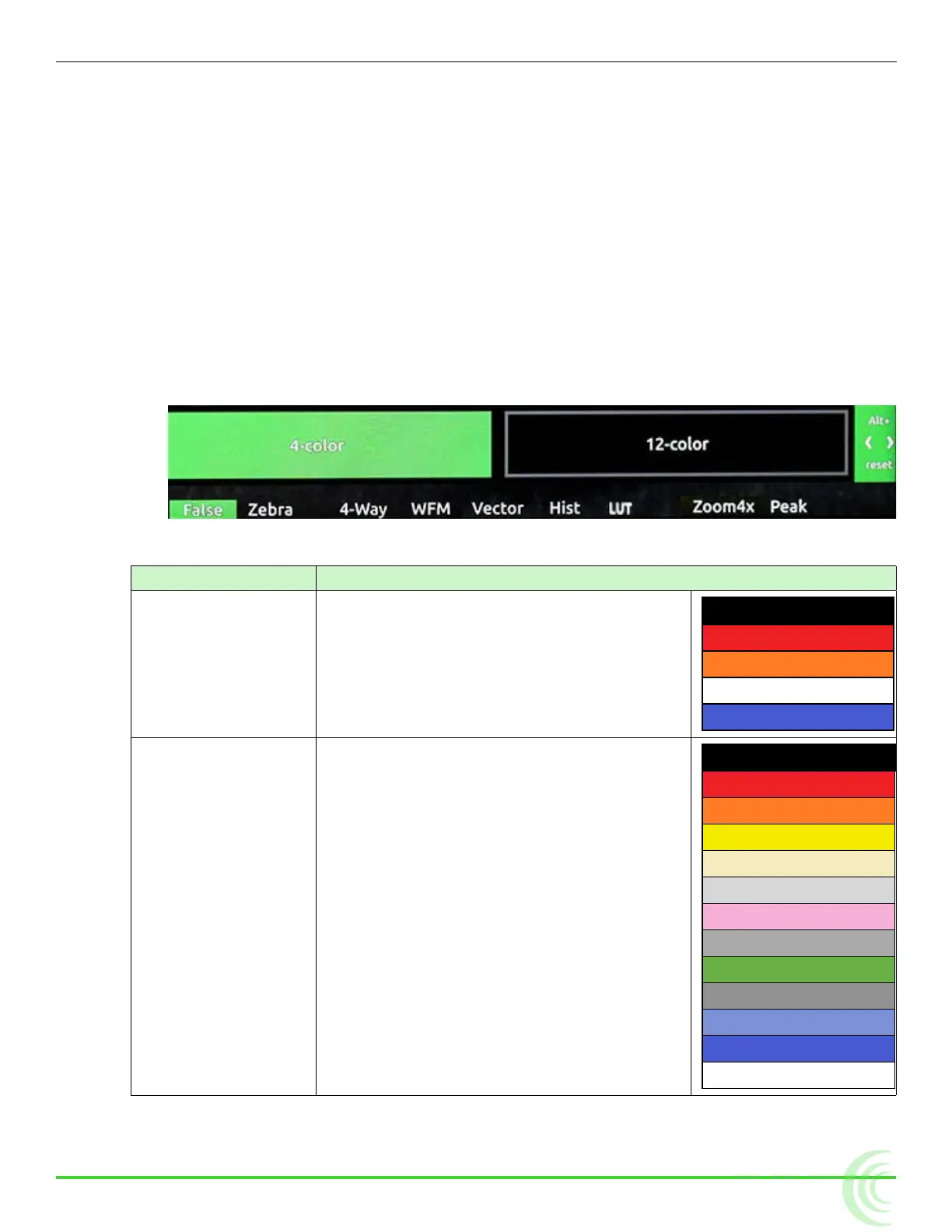
The 4-color mode is ideal for quickly identifying over- and under-exposed re-
gions. Under-exposed regions are highlighted blue and over-expoed regions as
yellow or red. All exposure levels in between are displayed as grey scale.
The 12-color mode is also used for identifying over- and under-exposed re-
gions; however, it also provides a quick way to achieve correct exposure levels
for skin tone and middle grey. For example, correctly exposed Caucasian skin
tone typically shows as pink.
To enable or disable false color:
X Press the False soft key button.
To adjust false color settings:
1. Press and hold the False soft key button. The False menu appears.
2. Use the touch screen or Control knob to change settings.
options Description
4-color The 4-step mode divides the monitor signal
into 4 luminance ranges, assigning a color
to all but one range; this range is displayed
without chroma.
4-step
100-108 Red
95-99 Orange
3-98 N/A
0-2 Blue
12-color The 12-step mode divides the monitor signal
into 12 luminance ranges, assigning a color to
each one.
Red and orange (95-108) ranges indicate
over-exposure.
Middle greys and skin tones typically fall in
the green, pink, and medium to light grey
(43-78) range.
Blue and white (0-12) ranges indicate un-
der-exposure.
12-step
100-108 Red
95-99 Orange
85-94 Yellow
79-84 Light Yellow
59-78 Light Grey
53-58 Pink
49-52 Medium Grey
43-48 Green
23-42 Dark Grey
13-22 Light Blue
3-12 Blue
0-2 White
3. Press the False soft key button again to exit.



 To Next Page