User Guide
26
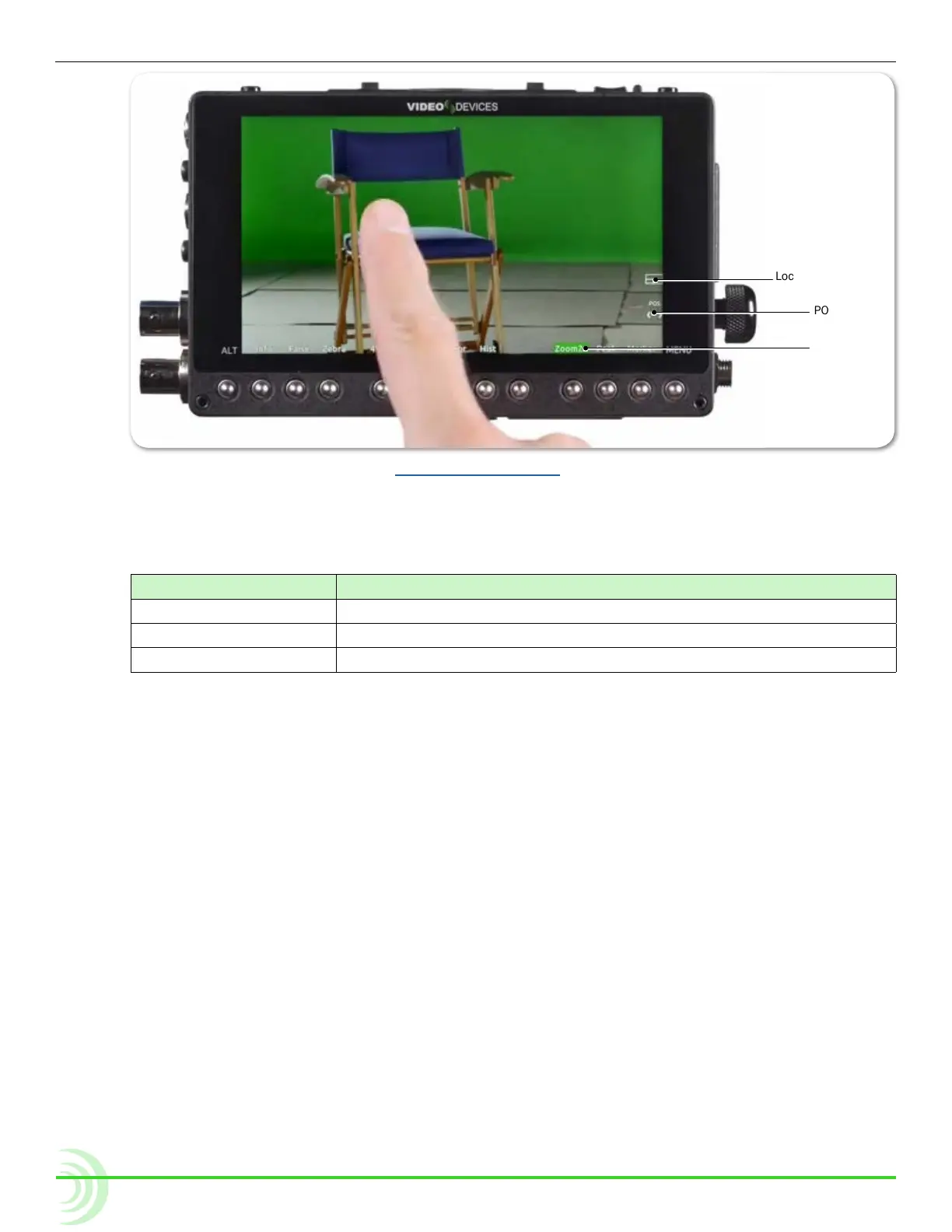
POS Arrows
Locator Graphic
Zoom
Soft Key
Label
see DeMo ViDeo
Magnication is controlled by a Zoom soft key button, and the soft key label
displays the current setting related to the Zoom feature.
soFt Key LabeL Description
Zoom2x When set to 2x, activating zoom will zoom with 200% magnication.
Zoom4x When set to 4x, activating zoom will zoom with 400% magnication.
NoZoom Indicates when zoom functionality is disabled.
When zoomed in, the monitor centers the screen on the tapped target, displays
the word ZOOMED in red, and provides a rectangular locator graphic to pinpoint
zoomed area within the full image. That location is known as the center point.
Below the locater graphic is POS, or repositioning options, with arrows indicat-
ing the direction in which you can move that center point.
To reposition the center point:
X Swipe your ngertip across screen to move the zoomed-in image around on
the screen. The center point is repositioned accordingly.
X Turn the Control knob to reposition the center point. Press the knob in to
switch between horizontal or vertical positioning.
Targets in Motion
Repositioning the center point works well for stationary subjects, but if a sub-
ject moves, a quick tap in certain zones can help recenter the zoomed view,
keeping your shot on target. The screen is split into nine zones.



 To Next Page